

Settings for Printing Parameters in Creality K1 Series
The Creality K1 and K1 Max, the flagship models from Creality, were launched in April 2023. They boast impressive specifications including a maximum speed of 600mm/s and an acceleration of 20000mm/s², ensuring quick and precise prints. The hot end can accommodate a maximum flow of 32mm³/s, making it compatible with a variety of filaments such as ABS, PLA, PETG, TPU and more.
In this article, we will provide a comprehensive guide to the printing parameter settings of the K1 Series. This will aid users in troubleshooting printing issues and in producing superior quality work. Below are the types of filaments supported by the Creality K1 Series:
| Creality K1 Series Filament | ||
| Diameter of Filament: | 1.75mm | |
| Hyper-Speed Filaments | ABS/Hyper-Speed PLA | |
| Standard Filaments | PLA/PETG/PET | |
| Flexible Filaments | TPU | |
| Strength Filaments | PA/ABS/ASA/PC | |
| Wear-Resistant Filaments | PLA-CF/PA-CF/PET-CF | |
We will now present a step-by-step guide to the K1 Max Printing Parameter Setting:
1. Slicing Configuration
- To configure your slicing settings effectively, launch Creality Print version 4.3.6.6220 or a more recent version.
- Set your printer to K1 Max.
- In the filament section located at the top right of the interface, opt for "General filament" (For versions earlier than 4.3.6, it is labeled as "generic").
-
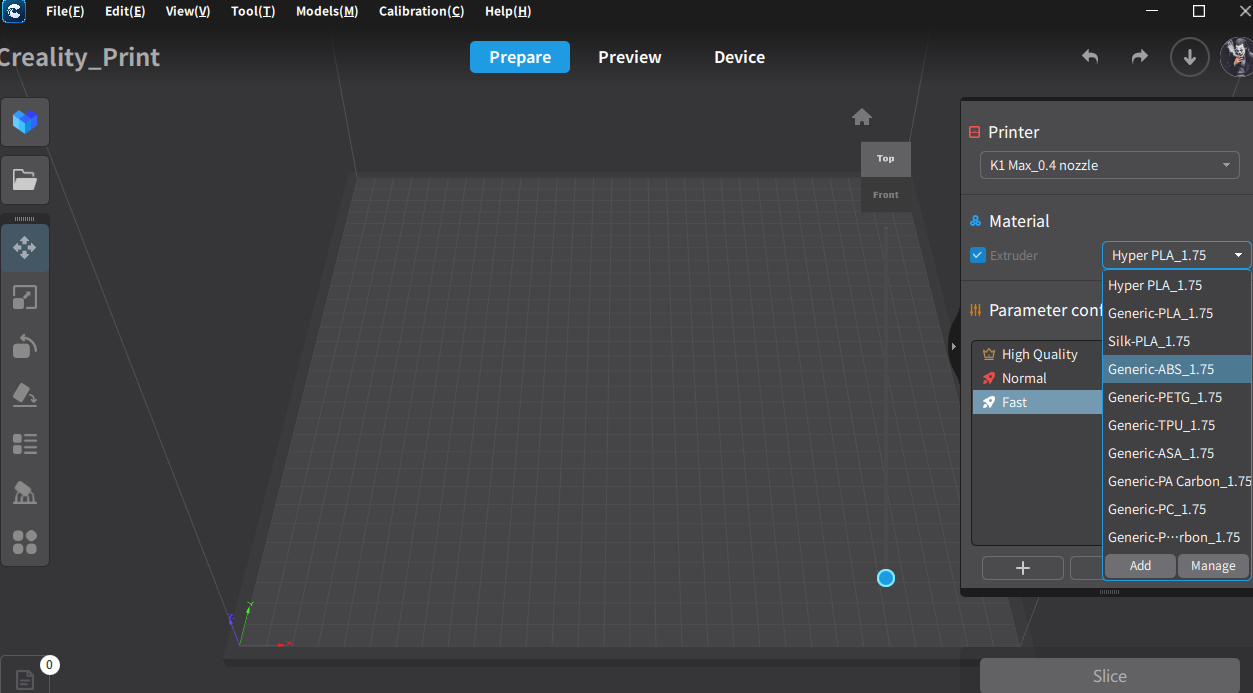
When printing with ABS, choose "General ABS" from the filament list and initiate the slicing process.
-
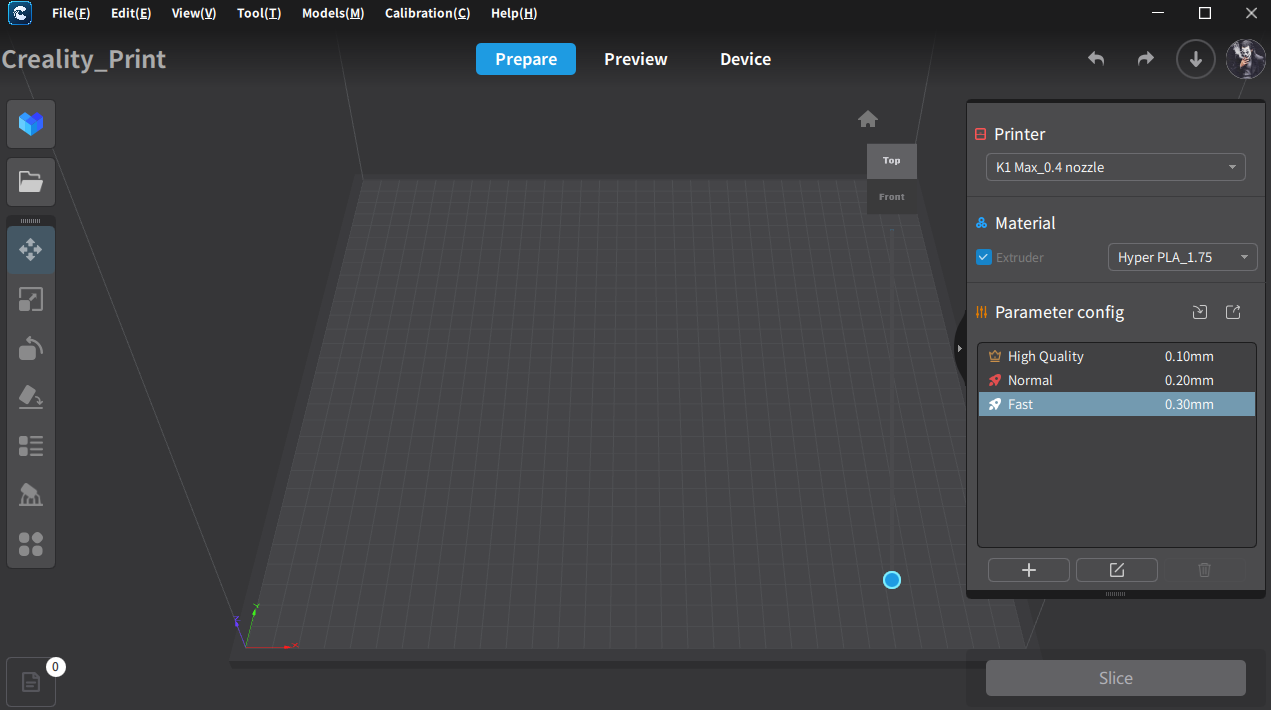
Similarly, when using Hyper PLA, select "Hyper PLA".
-
And for Silk PLA, opt for "Silk-PLA" from the filament list.
2. Preparing for Printing
2.1 Cleaning the Build Plate
If the build plate is soiled, possibly due to hand sweat contamination, clean it using dishwashing detergent and water, or wipe it down with alcohol.
In cases of excessive adhesive application or multiple prints, it is advisable to clean the build plate with water.
2.2 Ensuring Proper Adhesive Application
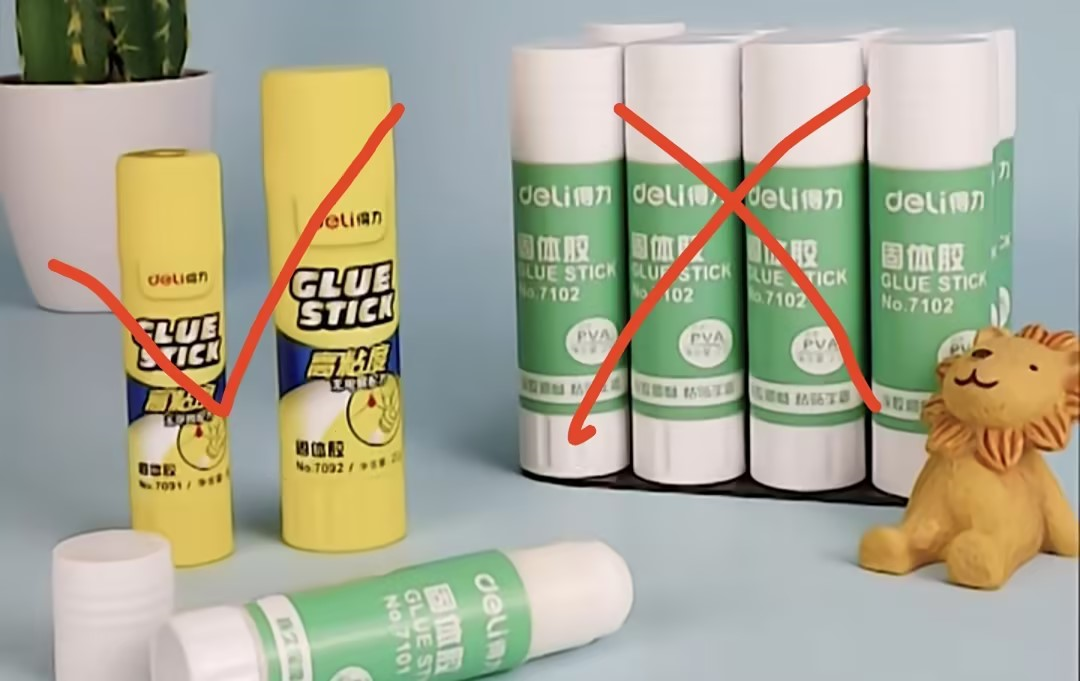
Ensure the use of the correct glue stick, either the one provided with the machine or Deli's yellow glue stick, while avoiding green Deli glue sticks.
Apply a thin layer of the glue stick to the build plate.
2.3 Confirming the Need for Print Calibration
Verify print calibration settings, encompassing automatic bed leveling, flow rate calibration, and first-layer detection functions (Flow rate calibration/First layer detection functions are deactivated by default).
If left unchecked, automatic bed leveling, flow rate calibration, and first-layer detection will not be activated.
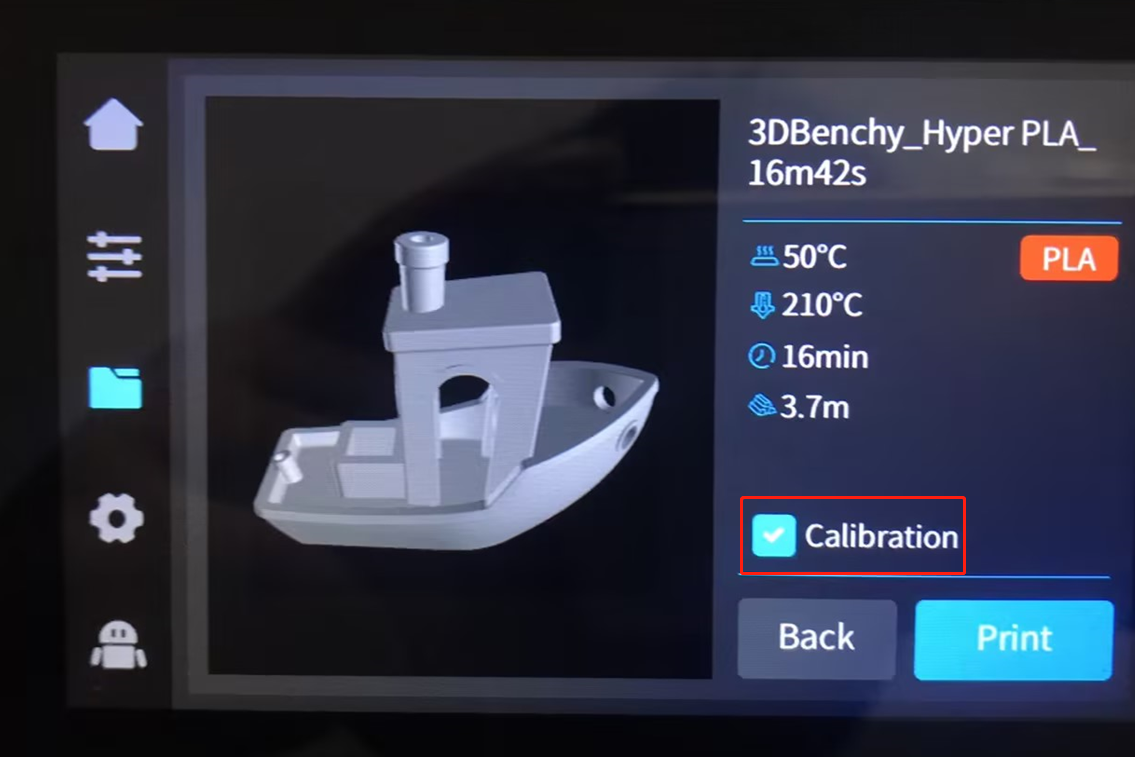
FAQs about Print Calibration
-
When must Print Calibration be selected?
-
When switching filament different from the previous print, e.g., switching from PLA in the previous print to ABS (different bed temperature, leveling data differences).
-
When the machine has been moved.
-
After a firmware upgrade.
-
When is Print Calibration not required?
-
When reprinting the same model that was previously successful.
-
When printing a relatively small model, located at the center of the build plate.
3. During Printing
If you are printing with engineering materials like ABS/ASA, it is recommended to manually deactivate the enclosure fan for optimal results.
4. K1 Series Filament Guidelines
Official Filament Parameters for K1 Series Machines
| K1 Series Machine filament Universal Parameters Table | ||||||
|
Filament Names |
Nozzle Temperature (°C) |
Bed Temperature (°C) |
Optimal Printing Speed (0.2mm Layer Height) mm/s |
Maximum Volume Flow mm³/s |
Model Cooling |
Auxiliary Cooling |
| Hyper PLA | 220 | 45 | 300 | 23 | 100% | 80% |
| CR-PLA | 230 | 45 | 150 | 20 | 100% | 80% |
| PLA-silk | 230 | 45 | 120 | 10 | 100% | 80% |
| Generic PLA | 230 | 45 | 200 | 18 | 100% | 80% |
| Generic PETG | 250 | 70 | 120 | 9 | 80% | 0% |
| Generic ABS | 260 | 100 | 250 | 20 | 70% | 0% |
| Generic TPU | 230 | 50 | 50 | 3.5 | 100% | 70% |
| CR-PLA Carbon | 220 | 45 | 150 | 11 | 100% | 0% |
| CR-PA Carbon | 250 | 100 | 120 | 10 | 80% | 0% |
| Generic ASA | 260 | 100 | 150 | 15 | 80% | 0% |
| Generic PC | 260 | 100 | 120 | 10 | 80% | 0% |
Notes:
1. The maximum print speed of filament is influenced by material characteristics and should adhere to the recommendations of the material manufacturer and official slicing software configuration.
2. It is advised to uniformly apply solid glue to the print bed before printing to enhance first layer adhesion.
3. For moisture-sensitive materials like PA/PA-CF/TPU, it is recommended to dry them before printing or store them in a dry environment.
4. When using non-official filament, select generic filament parameters in the slicing software.
5. For superior print quality, it is recommended to use official high-speed filament.
Recent News

8 Halloween 3D Prints for Australian Spring Parties

Creality EOFY Sale 2026: Save Up to 60% on 3D Printers, Scanners & Accessories

Creality Black Friday Australia 2026: Deals for Your Next Project
