


Creality K1 Max Hotend Kit Replacement Tutorial
If you're looking to upgrade the performance of your Creality K1 Max or replace a worn out hotend, this step-by-step guide will take you through the process of replacing the hotend kit.
For more K1 Max upgrade kits, replacement accessories or filament combo, you can check out the K1 Max product page you may also like the following part.
Now, let's get started in this guide.
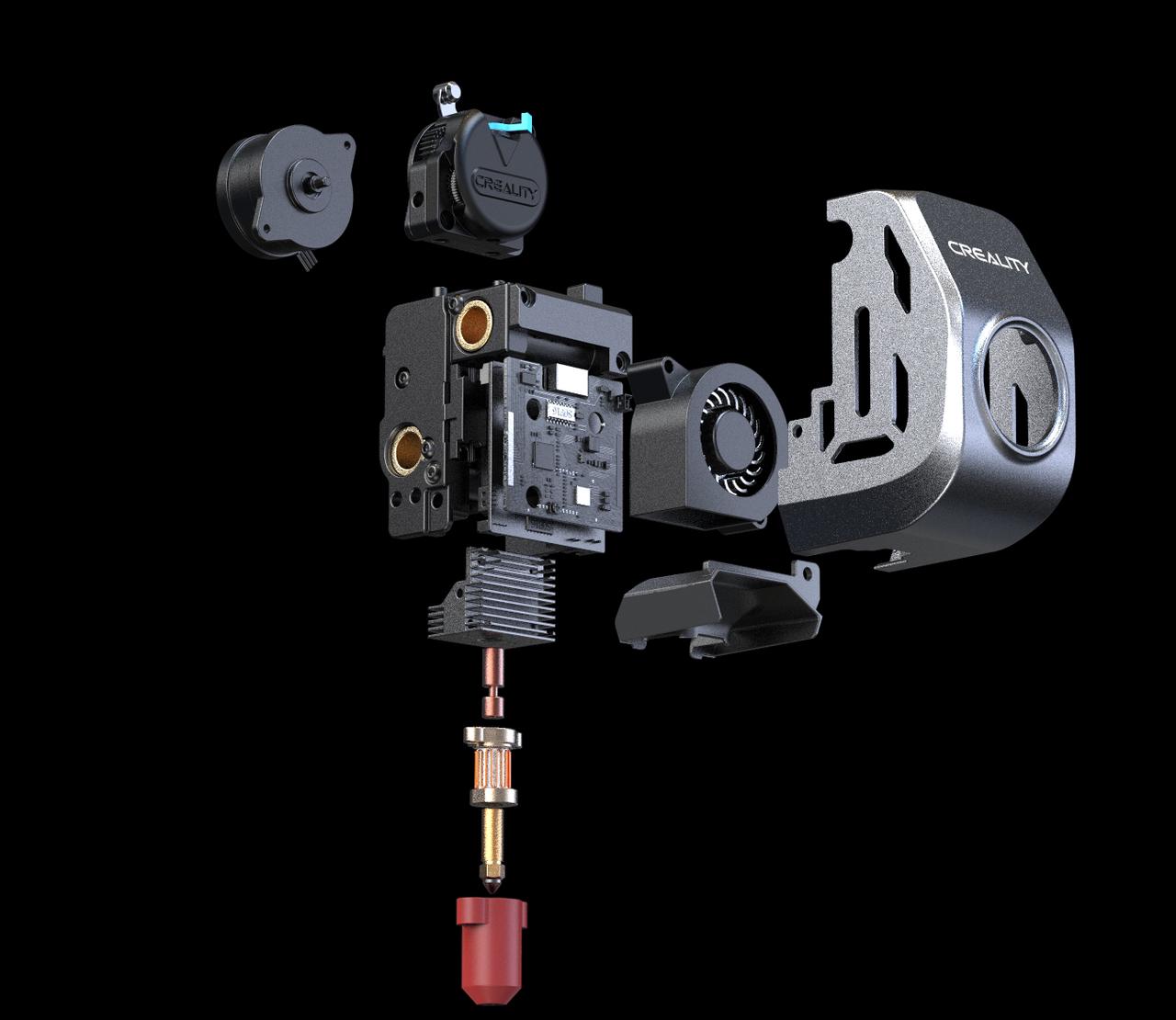
1. Remove the filament and power off the machine
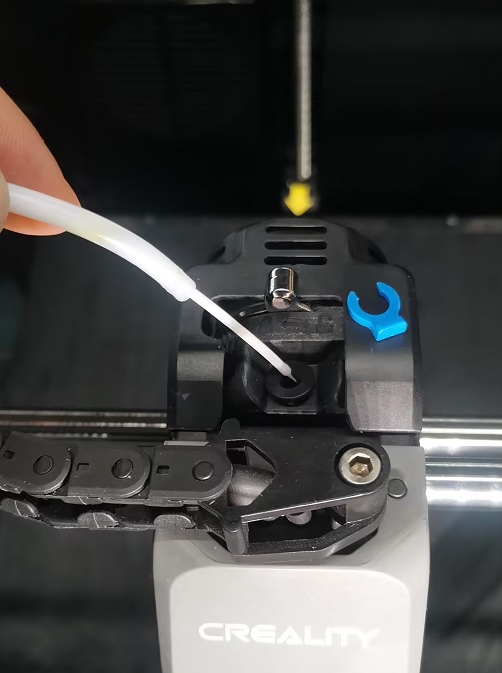
1.1 Set nozzle temperature to 260°C, remove the blue clip, extract the PTFE tube, and switch off the extruder kit and remove the filament.
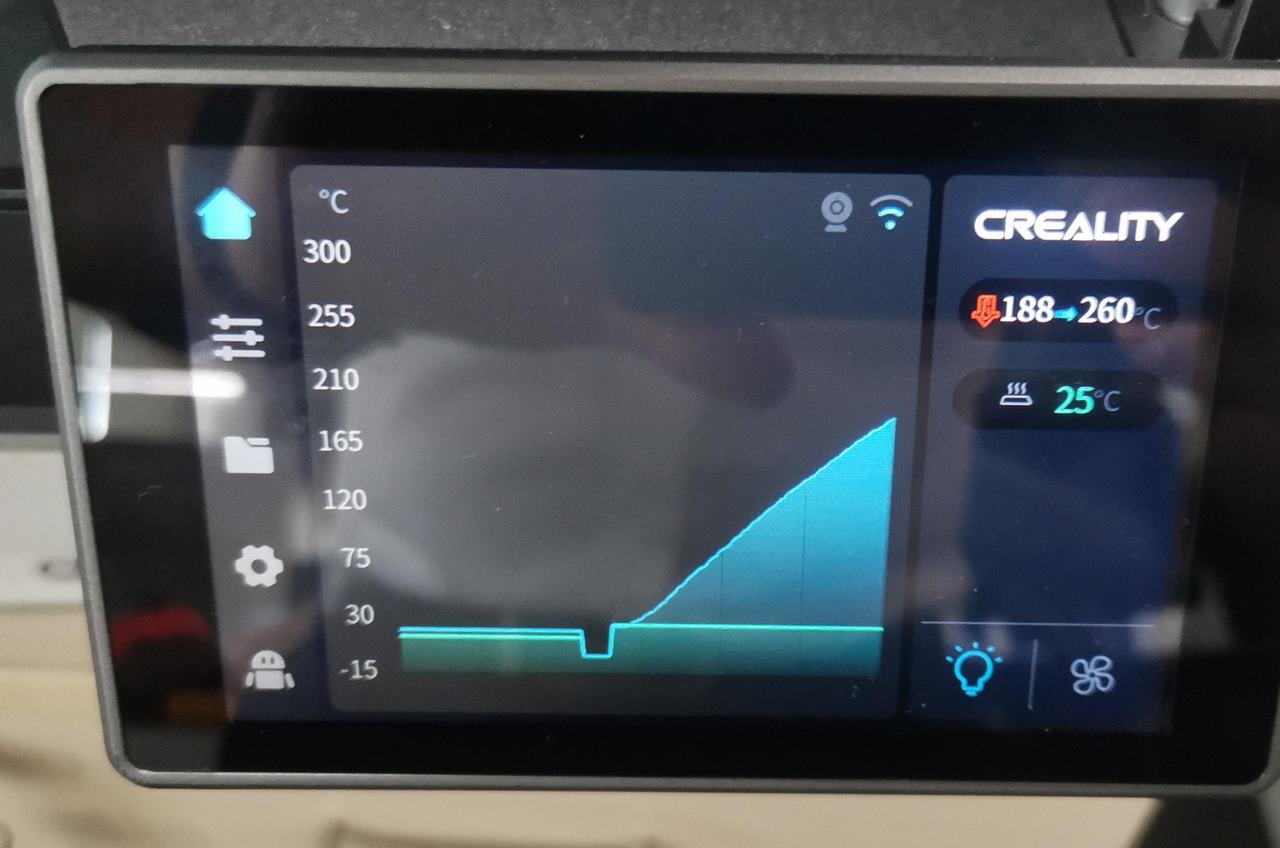
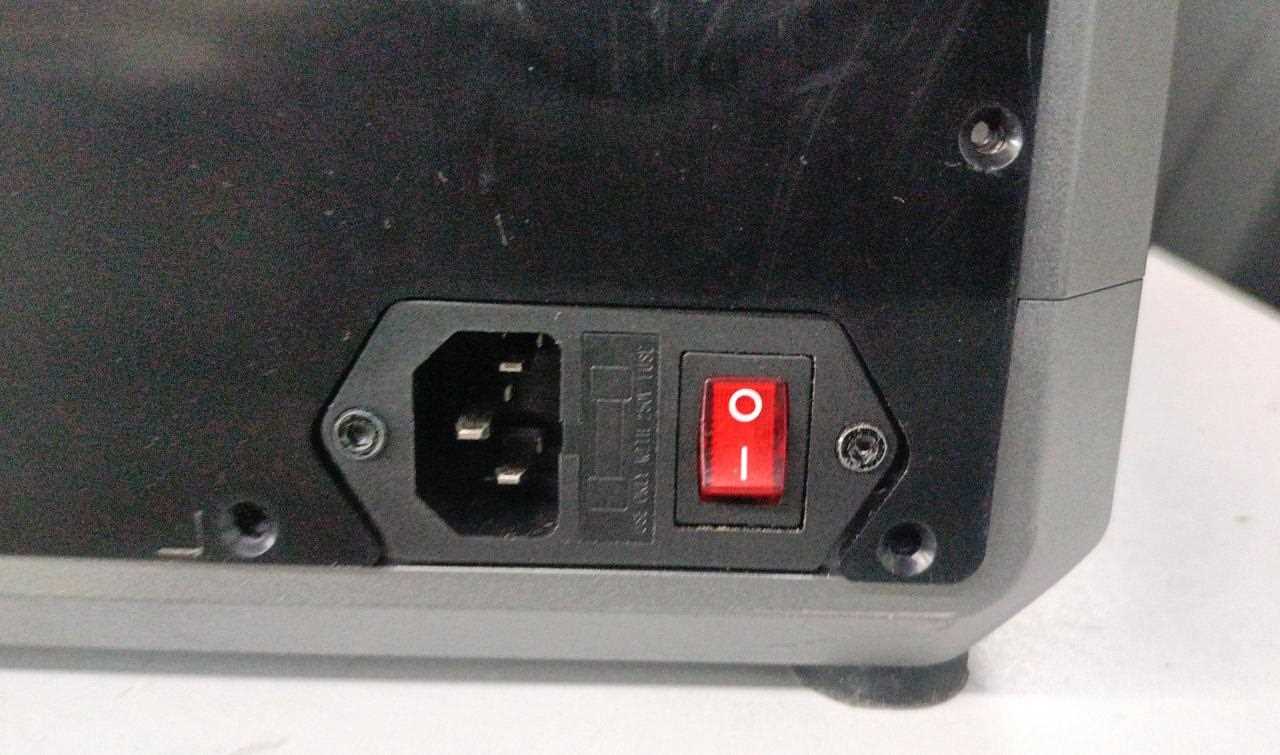
1.2 Power off or set the nozzle temperature to 0°C.
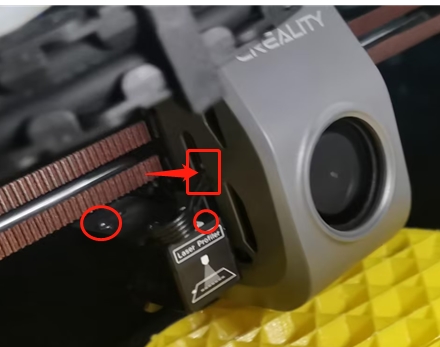
2. Disassemble the AI Lidar
Disconnect the cable terminal and remove the fixing screws above the AI Lidar.
3. Disassemble the Fan Cover
3.1 Detach the fan cover by removing screws on both sides.
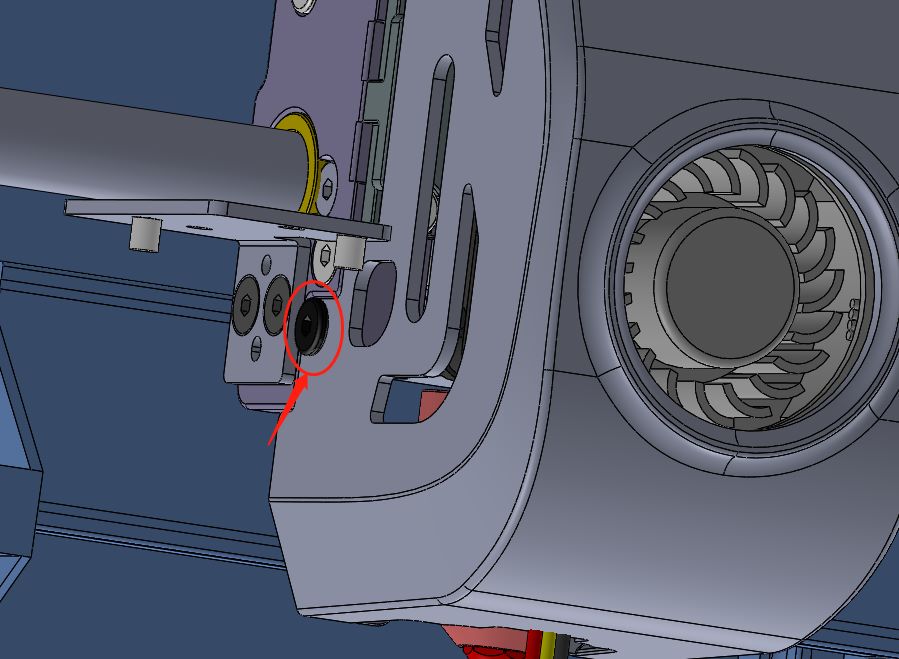
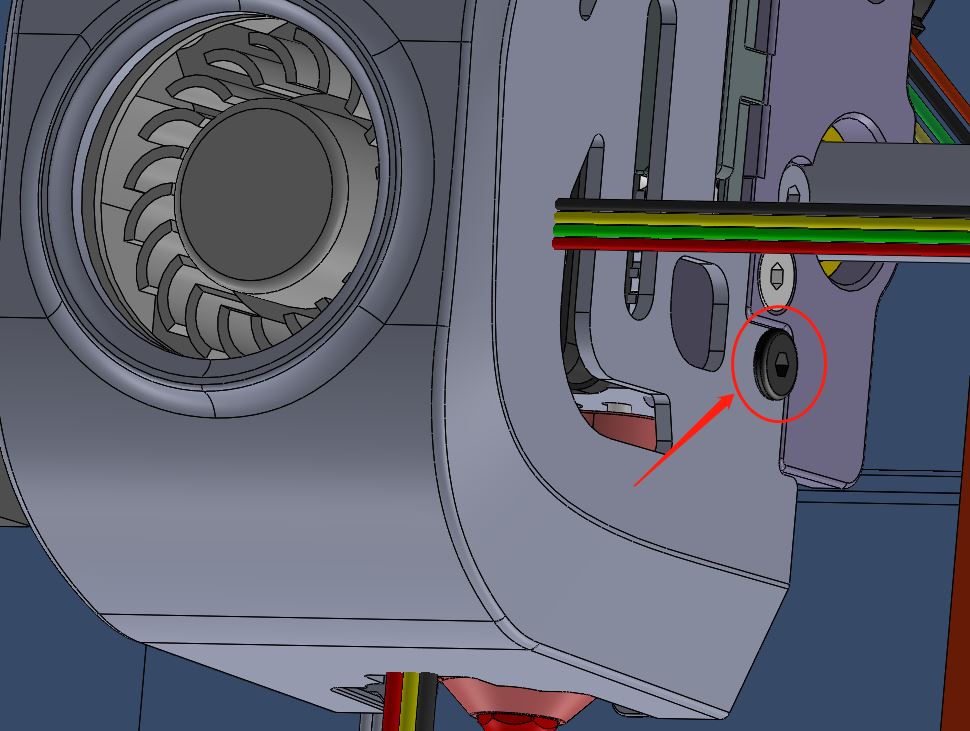
3.2 Take off the fan cover and unplug the cooling fan cable.
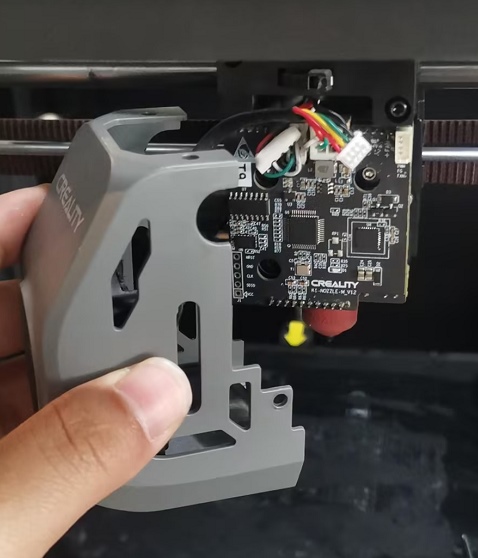
4. Disassemble the Hotend
4.1 Cool down the hotend and remove the silicone sleeve.
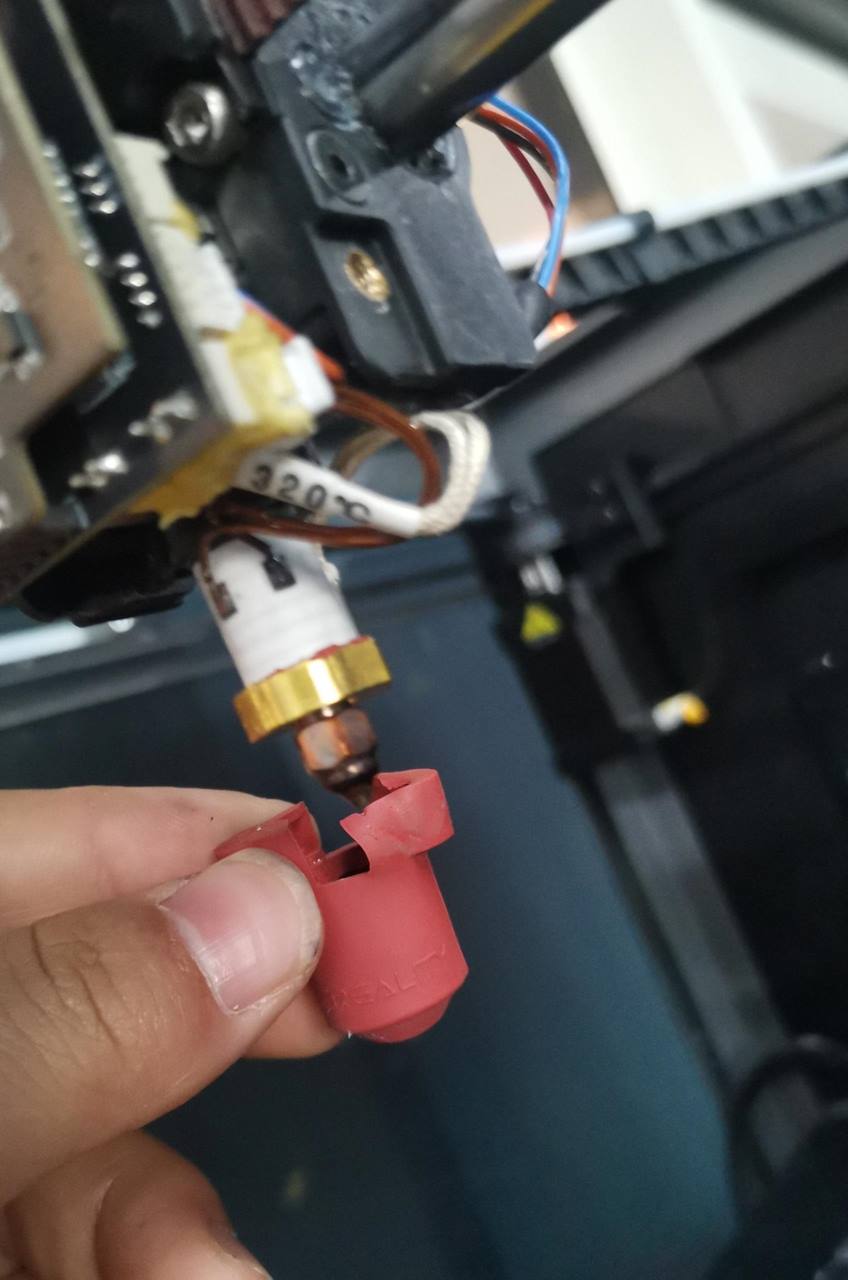
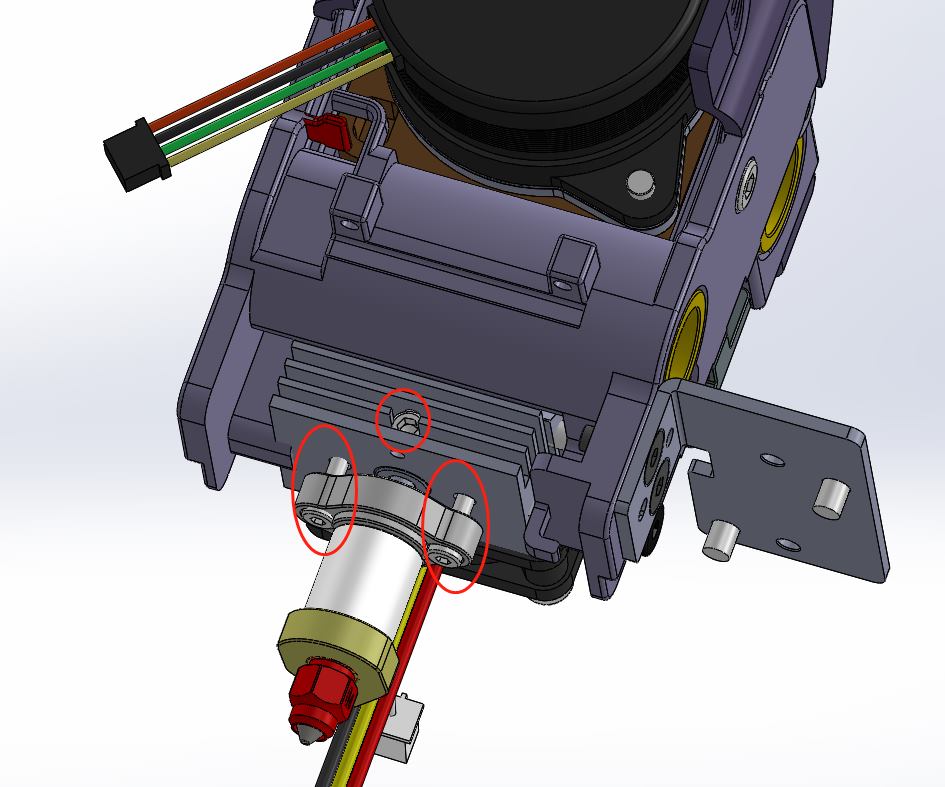
4.2 Use an Allen wrench to disassemble screws on the heat sink and hotend.
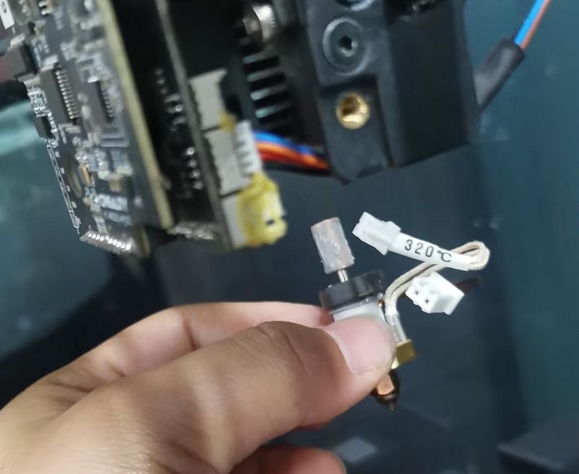
4.3 Unplug heater and thermistor cables and remove the hotend.
5. Install a New Hotend
5.1 Add thermal grease to the throat tube's upper end and insert it into the heat sink.
5.2 Insert heating tube and thermistor connectors into the sub-board terminals.
5.3 Tighten fixing screws and throat tube screw to secure the hotend without tilting.
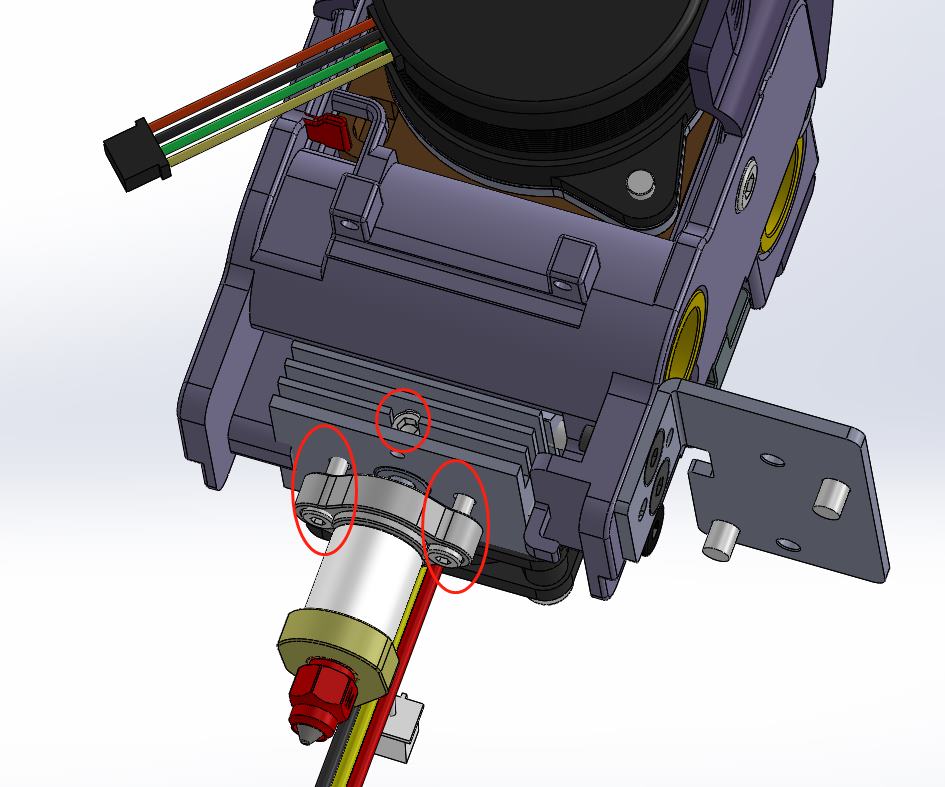
5.4 Align the silicone sleeve with the nozzle and slide it over the hotend.
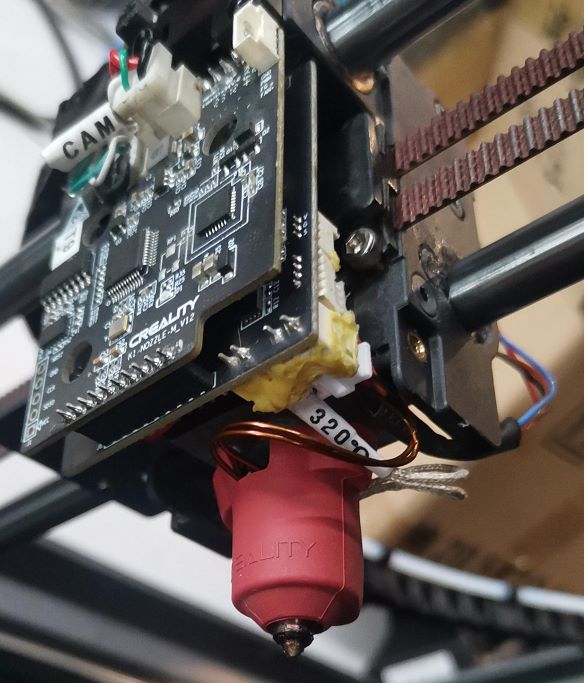
6. Reassemble the Fan Cover
Insert the model cooling fan connector, fasten the cover, and tighten screws on both sides.
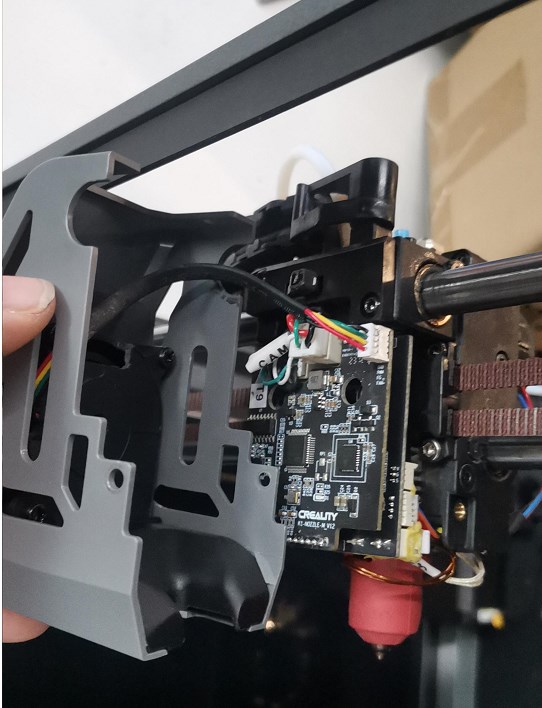
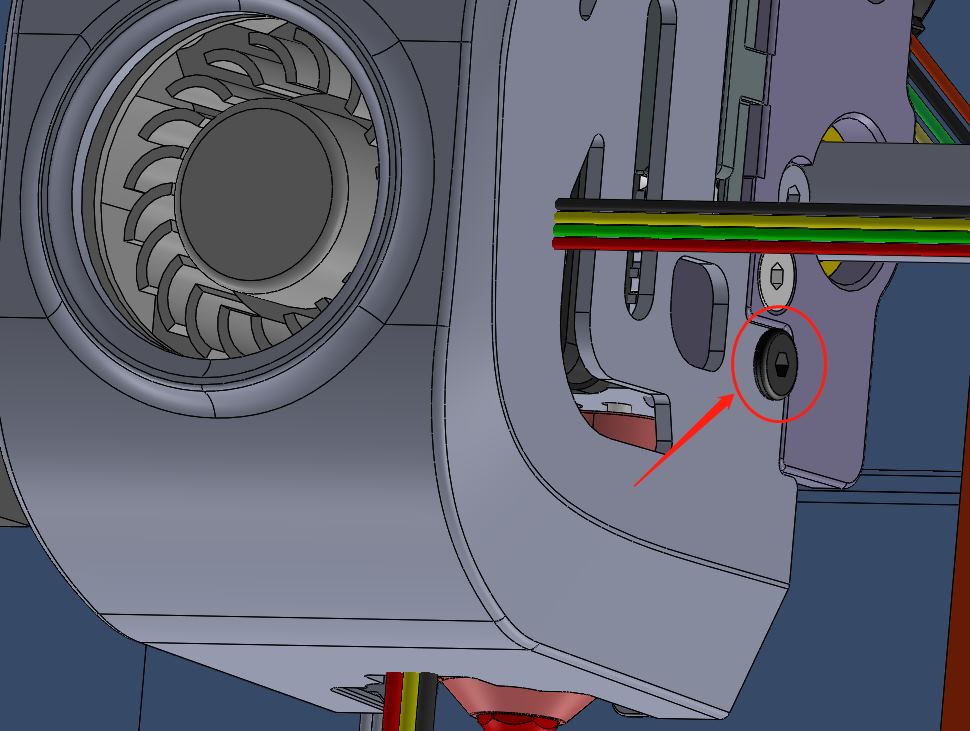
7. Reassemble the AI Lidar
Insert connectors and align posts into mounting holes; secure them with flat head screws.
 People also read:
Recent News

Creality Ender 3D Printers Compared: Which Printer Is Better for You?

3D Printer Nozzle Blocked? Causes and Safe Fixes

10 Best Back-to-School 3D Prints for Students in 2026
