


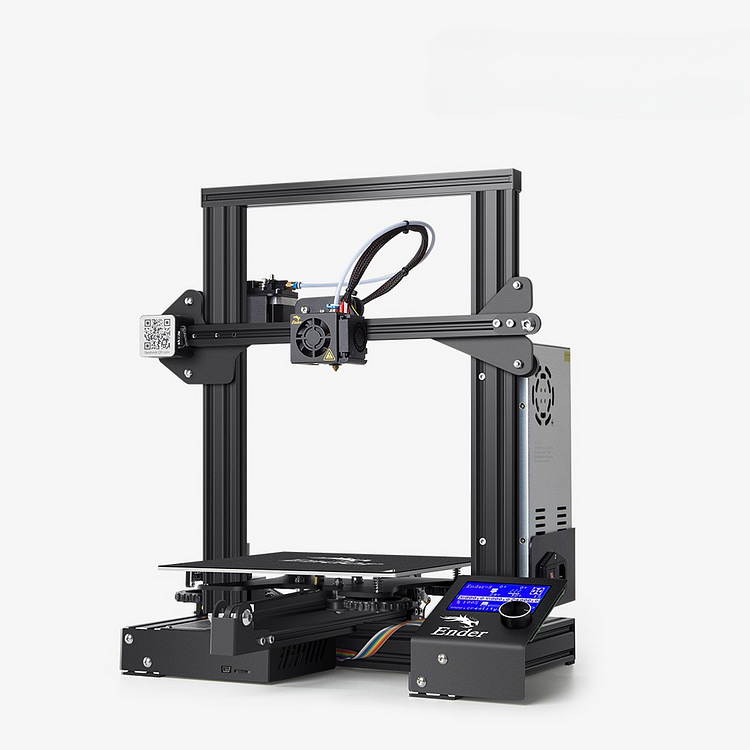
Ender-3 3D Printer
【DIY Assembly】
【Integrated Structure】
【High Precision Print】
【Stable Power Supply】
【Build Volume 220*220*250mm】
Creality Ender-3 Series Professional Firmware Upgrade
Tutorial
2024-12-23 09:50:06
In the realm of DIY 3D printing, the Ender-3 has distinguished itself as a remarkable model, celebrated for its affordability and versatility. However, to fully harness the potential of your Ender-3, updating its firmware is an essential step.
This comprehensive guide will take you through the why, when, and how to upgrade your Ender-3 firmware, ensuring you get the most out of your 3D printing experience.
Despite being an older model, the Ender-3 printer can still improve your printing efficiency and success rate through upgraded accessories. Read our "Ender-3 upgrade" guide to learn more.
Best Ender 3 Printer Alternative

Ender-3 V3 SE Beginner's Top Pick
【250mm/s max printing speed & 2500mm/s² acceleration】
【Features CR Touch & Strain Sensors for Auto leveling】
【 "Sprite" Direct Extruder】
【Stable dual Z-axis 】
【Build Volume 220*220*250mm】
【Get Printing Started within 20 Minutes* 】
Why Update Ender-3 Firmware?
- Safety First: The foremost reason to update your firmware is safety. Thermal runaway protection, not always activated in older firmware, is a crucial feature that prevents overheating and potential fire risks.
- New Features and Enhancements: Firmware updates frequently introduce new features, improved usability, and optimizations that elevate the performance and quality of your prints.
- Bug Fixes: As with any technology, bugs occasionally appear in firmware. Updating ensures these issues are resolved, offering a more stable and dependable printing experience.
When to Update Your Ender 3 Firmware
While frequent updates aren't necessary, you should consider updating your firmware when:
- A new version is released, offering new features or critical bug fixes.
- You're encountering problems with your current firmware version.
- You've installed new hardware that requires updated firmware for compatibility.
How to Update Your Ender 3 Firmware
Step 1: Check Ender-3 Firmware version
There are two primary firmware versions for the Ender-3: the official Creality firmware and Marlin firmware. Marlin offers more customization and is open-source, making it a popular choice for the hobbyist community.
Step 2: Download the Firmware
For Creality firmware, visit the official Creality website. For Marlin, check their official GitHub page. Ensure you're downloading the correct version for your Ender 3 model.
Step 3: Compile the Firmware (If necessary)
If you opt for Marlin and wish to customize your firmware, you'll need to compile it using tools like Visual Studio Code combined with PlatformIO.
Step 4: Flash the Firmware
Once you have your firmware file (usually a .hex or .bin file), you'll need to transfer it to your printer. This can often be done via a microSD card:
- Copy the firmware file to the root directory of a microSD card.
- Turn off your Ender 3.
- Insert the microSD card into the printer.
- Turn on the printer, which should automatically start the firmware update process.
Step 5: Verify and Configure
After the update, verify that your printer is working correctly. You may need to adjust settings or recalibrate your printer to ensure optimal printing performance.
FAQs about Ender 3 Firmware
1. What is firmware, and why is it important for my Ender-3?
Firmware is a specific type of software that provides low-level control for a device's specific hardware—in this case, your Ender 3 3D printer. Updating your Ender 3's firmware can bring various benefits, including improved printing performance, new functionalities, enhanced safety features like thermal runaway protection, and fixes for any existing bugs or issues. Essentially, it helps keep your printer running smoothly, safely, and efficiently.
2. How do I know if my Ender-3 needs a firmware update?
The need for a firmware update can depend on several factors, such as the discovery of new bugs, the release of new features, or compatibility issues with newly installed upgrades or accessories. If you're experiencing technical problems, if there have been safety advisories, or if you simply haven't updated your firmware in a long period, it might be time for an update. You can check the official Creality website or forums dedicated to 3D printing and the Ender 3 community for news on the latest firmware releases.
3. Can updating the firmware on my Ender-3 void its warranty?
Typically, updating your Ender-3 with official firmware provided by Creality should not void your warranty. However, using third-party firmware, such as Marlin (unless specifically recommended or provided by Creality for your printer model), could potentially void your warranty or cause compatibility issues. It's always a good idea to review your warranty terms carefully or contact Creality support directly to clarify before proceeding with any third-party firmware updates.
Conclusion
Upgrading your Ender-3 firmware can seem daunting at first, but it's a manageable process that significantly enhances the safety, functionality, and performance of your printer. By following this guide, you'll be well-equipped to make an informed choice about when and how to update your firmware, ensuring a superior 3D printing experience with your Ender-3.
People also read:
Creality Ender-3 Printing Speed Settings >>
Recent News

Tutorial
2026-09-20
Creality Ender 3D Printers Compared: Which Printer Is Better for You?
The Creality Ender Series has changed considerably since the first Ender-3 became a familiar choi...

Tutorial
2026-08-24
3D Printer Nozzle Blocked? Causes and Safe Fixes
Weak or missing extrusion does not always mean the nozzle is fully blocked. Check the spool, fila...

Tutorial
2026-08-18
10 Best Back-to-School 3D Prints for Students in 2026
Back-to-school season is a great time to put your 3D printer to practical use. From desk organise...

Tutorial
2026-07-13
Creality Top 5 Beginner 3D Printers: 2026 Full Guide
Choosing your first 3D printer should be simple. The best beginner 3D printer is not always the m...