


Creality K2 Pro Error Codes Troubleshooting for Common Issues
When using the Creality K2 Pro, error codes are designed to quickly point out hardware, firmware, or operational issues. When a fault prompt appears, just look at the numbers (the English letter code in front indicates the faulty module).
This guide groups common Creality K2 Pro error codes by system module, explains their causes, and provides clear troubleshooting actions.
Note: The error code consists of the fault location code and error number. You can only enter the numeric code for a query.
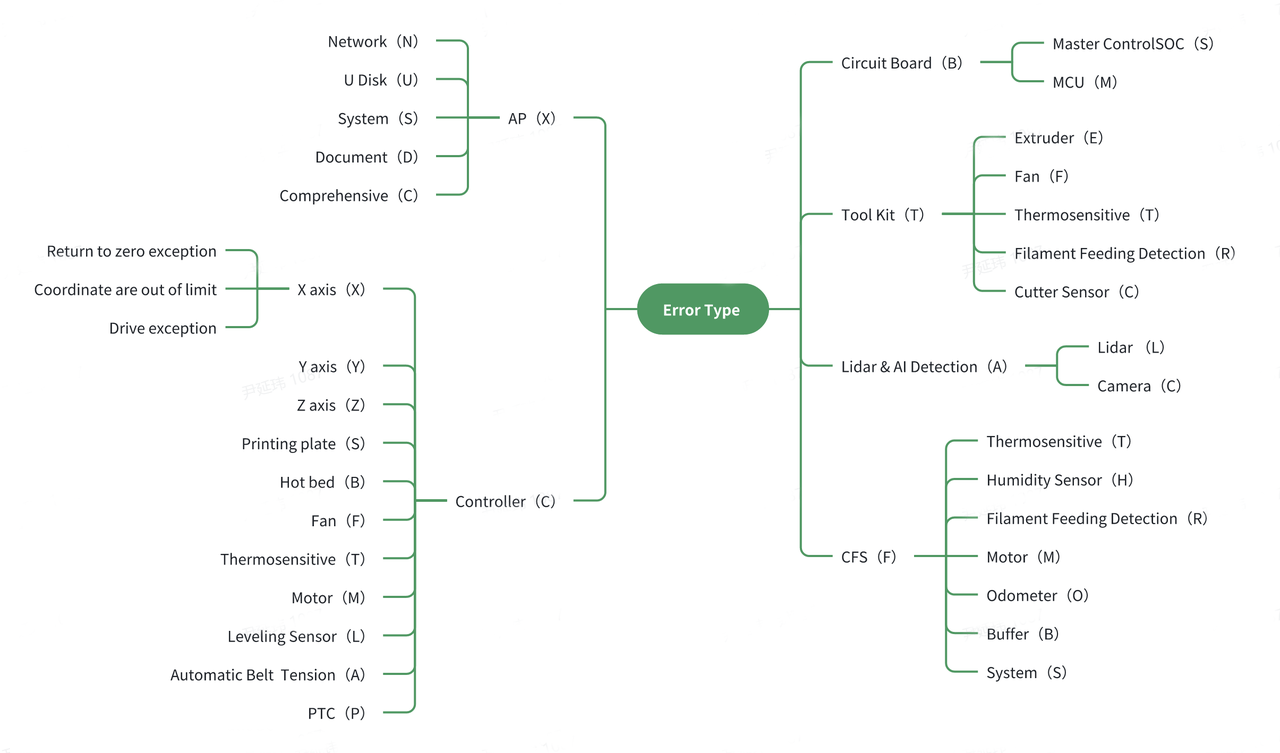
Creality K2 Pro Error Codes – Troubleshooting Table
| Error Code | Error Module | Error Message | Fault Description | Troubleshooting |
| CB2510 | Controller | Hotbed thermistor open circuit | Hotbed thermistor wiring open or damaged | Check thermistor wiring, reseat connector, replace thermistor if needed |
| CB2516 | Controller | Hotbed thermistor short circuit |
Thermistor shorted or cable damaged |
Inspect wiring for damage, replace thermistor |
| CB2565 | Controller | Heat bed not heating as expected | Heating system anomaly | Check hotbed thermistor and heater; refer to official troubleshooting |
| CT2511 | Controller | Chamber thermistor open circuit | Chamber thermistor not detected | Check wiring or replace chamber thermistor |
| CT2517 | Controller | Chamber thermistor short circuit | Chamber thermistor shorted | Inspect wiring, replace thermistor |
| CM0115 | Controller | Unfinished task detected | Power loss recovery triggered | Resume print if applicable, otherwise restart print |
| CX2573 | Controller | X-axis homing abnormality | X-axis limit switch not triggered | Check limit switch or motor driver |
| CY2577 | Controller | Y-axis homing abnormality | Y-axis limit switch not triggered | Inspect limit switch and motor wiring |
| CZ2581 | Controller | Z-axis homing abnormality | Z-axis sensor issue | Check sensor and ensure bed cables are not pulling |
| CX2585 | Controller | X-axis coordinates out of range | Model exceeds build volume | Select correct printer profile and re-slice |
| CY2586 | Controller | Y-axis coordinates out of range | Model exceeds build volume | Verify slicer build size settings |
| CZ2587 | Controller | Z-axis coordinates out of range | Model exceeds build height | Adjust model height or slicer configuration |
| CZ2588 | Controller | Z Offset exceeds limit | Z offset out of allowable range | Reset Z offset and re-calibrate |
| CZ2768 | Controller | Z-axis homing issue (interference) | External force during homing | Avoid touching printer during homing, remove interference |
| CM2783 | Controller | Obstacle detected during movement | Axis or extruder resistance detected | Remove obstructions, check for jams or collisions |
| CM2781 | Controller | Motor speed limit exceeded | Axis speed exceeds motor limits | Reduce speed and re-slice |
| CM2790 | Controller | Motor identification error | Motor cable loose or motor damaged | Check motor wiring, replace motor if needed |
| CM2782 | Controller | Step-servo hardware issue | Servo connection problem | Check motor connections; platform may drop |
| CM2798 | Controller | Step-servo initialization error | Motor communication issue | Power off, reseat cables, restart |
| CP2559 | Controller | Chamber heating issue | Chamber not heating correctly | Ensure enclosure is sealed; check heater |
| BS0508 | Controller | Storage space nearly full | Insufficient internal storage | Delete G-code or camera files |
| CA2711 | Controller | Auto belt tension failure | Belt tension module stuck | Check tension module for mechanical issues |
| CA0120 | Controller | Belt tension abnormal | Belt tension too low | Run Input Shaping / Vibration Optimization |
| CA2710 | Controller | Belt tension module abnormal | Hardware failure | Replace belt tension module |
| CP2519 | Controller | Chamber heater fan abnormal, chamber heating closed. | Chamber heater fan abnormal, chamber heating closed. | The chamber heater fan is not spinning or the speed is too low. Check the fan connection for looseness or if the fan is physically jammed. |
| BM2512 | Mainboard | Motherboard temperature abnormal | Overheating or cooling failure | Check cooling fan, remove heat sources |
| BM0110 | Mainboard | Motherboard connection failure | Board connection issue | Reseat cables or replace mainboard |
| BM0111 | Mainboard | Nozzle connection abnormal | Toolhead board issue | Check toolhead wiring or replace board |
| BM0112 | Mainboard | Hotbed connection abnormal | Hotbed board issue | Inspect wiring or replace hotbed board |
| TE2509 | Toolhead | Nozzle thermistor open | No temperature reading | Check thermistor wiring or replace hotend |
| TE2515 | Toolhead | Nozzle thermistor short circuit | Temperature exceeds limit | Inspect wiring, replace thermistor |
| TE2564 | Toolhead | Nozzle not heating as expected | Heating anomaly | Check heater and thermistor |
| TE2111 | Toolhead | Nozzle temp below extrusion limit | Temperature below 170 °C | Increase temperature or check hotend |
| TR0116 | Toolhead | Filament runout | Filament empty | Reload filament and resume printing |
| TR2852 | Toolhead | Filament sensor triggered abnormally | Filament break or external spool conflict | Check filament path and sensor |
| TF0501 | Toolhead | Heat break fan speed too low | Fan blocked or damaged | Check wiring or replace fan |
| TC2841 | Toolhead | Cutter issue detected | Cutter jammed or missing | Clear obstruction or reinstall cutter |
| TC2854 | Toolhead | Filament present during cutter calibration | Filament not unloaded | Unload filament and retry calibration |
| TC2855 | Toolhead | Cutter calibration failed | Calibration error | Resolve cutter issue and retry |
| TC2856 | Toolhead | Cutter issue | Cutter issue, the cutter may be jammed or missing. Click "Retry" after resolving. | The cutter was detected as possibly jammed or missing during the cutting process. |
| TE2762 | Toolhead | Nozzle leveling sensor issue | Sensor damaged or detached | Check sensor or restart |
| TE2761 | Toolhead | Nozzle leveling sensor failure | Hardware failure | Replace leveling sensor |
| TF0526 | Toolhead | Model fan speed too low | Cooling fan malfunction | Inspect fan wiring or replace |
| TR2863 | Toolhead | The extruder filament sensor was triggered abnormally, and the filament may have broken inside the extruder. | TR2858: Retract issue, extruder filament sensor anomaly triggered, filament may have broken inside the extruder. | During CFS (Creality Filament System) usage, if the extruder filament sensor is triggered abnormally after retraction is complete, it may be due to the insertion of filament from an external spool holder during use, or the filament breaking inside the extruder during retraction. |
| FR2833 | CFS | Feed issue, check for filament or spool jams | Filament feed abnormal | Filament tangled on spool; filament stuck in extruder or CFS hub. Clear jam and click Retry. |
| FR2832 | CFS | Retract issue, check for filament or spool jams | Filament retract abnormal | Spool tangled; filament stuck in extruder or hub; filament not rewound properly during retract. |
| FR2839 | CFS | Filament runs out, please refill | Filament runout detected | Filament in slot (example 1D) is empty. Insert new filament. |
| FR2848 | CFS | Filament may be broken in CFS | Filament break detected inside CFS hub | Filament stuck or broken inside hub, cannot feed or retract normally. |
| FS2831 | CFS | CFS communication issue | CFS communication error | CFS disconnected during operation. Check cable and power. |
| FS2843 | CFS | RFID cannot be read | RFID read failure | RFID tag unreadable; manually edit filament type and color. |
| FS2834 | CFS | CFS system error | General CFS system error | Filament tangled on spool; filament stuck in extruder or CFS hub. Clear jam and click Retry. |
| FS2840 | CFS | Command failed, scenario not supported | Command execution failed | Another command is running or current state does not support the action. |
| FB2844 | CFS | PTFE tube may have detached | PTFE tube disconnected | Pneumatic fitting loose. Retract filament, reseat PTFE tube, then retry. |
| FO2845 | CFS | Extruder may be clogged | Possible nozzle or extruder clog | Filament not moving; check for tangles, grinding, or hotend clog. |
| FB2846 | CFS | Filament buffer signal abnormal | Buffer not responding | Buffer stuck; filament not moving; possible clog or buffer hardware issue. |
| FB2847 | CFS | Filament may be tangled | Excessive filament resistance | Spool knots, excessive PTFE tube length, or sharp tube bends. |
| FR2835 | CFS | Feed issue from loader to hub | Filament not reaching hub sensor | Loader failure, damaged hub sensor, or excessive resistance. |
| FR2836 | CFS | Feed issue from hub to extruder sensor | Filament blocked before extruder | High PTFE resistance, tight bends, or faulty extruder sensor. |
| FO2837 | CFS | Feed issue near extruder gear | Filament stuck at extruder gear | Filament grinding or jam; try retract, cut filament tip, reload. |
| FO2838 | CFS | Feed issue between hub sensor and gear | Hub gear feed failure | Filament detected but not advancing; inspect hub gear path. |
| FR2849 | CFS | Retract issue, filament stuck at hub | Filament cannot return to hub | Excessive PTFE resistance or faulty hub sensor. Retry retract. |
| FR2850 | CFS | Multiple filaments detected in hub | Wrong filament inserted | Remove extra filament from hub and retry. |
| FR2851 | CFS | Retract issue, buffer failure | Buffer cannot reset | Buffer stuck or failed to return to idle position. |
| FH2853 | CFS | Temperature & humidity sensor abnormal | Sensor data unavailable | Sensor connection or hardware failure inside CFS. |
| FM2857 | CFS | Feeding motor overload | Motor overloaded during feed/retract | Excessive resistance, tangled filament, or PTFE blockage. |
| FR0121 | CFS | CFS filament in use | Conflict with external spool | Unload CFS filament before printing with spool holder. |
| FR0122 | CFS | Spool holder filament in use | Conflict with CFS mode | Unload external filament before printing with CFS. |
| FS2858 | CFS | EEPROM abnormal | EEPROM failure | CFS mainboard EEPROM error; board replacement required. |
| FO2859 | CFS | Filament odometry abnormal | Odometry sensor failure | Hardware fault; inspect or replace odometer module. |
| FB2860 | CFS | Filament buffer abnormal | Buffer hardware error | Cable disconnected, buffer stuck, or hardware failure. |
| FS2861 | CFS | Left RFID board abnormal | Left RFID reader failure | Replace left RFID board. |
| FS2862 | CFS | Right RFID board abnormal | Right RFID reader failure | Replace right RFID board. |
| FO0528 | CFS | Printing without extruding | Dry printing detected | No extrusion due to clog, filament break, or feed failure. |
| FB2864 | CFS | Feed issue, buffer failure | Buffer malfunction during feed | Buffer not connected, stuck, or hardware failure. |
| XS2000 | AP | System error, try restarting | General system error | Power off and restart the printer. If the issue persists, export/upload logs and contact Creality support. |
| XS2001 | AP | System error, try restarting | System exception detected | Restart the printer. If unresolved, go to Help → Error Code History, find the error before XS2001, and troubleshoot that specific error. |
| XS3000 | AP | System error, try restarting | General system error | Power cycle the printer. If restarting does not fix the issue, export logs and contact after-sales support. |
| XS3001 | AP | System error, try restarting | General system error | Try a full power restart. If the error remains, export/upload logs and contact support. |
| XS3002 | AP | System error, try restarting | General system error | Restart the system. If the issue persists, export logs and contact Creality support. |
| XS2060 | AP | System error, try restarting | System runtime error | Power off and restart the printer. If unresolved, export logs for further diagnosis. |
| XS2093 | AP | System error, try restarting | System internal error | Restart the printer. If the problem continues, upload logs and contact after-sales service. |
| XD2571 | AP | Print file is corrupted | Print file cannot be parsed | Re-upload the file or rename it. Possible causes include unsupported characters in the filename or file corruption during transfer. |
| AC0101 | AI Detection | Print quality issue detected, printing paused | AI detected a potential print failure (e.g. spaghetti) | print failure (e.g. spaghetti) This feature detects print failures during printing. If frequent false alarms occur, reduce sensitivity or disable AI detection. |
| AC0104 | AI Detection | Foreign object detected on the printing plate, printing paused | Object or abnormal condition detected on the build plate before printing | Detected during Z-axis homing before print. If it’s a false alarm, tap Retry to re-home the Z-axis. |
| AC0123 | AI Detection | Printing plate missing, printing paused | Build plate not detected | Triggered during Z-axis homing when the build plate is missing. If false, tap Retry to re-home. |
| AC0124 | AI Detection | Printing plate missing and foreign object detected, printing paused | Plate missing or object detected on the build plate | Detected during Z-axis homing. If misdetected, tap Retry to retry homing. |
| AC0500 | AI Detection | Printing quality issues detected by AI | AI detected possible print quality issues | If confirmed false, continue printing via printer screen, slicer, or Creality Cloud. If failed, clean the printer and restart printing. Disable via System Settings → Camera → AI Features. |
| AC0504 | AI Detection | File does not support Auto PA calibration, using default values | Auto Pressure Advance calibration not supported | Causes include unsupported slicer or outdated firmware/slicer version. Firmware ≥1.3.3.0 supports Creality Print, OrcaSlicer, and PrusaSlicer. |
| AC0510 | AI Detection | Camera failed to start, try restarting | Camera startup failure | Possible software crash or unstable hardware connection. Restart the printer and check camera connection. |
| AC0511 | AI Detection | File does not support flow ratio calibration, using default values | Flow ratio calibration not supported by the file | Typically caused by non-Creality Print 5 sliced files. |
| AC0512 | AI Detection | Flow ratio calibration failed, using default values | Flow ratio calibration failed | failed Calibration pattern printed, but camera recognition failed or values exceeded range. |
| AC0513 | AI Detection | Auto PA calibration image anomaly, using default values | Calibration image captured by camera is invalid | Camera image unusable, causing calibration failure. |
| AC0514 | AI Detection | Auto PA calibration failed, using default values | Pressure Advance calibration failed | Possible camera recognition issue, abnormal values, or poor calibration print quality. |
| AC0515 | AI Detection | Flow ratio calibration image anomaly, using default values | Flow calibration image anomaly | Camera image unusable during calibration process. |
Creality K2 Pro Common Error Troubleshooting Guide
BM0111 Error – Hotend Connection Abnormal
Error message:
BM0111 – Hotend connection abnormal
What happens
The screen displays BM0111, indicating abnormal communication between the mainboard and the nozzle adapter board.
Possible causes
- Power or communication issue between the nozzle board and adapter board
- Loose or damaged nozzle cable
- Faulty nozzle board or adapter board
How to troubleshoot
1. Check whether the nozzle board shows a blue indicator light when the error appears.
2. If no blue light is present, confirm the adapter board supplies 24V power to the nozzle board.
3. Power off the printer and disconnect all cables from the nozzle board except the nozzle cable, then power on again to rule out interference from other modules.
4. Inspect the nozzle board, nozzle cable, and adapter board for burn marks, cold solder joints, cable damage, or poor contact.
5. If the issue persists, replacing the nozzle board and nozzle cable is recommended.
6. If replacement does not resolve the issue, contact Creality support.
AC0101 – Print Quality Issue Detected (AI Detection)
Applicable models: K1C, K1 Max, K2 Plus, K2 Pro
Why it appears
This AI feature detects print failures during printing, mainly used to identify issues such as spaghetti failures.
How to solve it
- If false alarms occur frequently, go to Settings → Camera → AI Functions and disable “Pause on fault” or turn off AI detection.
- If failures are often missed, increase sensitivity to Professional mode.
CL2536 – Leveling Sensor Hardware Failure
Applicable models: K1 Series, V3 Series, K2 Plus, K2 Pro
Why it appears
The leveling sensor detects a possible hardware malfunction, affecting Z-axis homing and auto leveling.
Troubleshooting steps
1. Check sensor cables for looseness or detachment.
2. Ensure no debris interferes with sensor operation.
3. Restart the printer and perform Z-axis homing.
4. If the issue remains, replacing the leveling sensor is recommended.
TE2761 – Unable to Read Extruder Leveling Sensor Data
Applicable models: K2 Plus, K2 Pro
Why it appears
The SYNC signal self-check fails, often caused by poor cable contact between the extruder and mainboard.
Solutions
- Check the nozzle ribbon cable and communication bus connections.
- Reseat all related cables and ensure firm connections.
- Replace damaged ribbon cables if necessary.
- Perform Z-axis homing to confirm recovery.
Error Code 2355 – Extruder Communication Abnormal
Typical symptoms

Common causes
- Poor contact in the extruder drag chain cable
- Cooling fan cable being pinched by mounting hardware
Troubleshooting
1. Restart the printer and see if the issue reoccurs.
2. Remove the right-side extruder cooling fan and inspect cable routing.

3. Reseat fan cables and nozzle board connectors.

4. Reinsert or replace the extruder drag chain cable if necessary.
5. If unresolved, export logs for further analysis.
Extruder Clogging & Filament Jamming
Typical symptoms
- Filament expands or bends inside the extruder
- Material accumulates and fails to feed into the hotend
Key causes
- Chamber temperature too high for the filament (e.g., PLA softening early)
- Extruder cooling fan not spinning
- Nozzle or heat break blockage
Fixes
- Verify correct chamber temperature for the filament type
- Confirm extruder cooling fan operation at 100 °C
- Heat nozzle to printing temperature and clear blockage with a cleaning needle
- Replace the integrated nozzle if clogging cannot be removed
K2 Series Screen Abnormal Trigger
Typical symptoms

Possible causes
- Screen ribbon cable not fully seated
- Strong electromagnetic interference nearby
- Poor grounding causing static interference
- Defective screen hardware
Solutions
- Reseat the screen cable
- Test the printer in an open area away from high-power devices
- Check whether the power outlet is properly grounded
- Replace the touchscreen if necessary
Filament Purge Stuck at 300 °C (K2 / K2 Pro)
Issue Description
On K2 / K2 Pro printers (firmware version ≤ 1.1.0.92), after printing with high-temperature filaments such as Creality Hyper PA612-CF, switching to low-temperature materials like PLA may cause the filament purge process to stall at 300 °C, with no purge action executed.
Root Cause
1. The printer’s nozzle maximum temperature is limited to 300 °C
2. High-temperature filaments (e.g., nylon) require 300–320 °C
3. The purge logic works as follows:
- First purges at the maximum temperature of the previous filament
- Then gradually cools down
4. When the purge process requires 320 °C, but the printer is capped at 300 °C, the workflow becomes stuck
Temporary Workaround (Recommended)
Modify Parameters via Fluidd
1. Open a browser and access: http:// (printer_ip ):4408
Example: http://172.18.208.169:4408
2. Go to Configuration Files and locate printer_params.cfg
3. Modify the nozzle maximum temperature limit
4. Save the file; Klippy will restart automatically
5. After reboot, the purge process should resume normally
Note: This is a temporary workaround. A firmware update is recommended for a permanent fix.
Regular Arc Patterns and Surface Artifacts in High-Speed Printing (Kipper Series)
Issue Description
When printing models with dense small-arc surface geometry at high speed using the official slicer, irregular layer artifacts may appear.
Root Cause
- The model geometry triggers Arc Fitting
- Current firmware has precision conversion issues with arc fitting
- Errors become more noticeable at higher speeds
Short-Term Optimization (Best Results)
1. Disable Arc Fitting: Slicer → Quality → Turn off Arc Fitting
2. Enable Non-Decelerated Outer Wall: Filament Settings → Cooling → Enable Non-Decelerated Outer Wall
3. For higher quality requirements: Reduce printing speed appropriately
Model Collision During Sequential Printing (Temporary Fix)
Issue Description
When using Sequential Printing:
- Taller models are printed first
- Shorter models are printed afterward
- After completing a model, the nozzle retracts or homes without lifting the Z axis
- This may cause the nozzle to collide with and knock over previously printed tall models
Root Cause
A logic handling issue between the slicer and firmware in sequential printing mode
Temporary Solution
- Open the slicer and select the target printer (K2 Pro used as example)
- Go to Edit Printer → Extruder G-code
- Add the following command to the End G-code:【G1 Z300 F600】
- Notes:
- 300 is the maximum Z height of the K2 Pro
- For other models, replace this value with the actual maximum Z height
- Users must adjust this value according to their printer model
Nozzle / Heated Bed Temperature Fluctuations Causing Errors or Long Wait Times
Issue Description
1. Nozzle temperature fluctuates more than ±5 °C around the target temperature, eventually triggering Error 2564
2. The heated bed reaches the target temperature but cannot cool down properly, remaining stuck in a waiting state
Root Cause
- Unstable nozzle power control
- Unstable heated bed power control
Solution 1: Nozzle PID Calibration
1. On the printer screen, go to Settings → Expert Mode
2. Select Nozzle PID Calibration
3. Choose a commonly used printing temperature and tap Start
4. Calibration takes approximately 5 minutes
5. Restart the printer after calibration completes
Solution 2: Heated Bed PID Calibration (via Fluidd)
1. Access Fluidd: http://(printer_ip):4408
2. Enter the following command in the console: BEDPID
3. The bed will automatically cycle between 100 °C and 95 °C for calibration (about 20 minutes)
4. After completion, enter: save_config
5. The system will save the parameters and reboot automatically
Startup Error 2001 Caused by Corrupted Files
Applicable Scenario
- Printer shows Error 2001 immediately on startup
- System cannot enter the normal operating interface
Solution (via SSH)
1. Install MobaXterm: https://mobaxterm.mobatek.net/download.html
2. Log in via SSH (printer IP can be found in Settings → Network)
3. Enter the password:creality_2024
4. Delete the corrupted file: rm /mnt/UDISK/creality/userdata/config/user_print_refer.json
5. Run: sync
6. Reboot the printer to restore normal operation
First Layer Adhesion & Layer Compression on K2 Pro
Issue Description
- The first layer does not adhere to the build plate
- The nozzle scrapes the build plate
- Severe first-layer compression occurs
Possible Causes
- The build plate surface is contaminated by hand sweat or fingerprints, reducing adhesion
- Improper bed leveling, causing the first layer to fail
- Build plate temperature is too low for the selected filament, leading to shrinkage and detachment
- Residual filament on the nozzle affects homing, resulting in incorrect Z-zero and an overly high first layer
- Abnormal strain gauge behavior causes inaccurate compensation data, leading to excessive layer compression and nozzle scraping
Troubleshooting & Solutions
3.1 Clean the Build Plate
- If fingerprints, sweat marks, or dirt are visible, clean the plate with detergent and water
- For heavy glue residue or after multiple prints, rinse thoroughly with water and dry completely
3.2 Apply Glue Correctly


- Use the official glue stick supplied with the machine (see Figure 1)
- Apply a thin, even layer of glue to the print area to improve adhesion
3.3 Check Whether Print Calibration Is Required

Print Calibration includes:
- Auto bed leveling
- Flow calibration
- First-layer detection (flow calibration and first-layer detection are disabled by default)
If Print Calibration is not selected, these processes will not run.
Print Calibration is required when:

- Switching filament types (e.g., PLA to ABS), as bed temperatures and leveling data differ
- The machine has been moved
- A firmware upgrade has been performed
Print Calibration is not required when:
- Reprinting the same model successfully
- Printing a small model at the center of the build plate
Manual leveling is recommended when:
- The bed surface is visibly uneven
- Adjust the hand nuts beneath the heated bed to achieve basic flatness before running Print Calibration
3.4 Check Mechanical Stability

- Inspect whether the printhead or heated bed is loose
- Tighten all fasteners if necessary
3.5 Slicer Recommendation
Use the official Creality slicer with default parameters for the selected filament to avoid compatibility issues
3.6 Fine-Tune Z-Offset


Adjust the Z-offset slightly based on actual first-layer print results if needed
K2 Pro X/Y Servo Motor Calibration Procedure
When Calibration Is Needed
Servo motor calibration is required if:
- Motors behave abnormally
- Unusual noise occurs
- Protection errors are triggered frequently
These issues may indicate that the servo motor electrical zero position has shifted.
Required Tool
Calibration results must be verified using the Fluidd interface:
1. Open a browser on your computer
2. Obtain the printer’s IP address from the machine’s Network settings
3. Enter the IP address with port :4408 (example: http://192.168.1.1:4408) to access Fluidd
Calibration Steps
Step 1: Prepare the Machine
- Ensure the motors are disabled (tap Motor Unlock on the touchscreen)
- Move the printhead to the center of the machine
- Push the heated bed to the lowest position
Step 2: Log in to Fluidd
- Open a browser and enter the printer IP address followed by :4408
- Access the Fluidd interface
Step 3: Execute Calibration Commands
Run the following commands in order and wait approximately 3 minutes for completion:
MOTOR_FLASH_PARAM NUM=1 DATA=6 PARAMS_TYPE=float ID=9
MOTOR_FLASH_PARAM NUM=1 DATA=6 PARAMS_TYPE=float ID=25
MOTOR_FLASH_PARAM NUM=2 DATA=6 PARAMS_TYPE=float ID=9
MOTOR_FLASH_PARAM NUM=2 DATA=6 PARAMS_TYPE=float ID=25
MOTOR_ELEC_OFFSET_CALIBRATE NUM=1
MOTOR_ELEC_OFFSET_CALIBRATE NUM=2
Important:
Do not power off the machine during calibration, as this may cause abnormal behavior.
Verification
- After calibration, perform a homing operation
- If homing completes without errors, calibration was successful
- If an error appears after homing, calibration has failed
In case of failure, please capture screenshots of the calibration process and contact Creality after-sales technical support for further assistance.
People Also Read:
Recent News

How to Store 3D Printer Filament: Dry Boxes, Bags & Humidity Control

Q & A for Creality KliTek™: The Next-Gen Nozzle-Changer for Multi-Material 3D Printing

How to Clean 3D Printer Nozzle: Tips for Better Prints
