
Top 5 Best Laser Engraving Software Options
Choosing the right laser engraving software not only enhances your productivity and creativity, but also ensures compatibility with your laser machine, provides powerful design tools, and supports multiple file formats. It can save time, reduce errors, and ultimately lead to better results.
In this article, we will evaluate the top 5 best laser engraving software options based on several key criteria: compatibility with different lasers, robustness of design tools, user interface and ease of use, file format support, price and licensing, and community and support.
LightBurn
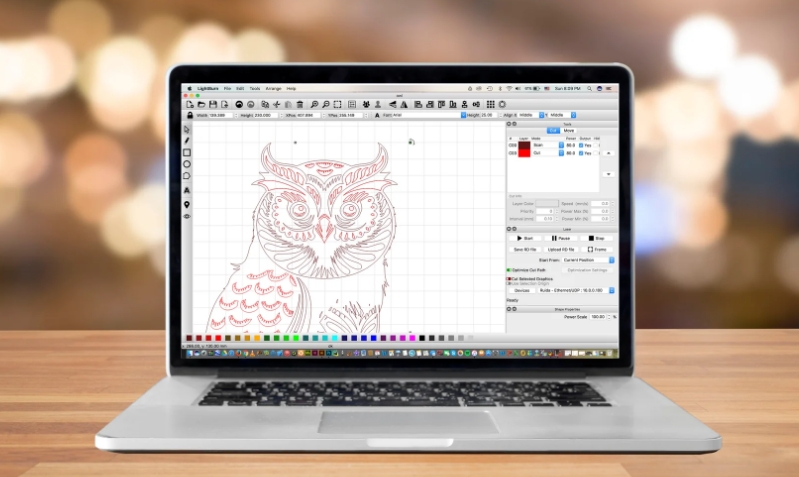
LightBurn is a comprehensive laser engraving software renowned for its powerful design tools and extensive compatibility with various laser machines. It is a native application available for Windows, Mac OS, and Linux. Widely used by both professionals and hobbyists, LightBurn is favored for its user-friendly interface and robust feature set.
1. Compatibility with Various Lasers
LightBurn supports a wide range of laser controllers, including Ruida, Trocen, and GCode-based controllers. This broad compatibility makes it a versatile choice for users with different types of laser machines.
2. Advanced Design Tools
LightBurn offers a rich suite of design tools, including vector drawing, text editing, and image tracing. Users can create intricate designs directly within the software or import designs from other programs, making it a powerful tool for detailed and creative projects.
3. User Interface
The user interface of LightBurn is designed to be intuitive and user-friendly. It includes customizable toolbars, drag-and-drop functionality, and an integrated preview window, which allows users to see the results before engraving or cutting.
4. File Format Support
LightBurn supports a wide variety of file formats, including AI, SVG, DXF, PDF, and more. This versatility allows users to import designs from other software and ensures smooth integration into existing workflows.
Pros:
- Extensive compatibility with various laser controllers.
- Comprehensive design tools for detailed and creative projects.
- User-friendly interface that is intuitive and easy to navigate.
- Supports numerous file formats, ensuring versatility in design import and export.
Cons:
- Paid software with a one-time purchase cost.
- Learning curve for mastering advanced features.
- Requires a relatively modern computer to run smoothly.
LaserGRBL

LaserGRBL is a free, open-source software specifically designed for controlling GRBL-based laser engravers. It is known for its simplicity and efficiency, making it a popular choice among hobbyists and beginners in the laser engraving community.
1. GRBL-Based Laser Compatibility
LaserGRBL is optimized for GRBL-based laser engravers, ensuring seamless communication and control. This makes it an ideal choice for users with GRBL-compatible machines. Only available for Windows.
2. Image Processing Tools
LaserGRBL excels in image processing, offering tools to convert images into G-code for laser engraving. Users can import images and use LaserGRBL to process and optimize them for engraving.
3. User Interface
The user interface of LaserGRBL is straightforward and minimalistic, making it easy for beginners to navigate. It includes essential features like image import, G-code visualization, and laser control settings.
4. File Format Support
LaserGRBL supports common image file formats such as JPEG, PNG, and BMP. It can convert these images into G-code, ready for laser engraving. However, it lacks support for vector file formats, which may limit design complexity.
Pros:
- Free and open-source, making it accessible to everyone.
- Simple and intuitive interface, ideal for beginners.
- Efficient image processing for converting and optimizing images for engraving.
- Low system requirements, capable of running on older or less powerful computers.
Cons:
- Limited design tools, suitable mainly for basic projects.
- Only compatible with GRBL-based lasers, limiting its use with other types of laser controllers.
- Limited to image file formats, lacking support for vector formats like SVG or DXF.
- Fewer advanced features compared to more comprehensive software.
Click to know more about Lightburn and LaserGRBL details comparison.
RDWorks
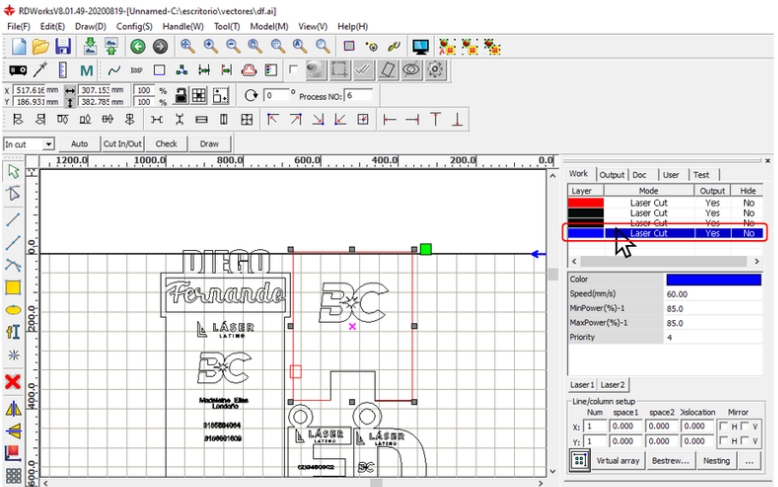
RDWorks is a laser engraving software designed specifically for use with Ruida controllers. It is widely utilized in industrial settings and by professional engravers for its reliable performance and integration with Ruida-based laser machines. RDWorks offers a range of tools for design and editing, making it a robust option for various laser engraving tasks.
1. Compatibility with Ruida Controllers
RDWorks is specifically designed for Ruida controllers, ensuring seamless integration and reliable performance with Ruida-based laser machines. Primarily for Windows, but can work on Mac with emulation.
2. Design and Editing Tools
The software provides a variety of design and editing tools, including vector drawing, text editing, and image processing. These tools enable users to create and modify designs directly within RDWorks.
3. User Interface
The user interface of RDWorks is functional and straightforward, though it may appear less modern compared to other software options. It includes essential features and tools arranged in a way that facilitates efficient workflow.
4. File Format Support
RDWorks supports several file formats, including DXF, AI, PLT, and BMP. This versatility allows users to import and export designs from various other design software.
Pros:
- Excellent compatibility with Ruida controllers.
- Robust design and editing tools.
- Reliable performance in industrial and professional settings.
- Supports multiple file formats.
Cons:
- User interface can feel outdated.
- May have a steeper learning curve for beginners.
- Limited to Ruida-based laser machines.
Easel by Inventables

Easel by Inventables is a cloud-based software platform designed for CNC milling and laser engraving. It offers an intuitive interface and is accessible from any device with an internet connection, making it a convenient option for users who prefer web-based solutions.
1. Cloud-Based Platform
Easel is entirely cloud-based, allowing users to access their projects from any device with an internet connection. This feature ensures that designs and projects are always accessible and can be worked on from multiple locations.
2. Design and Simulation Tools
Easel provides a range of design tools, including vector drawing and text editing. It also offers simulation tools that allow users to preview their designs and ensure accuracy before engraving or milling.
3. User Interface
The user interface of Easel is designed to be intuitive and user-friendly. It includes drag-and-drop functionality and a clean layout that makes it easy to navigate and use.
4. File Format Support
Easel supports several file formats, including SVG and DXF, making it compatible with a variety of design software and ensuring easy import and export of designs.
Pros:
- Accessible from any device with an internet connection.
- User-friendly interface with intuitive design and simulation tools.
- Supports multiple file formats.
- Regular updates and improvements from the developers.
Cons:
- Requires an internet connection to use.
- May have limited advanced features compared to desktop software.
- Performance can be dependent on internet speed and reliability.
Inkscape with Laser Plug-ins
Inkscape is a free, open-source vector graphics editor that, when paired with laser plug-ins, becomes a powerful tool for laser engraving. It is widely used by hobbyists and professionals alike for its robust design capabilities and extensive community support. Works on Windows, Mac, and Linux.
1. Open-Source Design Tools
Inkscape offers a comprehensive suite of design tools, including vector drawing, text editing, and image tracing. As an open-source platform, it is continuously improved by a large community of developers.
2. Laser Plug-in Capabilities
With the addition of laser plug-ins, Inkscape can generate G-code and control laser engravers. These plug-ins expand Inkscape's functionality, making it suitable for laser engraving projects.
3. User Interface
The user interface of Inkscape is feature-rich and highly customizable. While it may appear complex to new users, it offers extensive functionality for those who take the time to learn its features.
4. File Format Support
Inkscape supports a wide range of file formats, including SVG, PDF, EPS, and AI. This extensive support ensures compatibility with various design software and simplifies the import and export process.
Pros:
- Free and open-source, with continuous improvements.
- Comprehensive design tools with extensive functionality.
- Supports a wide range of file formats.
- Large community and extensive documentation.
Cons:
- Steeper learning curve, especially for beginners.
- Requires additional plug-ins for laser engraving.
- User interface can be overwhelming for new users.
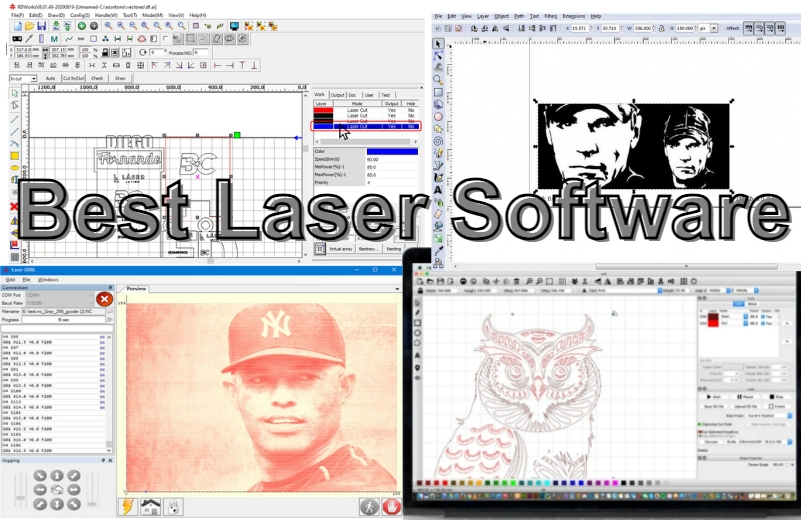
LightBurn vs LaserGRBL vs RDWorks vs Easel vs Inkscape
| Features | LightBurn | LaserGRBL | RDWorks | Easel by Inventables | Inkscape with Laser Plug-ins |
| Ease of Use | Intuitive, user-friendly | Simple, beginner-friendly | Functional but outdated | Intuitive, easy-to-navigate | Complex, steep learning curve |
| Design Capabilities | Extensive design tools | Limited to image processing | Robust design & editing tools | Good design & simulation tools | Comprehensive design tools |
| Operating System Capabilities |
Windows, Mac, and Linux | Only available for Windows | Windows, work on Mac with emulation | Windows | Windows, Mac, and Linux |
| Laser Machine Capabilities | Wide range of lasers | GRBL-based laser only | Ruida controllers only | Various CNC & laser machines | Multiple lasers via plug-ins |
| File Format Support |
AI, SVG, DXF, PDF, and more | JPEG, PNG, BMP | DXF, AI, PLT, BMP | SVG, DXF | SVG, PDF, EPS, AI, and more |
| Price and Licensing |
Paid, one-time purchase | Free, open-source | Free with Ruida controller | Free basic, paid Pro version | Free, open-source |
| Community and Support | Strong, extensive documentation | Active, good support | Limited, user forums | Strong, regular updates | Large, extensive documentation |
Final Thoughts
Choosing the right laser engraving software depends on your specific needs, project complexity, and budget. Each of the top five options has its strengths and weaknesses, making it essential to consider what features are most important to you. Ultimately, the best software is the one that fits your workflow and enhances your laser engraving projects.

Recent News

8 Halloween 3D Print Ideas to Make Before October 31

Ender Series 3D Printers Parameter Comparison

Creality Back-to-School Sale 2026: Save Up to 50% on 3D Printers and More
