



HALOT-MAGE PRO 8K Resin 3D Printer: Hyper-speed 8K Resin Printing $509.00
【170mm/h Epoch-making Speed】
【Professional 10.3" 8K LCD Screen】
【Game-changing Smart Resin Pump】
【Smart Air Purifier】
【Integral Light 3.0】
【Print Anywhere with Smart Connectivity】
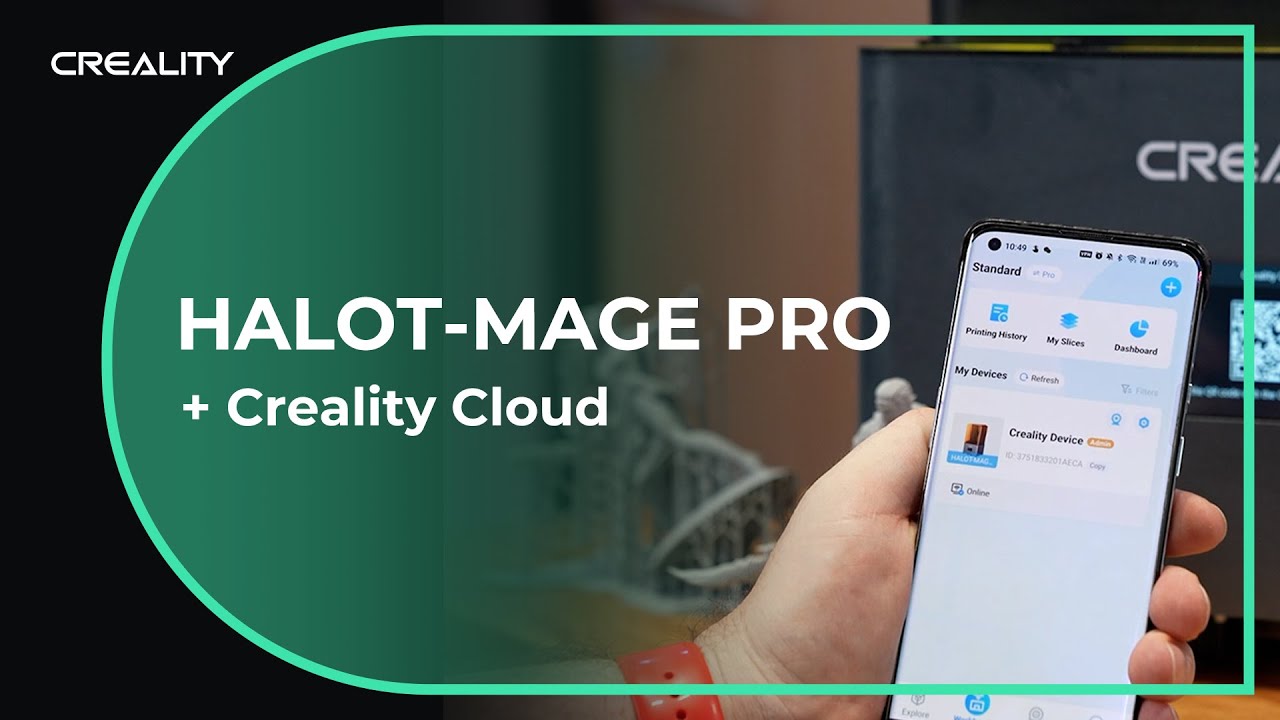
Two Quick Methods to Connect Your HALOT-MAGE PRO with CrealityCloud
all
2024-12-23 04:57:24
To connect your HALOT-MAGE PRO with CrealityCloud, you can typically use either a direct Wi-Fi connection or utilize a QR code for a quicker setup. Here are two quick methods to help you get started.
HALOT-MAGE PRO 8K Resin 3D Printer
Method 1: Direct Wi-Fi Connection
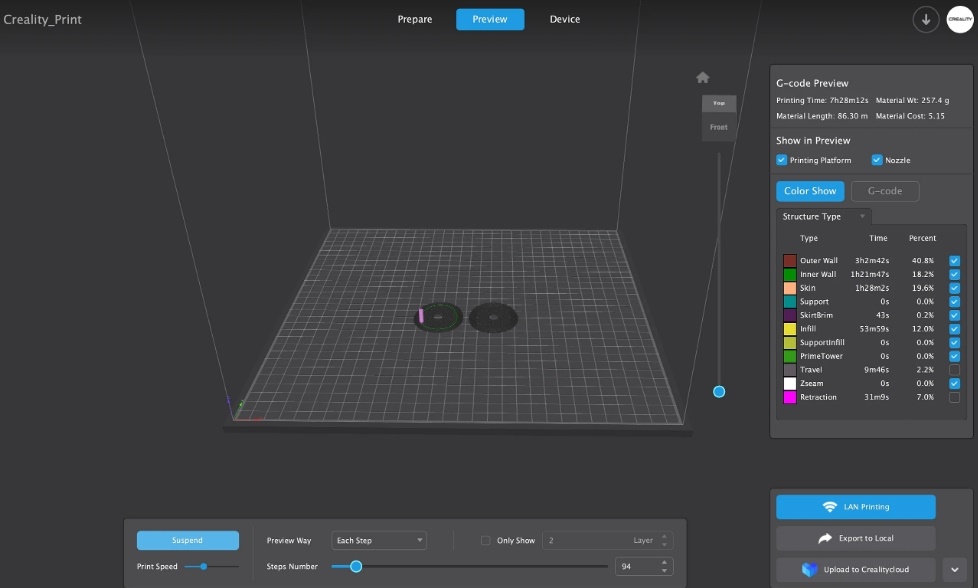
1. Download and Install CrealityCloud App: Ensure you have the CrealityCloud app installed on your smartphone or tablet. You can find it in the App Store or Google Play.
2. Connect Your Device to Wi-Fi: On your HALOT-MAGE PRO, navigate to the Wi-Fi settings and connect it to your local Wi-Fi network. Make sure the Wi-Fi you’re connecting to is the same one your smartphone or tablet (with CrealityCloud installed) is connected to.
3. Open CrealityCloud App: Launch the CrealityCloud app on your smartphone or tablet.
4. Add Your HALOT-MAGE PRO: In the app, look for an option to add a new device or printer. This option might be under a "+" sign, "Add Device," or "My Devices." Follow the app's guidelines to select your model (in this case, the HALOT-MAGE PRO) from the list.
5. Enter Wi-Fi Details: When prompted, enter your Wi-Fi network details. This should allow the app to search for and connect to your HALOT-MAGE PRO.
Method 2: QR Code Connection

1. Preparation: Ensure your HALOT-MAGE PRO is turned on and connected to your Wi-Fi network. Also, make sure you have the CrealityCloud app installed on your smartphone or tablet.
2. Generate QR Code: From the HALOT-MAGE PRO’s interface, navigate to the Wi-Fi settings or connection settings.Look for an option to generate a QR code for easy connection. This is usually made available in the settings.
3. Scan QR Code: Open the CrealityCloud app on your mobile device.Use the QR scanner feature within the app (there might be a QR code icon or an option in the menu to "Scan QR Code").Scan the QR code displayed on your HALOT-MAGE PRO screen.
4. Finalize Connection: After scanning the QR code, the app should automatically connect to your HALOT-MAGE PRO. Follow any additional prompts in the app to complete the setup.
Note:
Always ensure your device and app are updated to the latest version for improved compatibility and features.
Check the CrealityCloud app and HALOT-MAGE PRO's manual for any device-specific instructions or settings, as interfaces and steps might change with software updates.
Conclusion
By following either of the methods described, you should be able to quickly connect your HALOT-MAGE PRO with CrealityCloud and start managing prints and monitor your printer remotely.
Read more if you are interested in:
Creality Software Free Download
Recent News

all
2026-10-13
8 Halloween 3D Print Ideas to Make Before October 31
Halloween is coming, and the candy stash has already suffered a few unexplained disappearances. W...

all
2026-09-18
Ender Series 3D Printers Parameter Comparison
The Creality Ender Series has evolved significantly since the original Ender-3. What began as an ...

all
2026-08-02
Creality Back-to-School Sale 2026: Save Up to 50% on 3D Printers and More
A new school year is a chance to start fresh projects, develop practical skills and turn digital ...

all
2026-05-26
Is PLA Recyclable?
PLA is a biodegradable plastic derived from renewable resources such as corn starch or sugarcane....