


What is Creality CFS: Main Functions and Workflow Introduction
The Creality CFS Multi-Color Filament System is an intelligent solution designed to enhance the efficiency and versatility of 3D printing. With its modular design, it enables seamless management of multi-color filaments, featuring RFID smart recognition, automatic filament replenishment, and feed/retract functions for a smoother and more convenient printing process.
This article provides a detailed overview of the components and functionalities of the multi-color module, along with its workflow, to help users gain a comprehensive understanding of Creality's advanced filament management system.
CFS - Creality Filament System Components

- Filamet intelet
- CFS hub
- Buffer
- Cutter extrusion
- Screen
others: 2 CFS 485 ports, power adapter socket, CFS hub outlet, right/left buckle, filament status light, filament compression block, desiccant storage location.
2. How Does CFS Connect the K2 Plus Printer
Single CFS Connect K2 Plus
- The green circle is the connection point of the 485 cable;
- The yellow circle is the connection point of the PTFE tube.
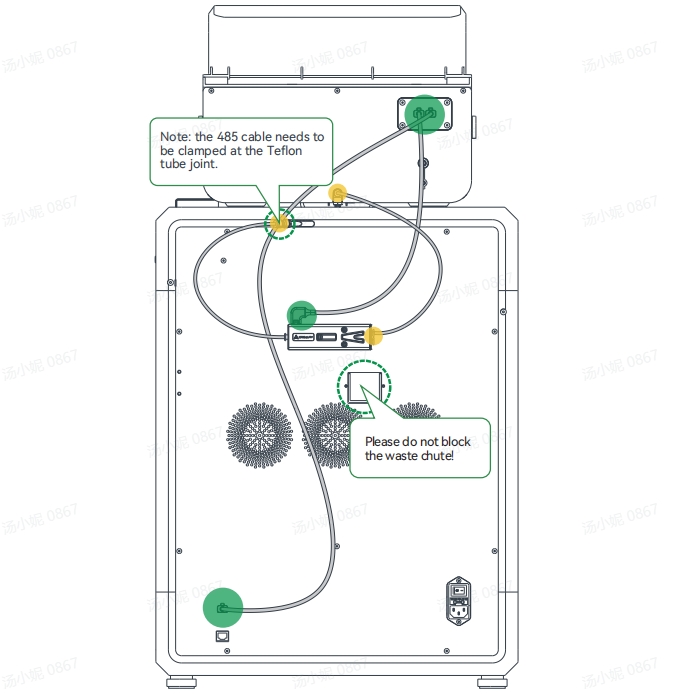
Multiple CFS Boxes Connect the K2 Plus

Click here to read the complete guide on how to connect CFS to the K2 Plus printer.
Creality CFS Main Funtions
1. Pre-feeding filament
In the idle state of CFS, after inserting the filaments into the feeder, the feeder will send the filaments to the hub, until it is detected by the hub sensor and then pulled back.
Purposes:
- Provide interactive feedback to users when inserting filaments;
- Tighten the filaments on the tray to ensure that the filaments on the tray are not loose;
2. Filament break detection
1. Single-color printing:
The logic is the same as single printer printing, especially filament break detection. When the extruder detects no filament, the printer will report filament exhaustion and needs to insert new ones. If you start the auto refill function, the printer will refill filament automatically.
2. Multi-color printing:
- A special case of multi-color printing: the last section of filament has been removed from the tray into the CFS.
- If the filament needs to be replaced during printing, the printer will directly brush the remaining filament. Another slot's filament is switched to print after brushing.
- The screen will pop up that filament is exhausted, and the old one is being brushed.
3. Automatic Refill

When the filament in a slot of the CFS is exhausted, the system will default automatically to select filaments with the same properties ( including filament brand, filament type,filament color, printing temperature, etc) and preferentially select filaments with the same color. Please configure the filament information before printing.
4. RFID Recognization
Creality's official RFID filament roll is equipped with RFID tags on both sides, and there are two RFID-reading circuit boards on the CFS that can read the filament information. During pre-feeding, the tray rotates and the RFID tags on the RFID circuit board and filament's RFID tags read the information. The following information is obtained after the RFID filament serial number is analyzed:
- RFID filament serial number
- Filament code
- Color value of filament
- Length of filament
The RFID reading function can be set on the screen to detect at insertion/startup detection. If "Insertion Detection " is enabled, the RFID reading function is performed after pre-feeding. Similarly, with "startup detection" enabled, after each restart of the printer, it will also start reading the RFID of each slot in turn.
You can also manually click on the number above each slot on the screen/slicing software for RFID reading.
5. Residual estimation
- The RFID reading process also allows residual estimation of the filament roll.
- The working principle is to estimate the percentage of remaining filament on the tray by the length of the one sent out after the RFID filament tag on the tray is turned around.
- The default value for a complete 1kg filament roll is 100%
6. Filament mapping
When a multi-color printing task is initiated, if no filaments of the corresponding color are available, the model is automatically matched to the ones of the closest color from the multi-color box.
7. T/H system /CFS number

The CFS multicolor box is equipped with a high-precision temperature and humidity sensor, which can detect the real-time temperature and humidity inside the box through the display screen. If there are multiple CFS boxes, different CFS will be numbered on the right side.
A description of the humidity range of the filament can be found on the filament information interface of the K2 Plus.
There are two desiccant storage locations under the slot of the CFS multi-color box, which can place desiccant to absorb moisture in the slot after capping. It should be noted that regular manual replacement of desiccant is required to prevent desiccant failure.
8. Status indicator
- Four white indicators blinking in sequence: The CMS is connected properly, communication is normal, and no filaments are inserted.
- Four red lights blinking in sequence: The CMS connection is abnormal, the communication is abnormal, but K2 Plus cannot detect the CFS connection.
- The white light is steady on: filaments are inserted into the slot and is in the normal idle state
- White light breathing: There are filaments inserted into the slot, and they are in normal printing state
- The red light is steady on: No filaments are inserted into the slot, but the hub is detected
- Red light breathing: No filaments are inserted, and the slot should be in print state (no filaments inserted or filaments exhausted)
- Red light single flashing: the feeder has filaments, but the hub does not have filaments. The filament loading may fail, and the filament is in the CFS.
- Red light double flashing: there is filament detection in the slot and the hub, but the printer fails to load or unload filament, and cannot print normally
9. Screen
Creality CFS Workflow
1. Replace filament (load & unload)
During the loading process, the feeder is responsible for sending the filament line to the hub. After the mileage wheel of the hub calculates that the filament is sent out for a short period, the feeder stops working, and then the filament is sent to the extruder by the hub motor.
During the unloading process, the feeder and the hub motor works at the same time. The feeder is responsible for driving the tray to turn, and the hub motor pulls back the filament until it retreats to the CFS.
2. Automatic feed
When the CFS is fed to the extruder and successfully extruded, the feedback value of the buffer is used to assist in feeding or retreating. When the feeding process encounters resistance, the slider of the buffer will be pushed to the right side, and when the filament is consumed by the extruder, the slider will return to the left side. The power mode only determines whether to feed according to the signal feedback of the buffer, and has nothing to do with whether there is currently a printing task.
Creality K2 Plus CFS Combo 3D Printer Presale
Recent News

8 Halloween 3D Print Ideas to Make Before October 31

Ender Series 3D Printers Parameter Comparison

Creality Back-to-School Sale 2026: Save Up to 50% on 3D Printers and More
