


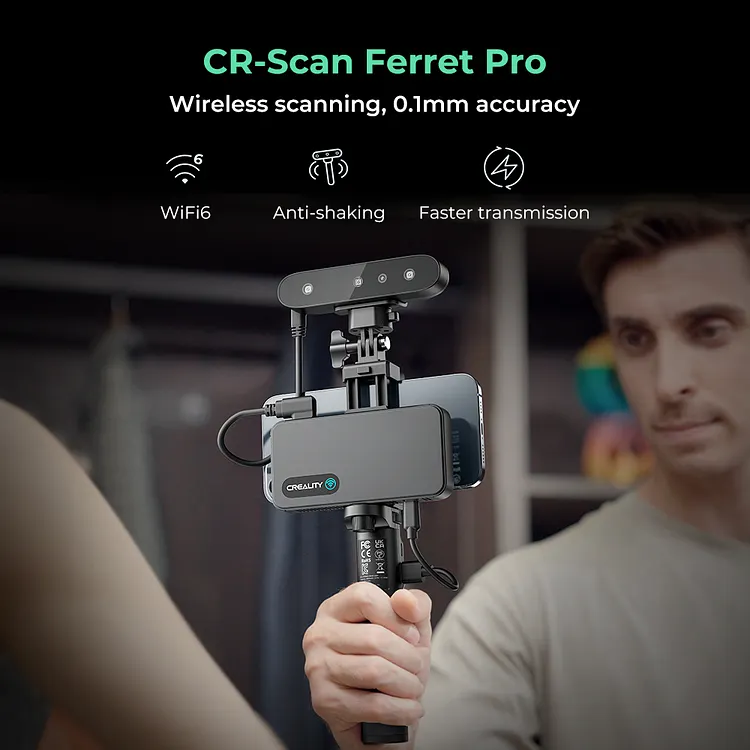
CR-Scan Ferret Pro Wireless Scanning, 0.1mm Accuracy $429.00
【0.1mm accuracy & Wireless scanning via Wi-Fi 6】
【Anti-shake 3D Imaging Technology】
【Built-in 2MP High-resolution Color】
【Scan Black/Metal Objects Without Spraying】
【Support Mac, iOS, Win, and Android】
【Outdoor scanning allows scanning anywhere(<30k lux)】
Creality Ferret Pro Connectivity FAQs
all
2024-12-23 04:53:39
Learn how to effortlessly master the Ferret Pro series scanners with this comprehensive guide, covering connection issues, operation, troubleshooting, specifications, and software updates. Let's get started for the first chapter: Connectivity of Ferret Pro.
Before your journey with the CR-Scan Ferret Pro, let’s have a quick look at its product details and specific technical parameters.
CR-Scan Ferret Pro 3D Scanner
Creality CR-Scan Ferret Series Tech Specifics
| Product | CR-Scan Ferret Pro | CR-Scan Ferret | CR-Scan Ferret SE |
| Pic. | 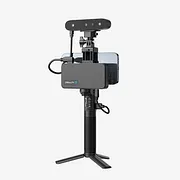 |
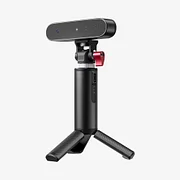 |
 |
| Accuracy | 0.1mm | 0.1mm | 0.1mm |
| Resolution/Point Distance | 0.16mm | 0.16mm | 0.16mm |
| Single capture range | 560*820mm@700mm | 560*820mm@700mm | 560*820mm@700mm |
| Working Distance | 150~700mm | 150~700mm | 150~700mm |
| Minimum Scanning | 50*50*50mm | 50*50*50mm | 50*50*50mm |
| Windows | Yes, wired/wireless | Yes, wired | Yes, wired |
| Android | Yes (More models than Ferret, wireless) | Yes, wired | NO |
| Mac | Yes, wired/wireless | Yes, wired | Yes, wired |
| iPhone | iPhone 11 series and above | NO | NO |
| Wireless Bridge | Yes | NO | NO |
| Battery Grip | 5000mAh | 4500mAh | NO |
| Frame Rate/Scan Speed | up to 30 fps | up to 30 fps | up to 30 fps |
| Outdoor Scanning | Yes | Yes | Yes |
| Alignment | Geometries/Marker/Texture | Geometries/Marker/Texture | Geometries/Marker/Texture |
| Output Format | OBJ/STL/PLY | OBJ/STL/PLY | OBJ/STL/PLY |
| Color Texture | Support | Support | Support |
| Connection Mode | USB 3.0/2.0/WiFi6 | USB 3.0/2.0 | USB 3.0/2.0 |
Creality CR-Scan Ferret Pro Connectivity FAQs
1. Why doesn’t my computer recognize the connected scanner? #windows
① If you are using a desktop computer, it is recommended to connect to the USB 3.0 interface on the rear side. The USB interface on the front of the chassis may not provide enough power and the scanner may not be recognized or not function properly. If there are USB 3.1/3.2 Gen1 and Gen2 ports, please use the Gen1 port.
② Confirm that the customer is using a Windows 10/11 64-bit system.
③ Scanner software Creality Scan installation path should be under the path of all-English characters.
2. Cannot see preview stream in PC application after connecting scanner? #windows

① Open the Windows Device Manager to confirm if the scanner is connected,
② Open Windows Settings - Privacy - Camera to confirm if camera permissions have been turned on, and if desktop applications have permission to access the camera;

③ It is required to install the software in an all-English path;
④ Make sure the scanner is pluged to the USB 3.0 ports and the power supplement is sufficient.
⑤ Make sure there is no other software which is using the CR-Scan Ferret cameras.
⑥ Update the firmware of the scanner to the latest version;
⑦ Restart the software, Check the Accuracy mode in the scan configuration and try "Fast" Accuracy to preview;
⑧ If "Fast" is correct for preview while "Hi-Quality" is incorrect, check whether the graphics card support OpenCL and update the driver of graphics card.
- For AMD graphics card, use AMD Cleanup Utility as below:
https://www.amd.com/en/support/kb/faq/gpu-601# - For NVidia graphics card, please follow the link below:https://nvidia.custhelp.com/app/answers/detail/a_id/10/kw/clean
- For Intel graphics card, please follow the link below: https://www.intel.com/content/www/us/en/support/articles/000057389/graphics.html
3. How to recover from phone disconnection? #Android
First, check if the cable end is intact. Ensure that the interface is plugged in tightly, then re-plug the USB Type A port on the charging handle to restore normalcy. When unplugging, you need to ensure that the interface is completely out of contact and fully discharged.
If the phone disconnection prompt keeps appearing when the above connection is intact, it may be that the configuration of this phone does not meet the requirements and the USB2.0 bandwidth is not enough, resulting in repeated disconnection and recognition by the scanner. It is recommended to use other smartphones for scanning.
4. Cannot see preview stream in Mac application. #Mac
① Update the firmware of the scanner to the latest version (≥ v1.1.6).
② Use a standalone USB Type A to Thunderbolt or USB 3 adapter, do not use the multifunctional / multi-device USB C adapter.
③ Install the Creality Scan app to the App folder but not the sub-folders under App.
④ Make sure there is no other software which is using the cameras of the Ferret scanner.
⑤ Check if system integrity protection (SIP) is enabled. If it is disabled, it needs to be enabled (usually it is default enabled).
Checking SIP Status in Terminal with command: csrutil status.

Follow the official tutorial to Disabling and Enabling SIP:
5. Some Android phones which connect to scanner with Y-cable show disconnection after being disconnected from the scanner for a certain period of time, how to reconnect? #Android
After the device is disconnected for a certain period of time (some phones set it to 10 minutes), the Android system will automatically turn off the OTG connection, and the device will remain offline. At this time, you need to find the OTG switch in the Android system settings and confirm that the OTG function is turned on to connect the device.
6. Can the scanner be powered directly by the phone without a charging handle? #Android
If the phone supports the USB 3.0 type-C port, it can be powered directly by the phone, but it consumes phone power quickly, so it is not recommended to use the phone to power the module. Use the charging handle to power the scanner during scanning.
7. How to handle being recognized as USB 2.0 when using a USB 3.0 interface? #windows
USB 3.0 on a PC is compatible with USB 2.0, so the four pins are the same. When the device is slowly inserted into the USB cable, it will be recognized as USB 2.0. The solution is to unplug and then quickly reinsert the USB cable.
Another solution is to connect the USB cable to the USB 3.0 interface on the PC rear side first, and then plug in the USB type-C port of the scanner side.
8. Does the scanner support USB 2.0? #windows #Android
The scanner can be connected using USB 2.0, but due to the need to transfer a large amount of data during scanning, some functions of the scanner may be limited and the accuracy may be reduced when using USB 2.0 mode.
Because of the specification is for from the requirement of the scanner, some mobile phones keep prompted the connection request of scanner from time to time, then we suggest use PC or other phones. (Samsung A52 and OnePlus 7 for example, suffers from such problem.)
Using USB 2.0,PC software versions 1.0.10 and earlier do not support hi-quality mode, and which is supported in version 1.0.13 and later.
The App version 1.2.2 supports use Hi-Quality Accuracy with USB 2.0 on Android phones.
9. Can I use the powerbank handle when it was re-charging? #Android #FerretPro
It's not recommended to use the powerbank when it is re-charging. The scanner might stutter or disconnect due to insufficient power supply.
10. How to make the scanner work via Wi-Fi if it is disconnected or the display isn't refreshed (≥20s)? #FerretPro
① Check whether the indicator light of the Wireless Bridge is on and blue. If it is not blue, you need to power off the Wireless Bridge and then power it on again, and then reconnect to the corresponding hotspot.
② Check whether the connected WLAN is the hotspot of Wireless Bridge. If not, please connect to the Wi-Fi whose SSID is "Ferret-XXXXXX".
③ If the connection to the corresponding hotspot is still abnormal, try to end the APP in the background and restart it.
④ If there is still an abnormality after the above checks, you need to power off the Wireless Bridge and then on again, and then reconnect to the Wi-Fi with the SSID of "Ferret-XXXXXX".
11. Can I connect multiple devices to the Wi-Fi Bridge and scan? #FerretPro
The Wi-Fi Bridge can connect to multiple phones and computers, but only 1 device can occupy the scanner for scanning. When the scanner is occupied by one device, the other devices will find it as "disconnected" in the app.
12. Why the device cannot connect to public network when I am using Ferret Pro via the WiFi Bridge? #FerretPro
The WiFi Bridge provides a hotspot for your cell phone to connect wirelessly to the Ferret Pro scanner, and your cell phone's WiFi needs to be connected to the WiFi Bridge. The WiFi Bridge does not have a public network configued, so you will be disconnected from the Internet when using the WiFi Bridge. Some cell phones can use both WiFi and a mobile network to remain connected to the Internet.
13. My phone connects to the WiFi Bridge hotspot with the VPN on, but Creality Scan shows that the scanner is not connected? #FerretPro
Some VPN software takes over all network connections globally and therefore can cause this. Please deactivate the VPN software while using WiFi Bridge.
More interest:
Recent News

all
2026-10-13
8 Halloween 3D Print Ideas to Make Before October 31
Halloween is coming, and the candy stash has already suffered a few unexplained disappearances. W...

all
2026-09-18
Ender Series 3D Printers Parameter Comparison
The Creality Ender Series has evolved significantly since the original Ender-3. What began as an ...

all
2026-08-02
Creality Back-to-School Sale 2026: Save Up to 50% on 3D Printers and More
A new school year is a chance to start fresh projects, develop practical skills and turn digital ...

all
2026-05-26
Is PLA Recyclable?
PLA is a biodegradable plastic derived from renewable resources such as corn starch or sugarcane....