


How to Edit & Repair STL Files with STL Editor Free?
Have you ever wondered how to edit and repair STL files without spending a fortune? This comprehensive guide introduces you to STL editing with free tools. Whether a hobbyist or a professional, learning to manipulate these files is essential for 3D printing and modeling.
Let's dive into the basics of STL files and explore the free STL editors that make editing straightforward and efficient.
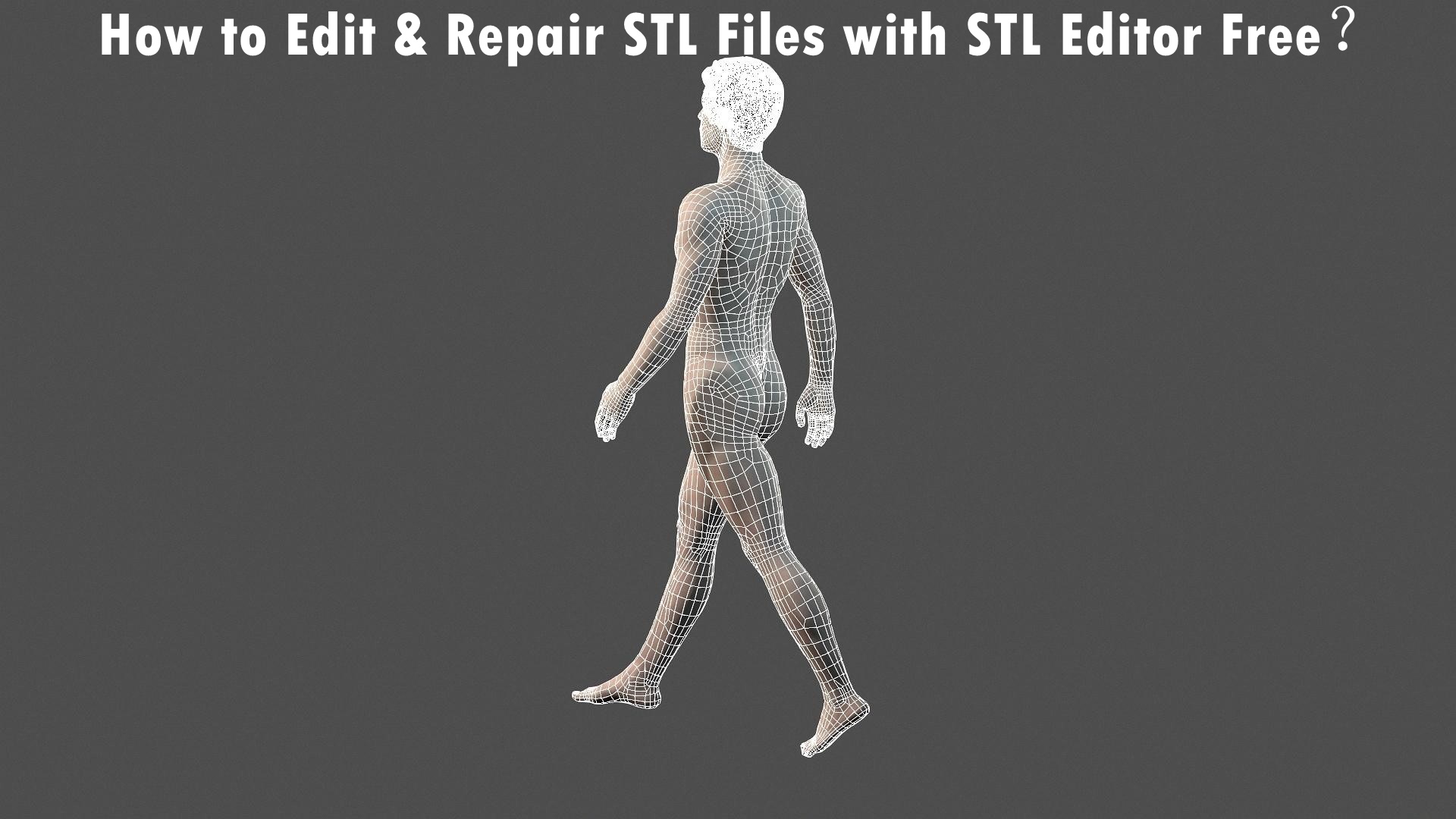
What are STL Files?
STL files for stereolithography are widely used in 3D printing and computer-aided design. These files contain the surface geometry of a 3D object without any color, texture, or other attributes. The simplicity of this format makes it ideal for 3D printing, where the focus is on the object's shape and dimensions. Understanding STL files is the first step toward mastering 3D modeling and printing, as these files form the backbone of most projects in the industry.
How do you edit STL files by STL editors with easy steps?
Let's get to understand some STL editors to edit STL files:
Fusion 360

Fusion 360, a sophisticated 3D CAD/CAM software developed by Autodesk, is a comprehensive solution for those looking to dive deep into 3D modeling and printing. With its cloud-based functionality, Fusion 360 offers parametric and direct modeling tools, making it a versatile choice for professionals and enthusiasts alike. Here’s how to effectively use Fusion 360 to edit and repair STL files:
- In the Design workspace, navigate to the Mesh tab. From the “Create” group, select “Insert Mesh” to upload your STL file either from cloud storage or your local device.
- Fusion 360 provides various editing tools under the “Modify” group, such as Combine, Smooth, Plane Cut, and Scale. These tools allow for comprehensive modifications to your mesh, enhancing or altering its structural integrity without affecting its parametric history.
- Go to the “Prepare” group and click on the Repair command for repairs. This option lets you address common mesh issues like holes and cracks by selecting the appropriate repair type, such as Close Holes or Stitch and Remove.
- Once your edits are complete, use the 3D Print command under the Export group. This function lets you directly send the model to a 3D printer or save it for further use, ensuring your file is ready for printing with all modifications intact.
MeshLab
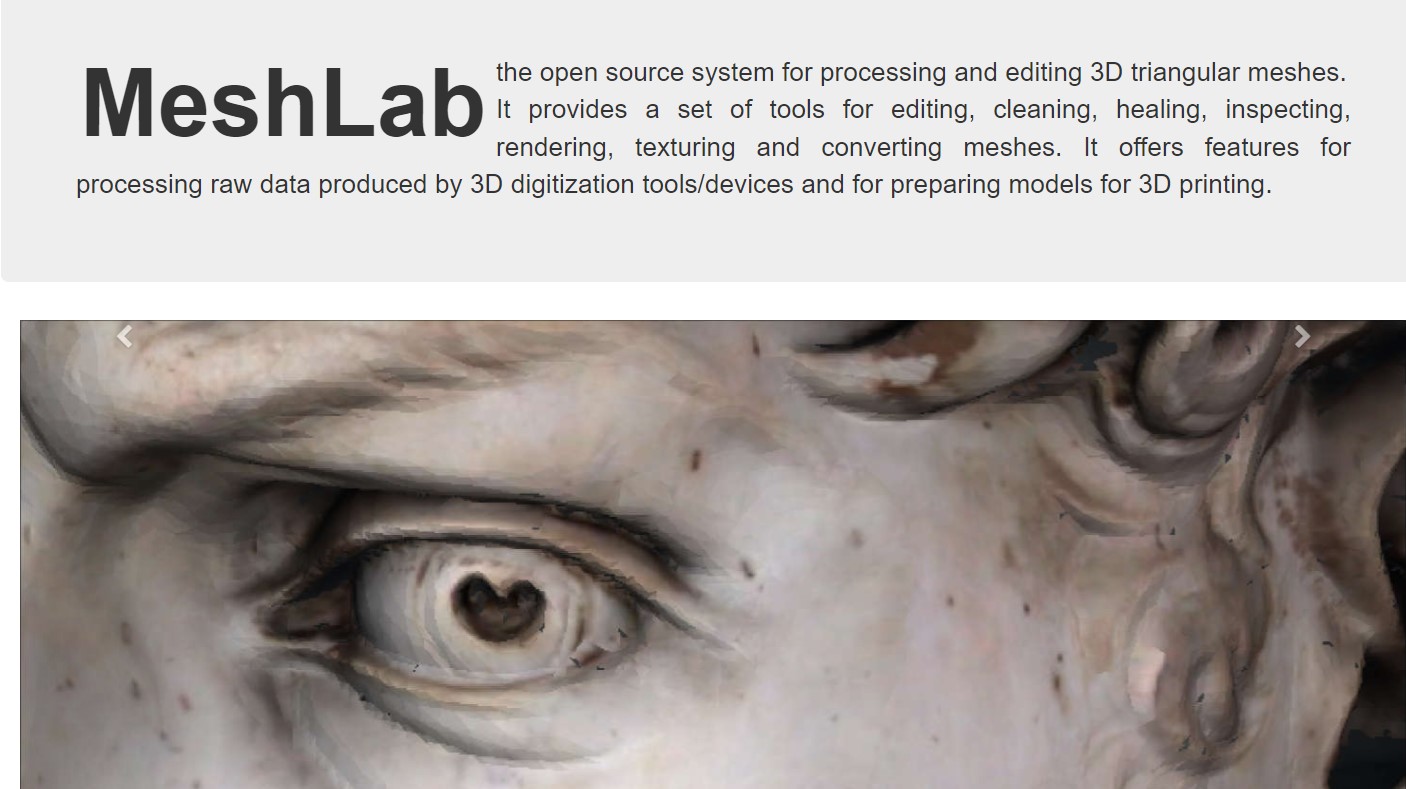
MeshLab is an open-source software designed for processing and editing unstructured 3D meshes. It benefits users who need a reliable tool for merging, transforming, or repairing various mesh file formats, including STL. MeshLab’s straightforward interface and robust toolset make it ideal for both beginners and advanced users. Here’s a step-by-step guide to editing STL files with MeshLab:
- Start by importing your mesh file via “File > Import Mesh.” This allows you to browse and select the STL file you wish to edit.
- MeshLab does not support creating new vertices or objects but excels in combining and refining existing meshes. To merge two meshes, load both models, use “Show Layers” to manage them, and employ “Manipulator Tools” for precise positioning.
- Ensure your STL file is watertight by selecting “Filters > Quality Measures and Computations > Compute Geometric Measures.” If issues are detected, use tools like “Merge Close Vertices” and “Remove Duplicate Faces” to make necessary corrections.
- After making all necessary modifications and repairs, go to “File > Export Mesh” to save your edited file in the desired format, ready for further use or printing.
SculptGL
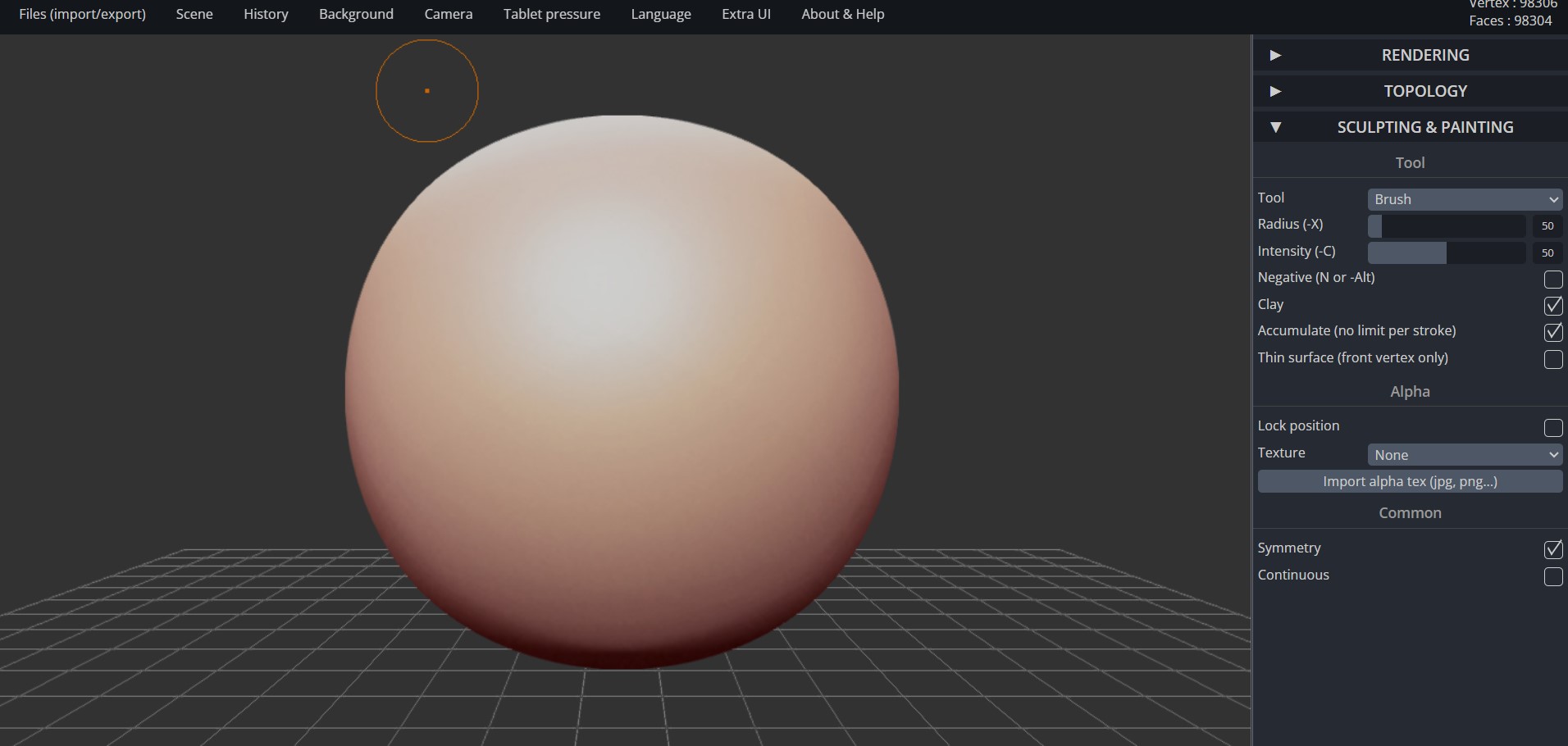
SculptGL is a browser-based sculpting application that simplifies the entry into 3D sculpting. It is especially suited for beginners due to its intuitive design and basic toolset. While more advanced than professional software like ZBrush or Mudbox, SculptGL provides a solid foundation for understanding basic 3D modeling techniques. Here’s how to start editing STL files using SculptGL:
- Clear any pre-existing scene by selecting “Scene > Clear Scene,” then add your STL file through “File > Add (obj, sgl, ply, stl).”
- Utilize the sculpting tools to define and refine large features of your mesh, such as arms or heads. Adjust tool size and use symmetry to ensure consistency across your model.
- Once satisfied with your modifications, simply save your work by navigating to “File > Save stl,” ensuring your edits are preserved in the STL format and ready for printing or further modification in other software.
Meshmixer
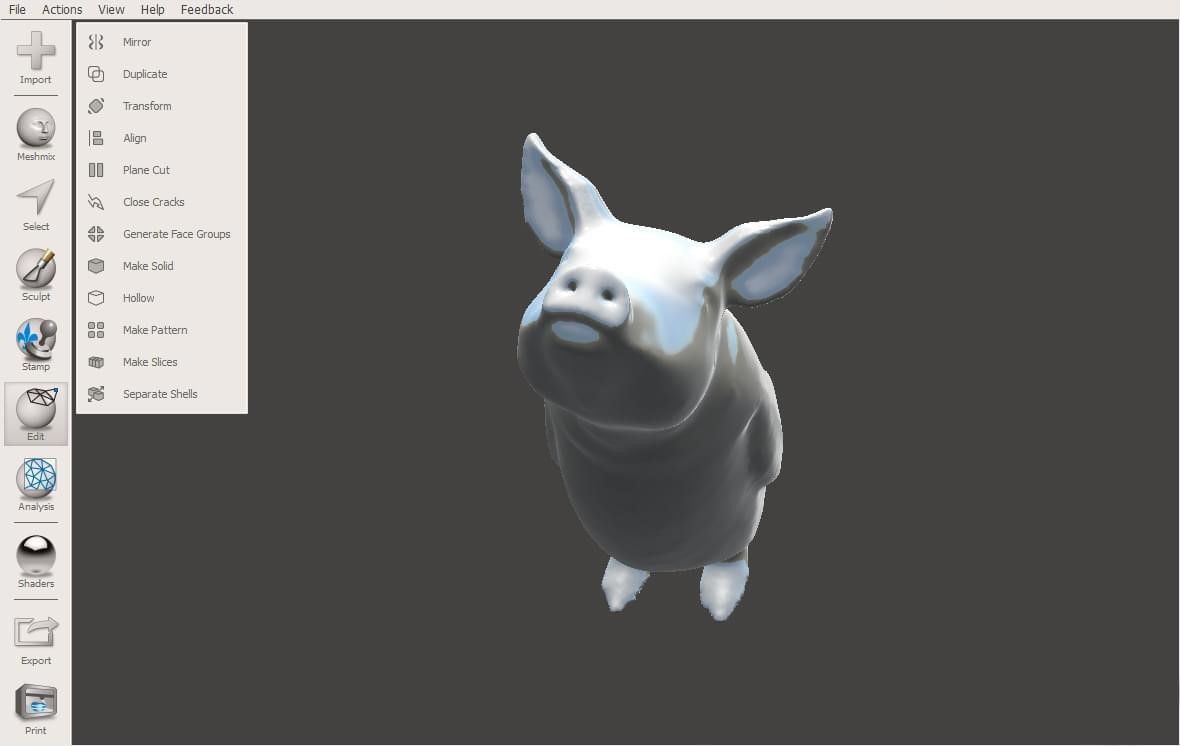
Meshmixer is a highly versatile tool developed by Autodesk Research, which is ideal for those who require a comprehensive mesh editing program. It integrates a wide range of features, from sculpting to slicing, making it a one-stop software for preparing STL files for 3D printing. Although Autodesk no longer actively develops Meshmixer, its available features remain robust and relevant. Here’s how to navigate through Meshmixer to enhance and repair your STL files:
- Begin by importing your STL file using the “Import” button. This button allows you to select and load your desired model.
- Meshmixer offers an array of editing options. Use the “Select” tool to modify or delete specific parts of your model. Enhance or alter the model using tools like “Meshmix,” which lets you integrate various forms into your design.
- Navigate to “Analysis” to access a suite of tools designed to prepare your model for printing. Use “Inspector” and “Overhangs” to detect and fix common printability issues.
- After editing and ensuring the model’s readiness for printing, export your file by choosing “File > Export” and selecting the STL format.
Tinkercad

Tinkercad, developed by Autodesk, is an easy-to-use, web-based 3D modeling tool perfect for beginners and educators. With its simple interface and basic features, Tinkercad allows users to quickly modify STL files quickly using pre-set shapesor create new custom objects. Here’s a guide to using Tinkercad for basic STL file edits:
- You can import your STL file by clicking on “Import” in the upper right corner. Then, navigate through your files to choose the STL you want to work with.
- Tinkercad’s user-friendly interface makes it easy to drag and drop shapes and use essential tools to modify your design. Using intuitive controls, you can combine STL files, add holes, or adjust dimensions.
- Once your design meets your specifications, select all components you wish to include and hit “Export” in the upper right corner. Follow the prompts to save your newly edited STL file for 3D printing or further processing.
Blender

Blender is a powerful, open-source 3D modeling suite that supports a range of sophisticated functions, including rendering, animation, video editing, and STL editing. Its complexity can be daunting, but it offers unparalleled control and flexibility for 3D design. Here’s how you can utilize Blender to edit and refine STL files:
- Launch Blender and delete the default cube. Then, use “File > Import > Stl (.stl)” to import your STL file into the workspace.
- Switch to “Edit Mode” to manipulate individual mesh elements. Use tools like “Subdivide” to enhance mesh resolution or “Extrude Faces” for detailed modeling.
- Activate Blender’s 3D Print Toolbox via “Edit > Preferences… > Add-ons > Mesh: 3D Print Toolbox” to access tools for repairing common mesh issues.
- After you have completed your edits, go to “File > Export > Stl (.stl)” to save your file, ensuring it is ready for any further application or 3D printing.
FreeCAD
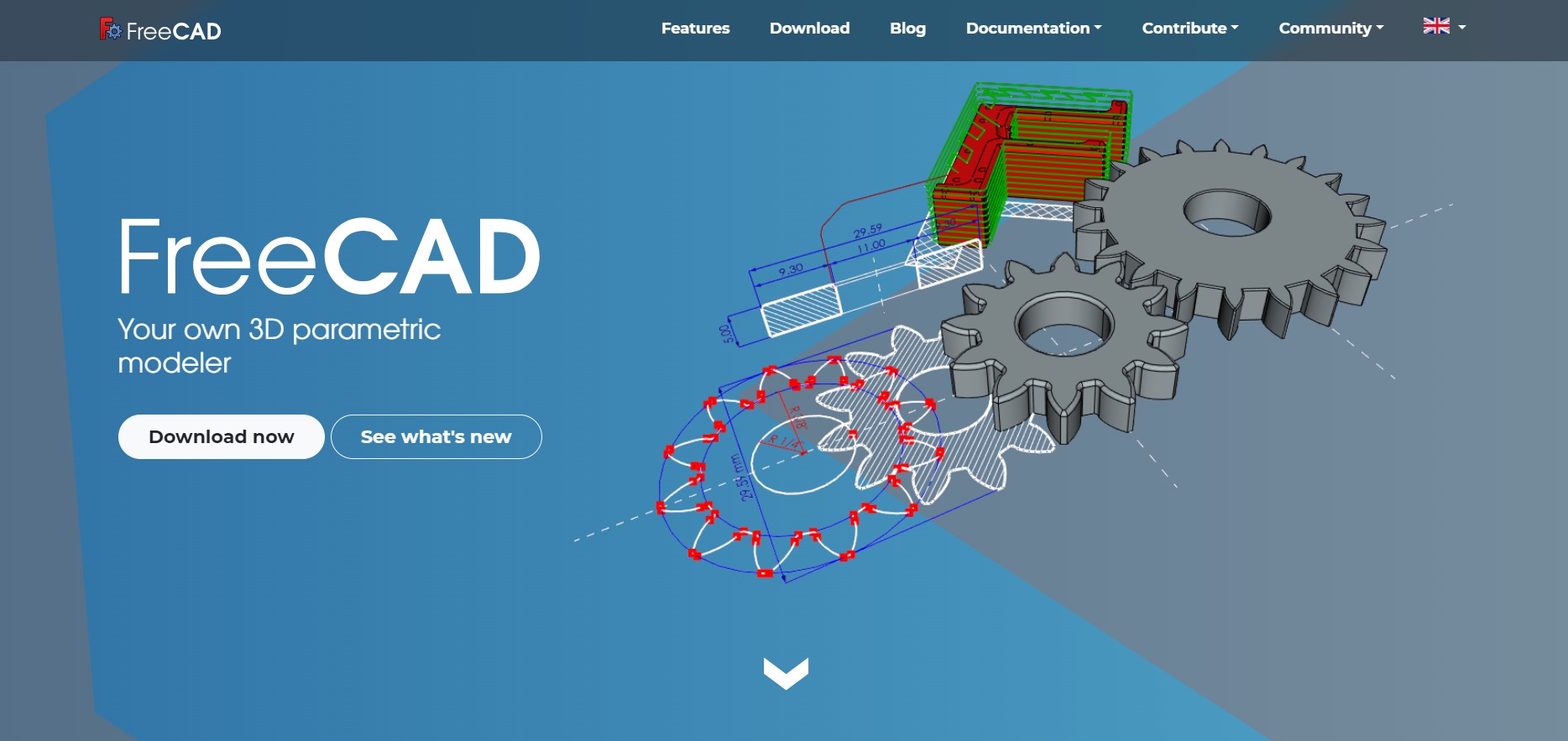
FreeCAD is a parametric 3D modeler made primarily to design real-life objects of any size. Its open-source nature and feature-rich environment suit everything from hobbyist projects to complex engineering tasks. Here’s how to use FreeCAD to edit and repair STL files:
- Create a new document and import your STL file via “File > Import.” Switch to the “Part” workbench and convert your mesh into a solid model using “Part > Create shape from mesh…”.
- Move to the “Part Design” workbench to manipulate the solid model. Add or remove material by sketching new features and using tools like “Pad” to extrude or “Pocket” to cut.
- Utilize FreeCAD’s mesh analysis tools under “Meshes > Analyze > Evaluate & Repair Mesh” to detect and fix issues within your mesh.
- Finally, select the last feature in your model tree, then export the model by selecting “File > Export” and choosing the appropriate mesh format.
These steps across various software demonstrate various techniques and tools available for editing and repairing STL files, catering to different levels of expertise and specific needs in the 3D modeling community.
Bonus: How to Edit STL Files with STL Editor Online - CrealityCloud
CrealityCloud offers a user-friendly online platform designed to simplify the editing of STL files directly in your web browser. This tool is perfect for those seeking a quick and accessible method to modify their 3D models without downloading software. Here’s a brief guide on how to use CrealityCloud to edit STL files:
- Access CrealityCloud: Visit the CrealityCloud website and navigate the STL Editor section.
- Upload Your STL File: Click on the option to upload your STL file from your computer or directly import it from cloud storage.
- Edit Your File: Use CrealityCloud's online tools to make necessary modifications, such as resizing, cutting, or merging parts of your STL file.
- Visual Guidance: As you make changes, the online editor provides real-time visual feedback, showing how your edits affect the 3D model.
- Save and Download: Once satisfied with your edits, save the modified file and download it directly to your computer for printing or further processing.
This online STL editor is an excellent resource for beginners and seasoned 3D printing enthusiasts looking to quickly adjust their models.
FAQs about How to Edit & Repair STL Files with STL Editor Free
1. Can I use these tools for professional 3D modeling and printing projects?
Yes, many of the free STL editors mentioned, such as Fusion 360 and Blender, offer sophisticated features that are suitable for professional use. These tools provide comprehensive functionality that can handle complex 3D modeling tasks, making them valuable for both hobbyists and professionals in the 3D printing industry.
2. How do I choose the right tool for editing and repairing my STL files?
The choice of tool largely depends on your specific needs and the complexity of the tasks. For straightforward edits and basic repairs, tools like Tinkercad and Meshmixer are user-friendly and adequate. For more advanced modeling and detailed repairs, Fusion 360 or Blender would be more appropriate due to their extensive features and customization options. Assess the features of each tool against your project requirements to make the best choice.
3. What are the best free tools for editing and repairing STL files?
The article recommends several excellent free tools for editing and repairing STL files, including Fusion 360, MeshLab, SculptGL, Meshmixer, Tinkercad, Blender, and FreeCAD. Each tool comes with unique features suited for different aspects of STL file manipulation, from simple modifications to complex repairs.
Recommended reads:
3D Printer Firmware for Beginner
Thingiverse Alternative Free: The Best 8 Alternatives to Thingiverse
Conclusion
I highly recommend CrealityCloud for those who need a simple, efficient solution for editing STL files. Its intuitive online editor streamlines the process, making it accessible and convenient for everyone involved in 3D modeling and printing.
Read more if you are interested in:
The Best Slicers for the Ender 3 in 2024
The Ultimate Guide to TPU Bed and Filament Temperature Settings
Recent News

8 Halloween 3D Print Ideas to Make Before October 31

Ender Series 3D Printers Parameter Comparison

Creality Back-to-School Sale 2026: Save Up to 50% on 3D Printers and More
