


Optimizing Ender 3 V3 Ke with Cura: Settings & Guide
The Ender-3 V3 KE is undoubtedly one of the best entry-level 3D printers. However, to achieve the best results with Cura, it is crucial to have the correct settings. The printer has the potential to produce perfect results, but only if operated with carefully optimized settings.
As of now, there isn't a predefined profile for the Ender-3 V3 KE in Cura. This guide will show you how to create a suitable profile and share Cura settings that we have calibrated and optimized. These settings will offer a solid foundation for achieving perfect prints with your Ender-3 V3 KE, particularly if you are just getting familiar with the intricacies of 3D printing.
Here is a detailed process and ender 3 V3 ke Cura settings guide.
Cura Initial Setup
Add a New Printer:
Go to 'Settings', then 'Printers', and 'Add Printer'.
Select 'Non-networked printer', choose 'Creality 3D', and select 'Ender 3 Pro'.
Adjust some parameters to fit the Ender 3 V3 Ke:
Build Plate Dimensions:
- Build Plate Dimensions: The X and Y dimensions remain the same as the Ender 3 Pro, but the height should be set to **240mm** instead of 250mm.
- G-code Flavor: Select 'Marlin' to replace the default 'Creality OS'.
- G-code Customization: After the G28 code, add the G29 code for bed leveling.
Standard Settings:
- Layer Height: 0.2mm
- Line Width: 0.4mm
- Wall Thickness: Adjust as needed, with an original setting of 0.8mm.
- Infill Density: 20%
- Printing Temperature: 210°C
Print Speeds:
- General Speed: 300mm/s
- Wall Speeds: Inner: 300mm/s. Outer: 200mm/s
- Initial Layer Speed: 100mm/s
- Top and Bottom Speed: 200mm/s
Additional Print Settings:
- Retract Settings: Enable retraction and adjust settings accordingly, especially for direct-drive printers like the Ender 3 V3 Ke.
- Acceleration Control: It's recommended to enable acceleration control but not jerk control.
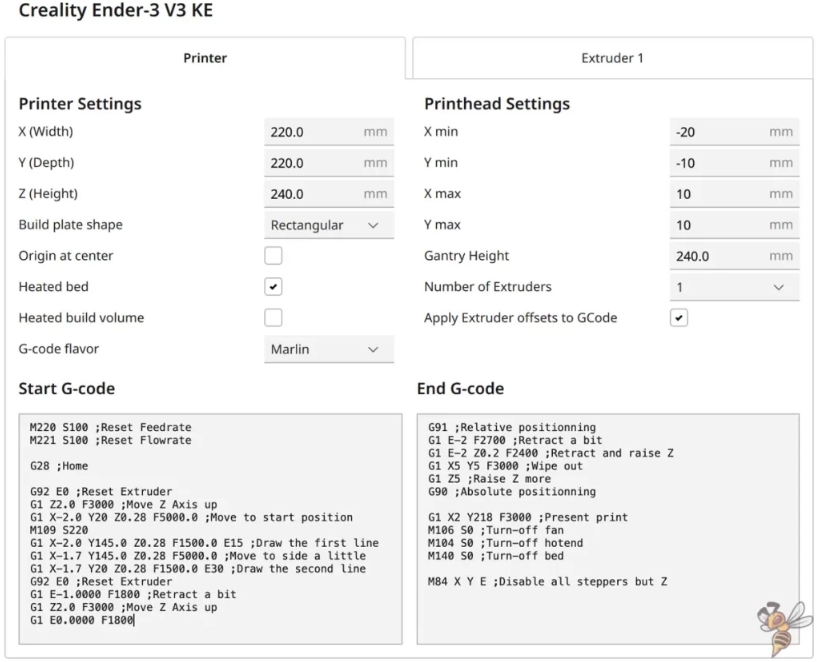
Start and End G-Code
Start G-Code:
gcode
- M220 S100; Reset feed rate
- M221 S100; Reset flow rate
- G28; Home
- G29; Bed leveling
- G92 E0; Reset extruder
- G1 Z2.0 F3000; Move Z Axis up
- G1 X-2.0 Y20 Z0.28 F5000.0; Move to start position M109 S220
- G1 X-2.0 Y145.0 Z0.28 F1500.0 E15; Draw the first line
- G1 X-1.7 Y145.0 Z0.28 F5000.0; Move to side a little
- G1 X-1.7 Y20 Z0.28 F1500.0 E30; Draw the second line
- G92 E0; Reset extruder
- G1 E-1.0000 F1800; Retract a bit
- G1 Z2.0 F3000; Move Z Axis up
- G1 E0.0000 F1800
End G-Code:
gcode
- G91; Relative positioning
- G1 E-2 F2700; Retract a bit
- G1 E-2 Z0.2 F2400; Retract and raise Z
- G1 X5 Y5 F3000; Wipe out
- G1 Z5; Raise Z more
- G90; Absolute positioning
- G1 X2 Y218 F3000; Present print
- M106 S0; Turn-off fan
- M104 S0; Turn-off hotend
- M140 S0; Turn-off bed
- M84 X Y E; Disable all steppers but Z
Material-specific Settings
PLA:
- Print Temperature: 210°C
- Bed Temperature: 60°C
- Print Speed: 180-250 mm/s
- Retraction: 0.8 mm at 40 mm/s
- Cooling: 100%
ABS:
- Print Temperature: 250°C
- Bed Temperature: 100°C
- Print Speed: 150 mm/s
- Retraction: 0.5 mm at 40 mm/s
- Cooling: 50%
TPU:
- Print Temperature: 215°C
- Bed Temperature: 30°C
- Print Speed: 100 mm/s
- Retraction: 2 mm at 40 mm/s
- Cooling: 100%
PETG:
- Print Temperature: 230°C
- Bed Temperature: 80°C
- Print Speed: 150 mm/s
- Retraction: 1.2 mm at 40 mm/s
- Cooling: 50%
By optimizing these parameters and performing slicing in Cura, excellent printing results can be achieved. For example, a benchmark model took 1 hour and 24 minutes to print. The final step is to export the sliced file and upload it to the printer.
Related Article:
How Much do 3D Prints Cost? >>
Creality Ender 3 V3 KE Troubleshooting Guide >>
Final Thoughts
This approach simplifies the set-up process as opposed to previously Creality slicing solutions, making the 3D printing process more transparent and allowing users to choose the appropriate software.
I hope these settings address your issues when using Cura with Creality printers and facilitate precise and efficient 3D printing across various types and objects.
Recent News

8 Halloween 3D Print Ideas to Make Before October 31

Ender Series 3D Printers Parameter Comparison

Creality Back-to-School Sale 2026: Save Up to 50% on 3D Printers and More
