


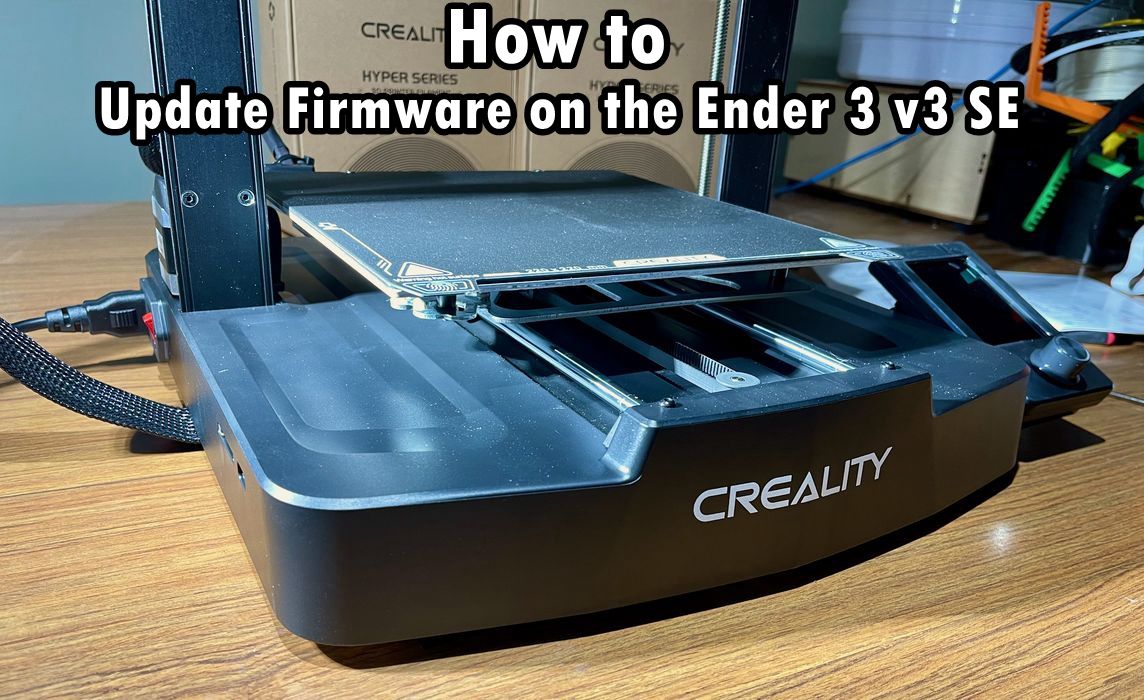
How to Update Firmware on the Ender 3 v3 SE
To ensure the efficient operation of your 3D printer, especially the Creality Ender 3 v3 SE model, updating your firmware is crucial.
This article will provide an in-depth guide on how to effectively update your Creality Ender 3 v3 SE firmware.
Tools Required for this Firmware Update
For this firmware upgrade process, you will notably need two memory cards of different sizes - a standard size SD card for updating the machine and a micro SD card for the screen. A smarter workaround for this is using a micro SD card with a full-size SD card adapter.
You should note that both the screen firmware and motherboard firmware need to be updated – burning is required for this process. The version to be downloaded for this guide uses version 1.06. After downloading, remember to unzip the file.
Screen Firmware Update for Ender 3 v3 SE
First, you'll need to obtain the latest version of the firmware. You can easily do this by visiting Creality's website and searching for "v3 SE". Ensure you download the most recent version by checking the version number and the latest upload date.
Updating your screen firmware follows a straightforward process:
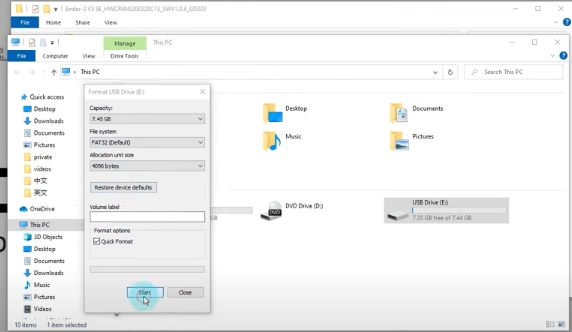
- Format a TF card and select 4096 for the allocation unit size.
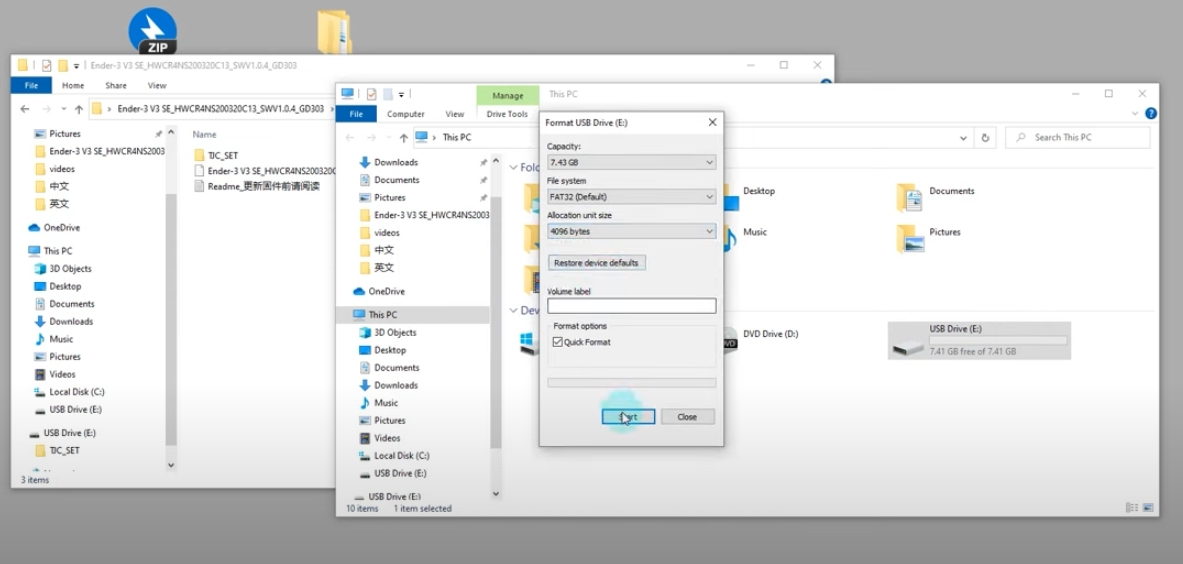
- Transfer the folder "TJC_SET" into the TF card.
- Put the TF card into the screen's card slot and switch the machine on.
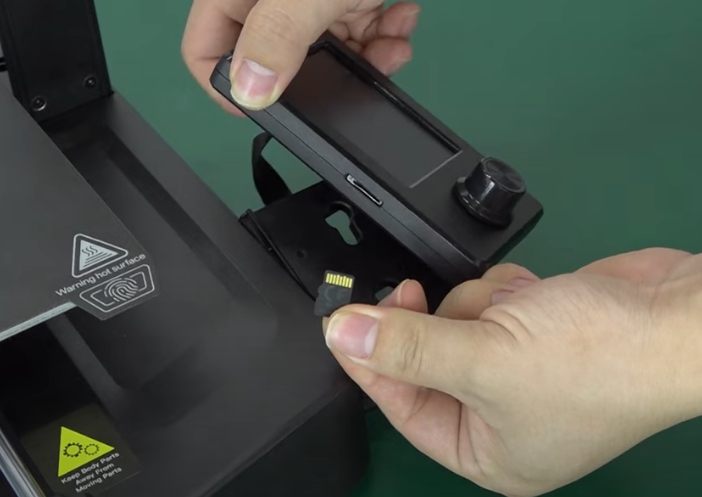
- Await the completion of the firmware flashing.
- Turn the machine off and remove the TF card from the screen card slot.
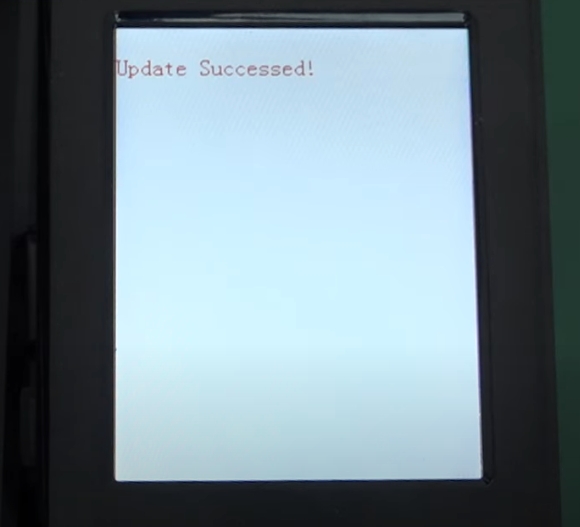
After the update is complete, the screen will notify you that the update has succeeded.
Firmware Update for Ender 3 v3 SE
Flashing your motherboard firmware requires a similar process:
- Format an SD card and select 4096 for the allocation unit size.
- Transfer the firmware file "Ender-3 V3 SE_HWCR4NS200320C13_SWV1.0.6_GD303_20230731.bin" into the root directory of the SD card.
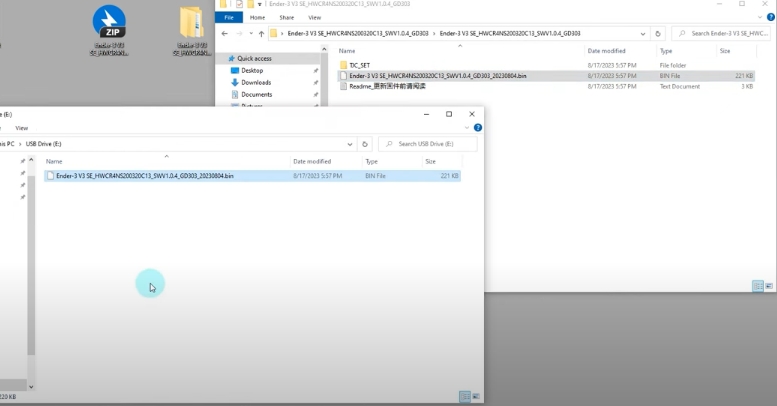
- Rename the firmware, for instance, "123.bin."
- Insert the renamed firmware-filled SD card into the motherboard slot and then power on the machine.
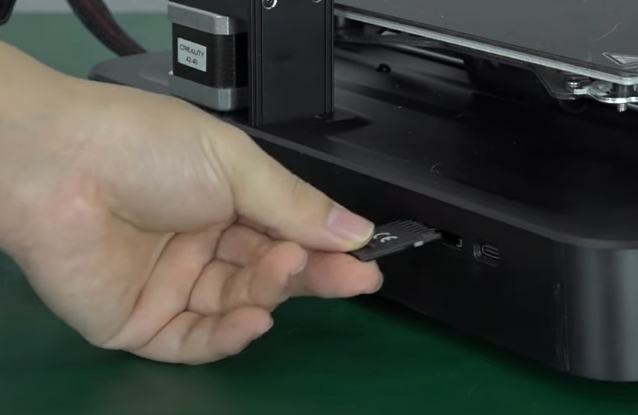
- Wait through a roughly 10-second black screen until the firmware flashing finishes and a page appears.
Confirming the Firmware Update
To confirm the firmware update was successful, you can view the firmware version number by navigating through your 3D printer's settings.
If you yearn to break away from the traditional manual firmware updates, consider installing Creality’s Nebula Pad. The Nebula Pad introduces wireless functions and Creality Cloud support to your printer, thereby enabling you to do future firmware updates automatically over the air via Wi-Fi.
Potential Firmware Update Mistakes
Sometimes firmware updates don't go as planned. Here are a few scenarios and their solutions:
1. If the motherboard firmware is updated without updating the screen firmware, a blue screen may occur. Correct this by updating the screen firmware — always update the screen firmware first.
2. If the screen firmware is successfully updated but the motherboard firmware fails, you will encounter a distinct error screen. Try changing the motherboard firmware name to "123.bin," replace the SD card, and retry the firmware update.
3. After a failed screen firmware update, you might encounter an error screen. If this happens, you will need to reattempt the screen firmware update.
Learn more about:
Top 10 Best 3D Printers for Beginners >>
Conclusion
Keeping your Creality Ender 3 v3 SE 3D printer updated with the latest firmware is vital for optimal functionality and performance. Remember, these updates are the lifeline of your 3D printer's top-notch performance. Stay updated, and continue crafting your 3D printing masterpieces.
Recent News

8 Halloween 3D Print Ideas to Make Before October 31

Ender Series 3D Printers Parameter Comparison

Creality Back-to-School Sale 2026: Save Up to 50% on 3D Printers and More
