


Creality Falcon2 Laser Engraver & Cutter Series FAQs
The Falcon2 seamlessly combines precision, power and user-friendly for both engraving and cutting applications. Its powerful laser technology ensures impeccable detail on a wide range of materials. These FAQs explore the Falcon2 laser engraver machine, its engraving and cutting features and software. The aim is to help users gain a deeper understanding of the Falcon2, enabling them to create more perfect work.
Now, before we check the FAQs list, take a close look at Falcon2 Tech Specs to give you a clearer idea.
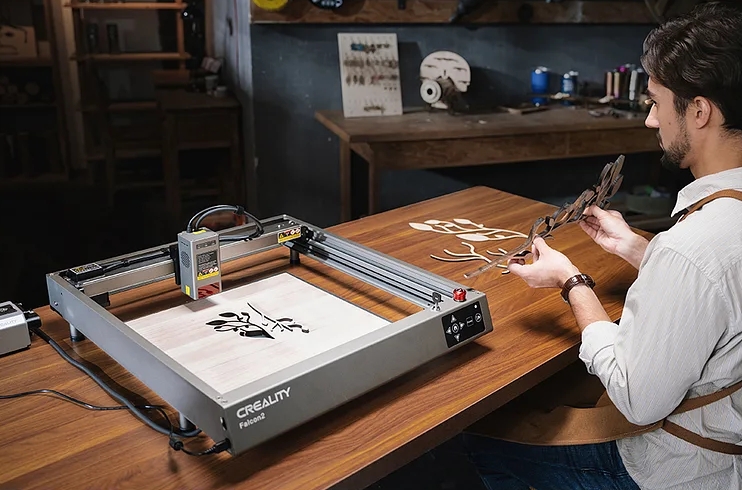
Falcon2 Series Specs: Falcon2 12W vs 22W vs 40W Comparison
| Optical Power | 12W | 22W | 40W |
| Machine Power (MAX) | 120W | 120W | 240W |
| Product Size | 664*570*163mm | 664*570*173mm | 664*570*193mm |
| Package Size | 725*625*150mm | ||
| Equipment Weight | 7.14kg | 7.18kg | 7.68kg |
| Gross Weight | 10.31kg | 10.35kg | 10.94kg |
| Engraver Speed | 20000mm/min | 25000mm/min | 25000mm/min |
| Colorful Engraving | x | √ | √ |
| Input Voltage | 100-240V~ 50-60Hz | ||
| Output Voltage | DC 24.0V 5.0A | DC 24.0V 10.0A | |
| Operating Temperature | 5℃-35℃ | ||
| Engraving Area | 400mm*415mm | ||
| Laser Source | Diode Laser | ||
| Laser spot | 0.06*0.08mm | 0.08*0.1mm | 0.08*0.12mm |
| Laser Wavelength | 455±5nm | ||
| CLASS | Class IV (FDA) | ||
| Laser Engraving Software | LightBurn、LaserGRBL | ||
| Operating System | Windows/MacOS | ||
| File Format | Gcode | ||
| Supported File Formats | Jpeg, jpg, png, bmp, svg, dxf, etc. | ||
| Supported Materials | Cardboard, wood, bamboo, rubber, leather, fabric, acrylic, plastic, etc. | ||
| Certifications | IEC60825、FDA、CE、ROHS、FCC、UKCA、UL Report、PSE | ||
Falcon2 Frequently Asked Questions
FAQs About Falcon2 Device
1. What is the size of the engraving area?
2. What’s the type of the laser source?
3. What would happen if the machine powered off during work?
4. Why is the engraving effect so shallow?
5. Why is the engraved effect different from the original image?
6. What should I do if the engraving effect is inconsistent in depth?
7. How to focus?
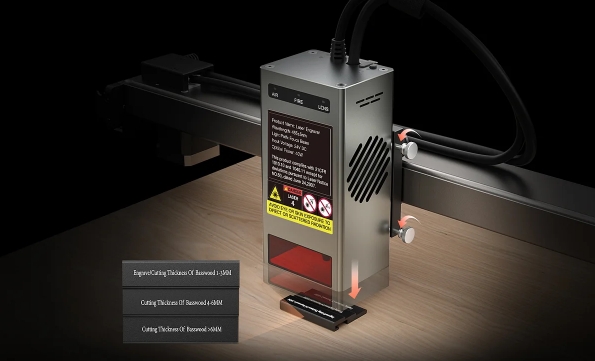
3 steps to efficient focusing:
- Place the multi-level fixed-focus block between the module and the processed material
- Lower down the laser module to touch the corresponding position of the multi-stage focus bar
- Use the right screw to lock it.
8. Will the laser damage the workbench?
9. Why can't the machine read the G-code file (or read the wrong file)?
- Please check if the TF card is inserted. The machine reads the latest engraving file(.gcode/.gc) in the root directory of the TF card by default. It is recommended to delete other engraving files in the root directory.
- The gcode file can only be generated by LightBurn. If the gc file is generated by default, please modify the file suffix to gcode manually.
10. What should I do if the buzzer makes a rapid alarm sound?
11. What should I do if the machine cannot be turned on?
- Check if the power plug is plugged in properly.
- Check if the power outlet is properly powered.
- Check the power switch, emergency stop switch and child lock on the machine are turned on.
12. Do I have to wear goggles?
13. What if the buzzer suddenly emits a "beep" and then stops working?
14. What will happen if the belt is too loose or too tight?
FAQs About Falcon2 Engraving or Cutting
1. What material can I engrave or cut?
- Engraving: Paper, Wood, Bamboo, Leather, Textile, Acrylic, Painted Metal, Plastic, etc.
- Cutting: Paper, Wood, Bamboo, Cloth, Leather, Fabric, Acrylic, Plastic, etc.
2. Can I engrave on cambered material?
3. Can I engrave reflective/transparent materials such as ceramics/glass?
4. Why do I have different engraving effects in the same materials with different colors by using a same G-Code file?
5. How to deal with the smoked traces on the surface of the material?
6. Why is it unable to cut through the material?
- Ensure that the machine and engraving material are parallel to the workbench;
- Ensure that the protective lens of the laser module is clean;
- Refer to the user manual and focus correctly;
- Refer to the recommended parameters in TF card;
- Gradually increase the number of passes or reduce the cutting speed appropriately;
7. Should I use the air assist?
FAQs About Falcon2 Software
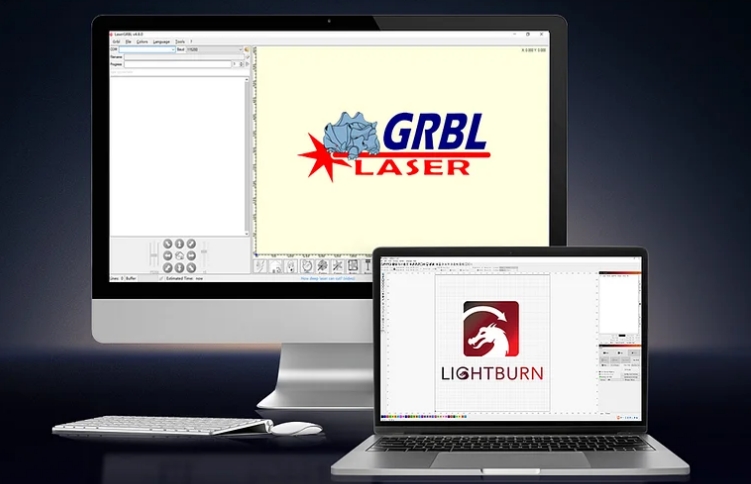
1. What software can I use for Laser Falcon?
2. Where can I download the software?
3. What files can I import to the software?
4. Where can I get tutorials?
5. What should I do if it cannot identify the COM port corresponding to the engraving machine for WIN7 system?
6. What should I do if the software does not respond, or it cannot be connected during online-working?
- Ensure that the Type-C data cable has the communication function and the end of the data cable connected to the computer is a USB-A interface.
- Ensure that you have imported the Creality Falcon2.lbdev file successfully.
- The corresponding COM port of the machine is not occupied.
- If it still can't be connected, please record a video and tell the customer service your system information and the version of software.
 People Also Read:
Creality Falcon2 22W Laser Engraver Shopping Guide
Creality Falcon2 Laser Engraving & Cutting Parameter Settings
Recent News

8 Halloween 3D Print Ideas to Make Before October 31

Ender Series 3D Printers Parameter Comparison

Creality Back-to-School Sale 2026: Save Up to 50% on 3D Printers and More
