


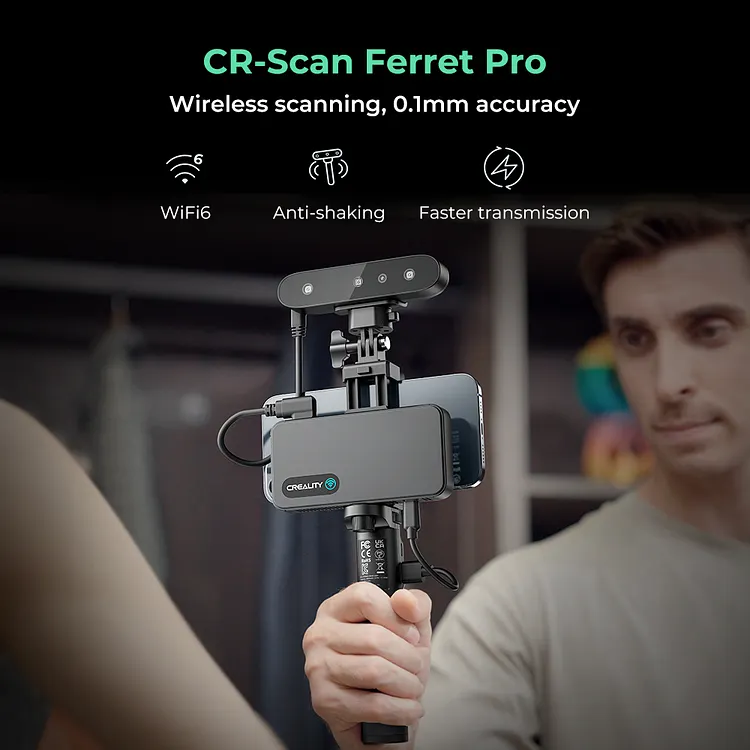
CR-Scan Ferret Pro Wireless Scanning, 0.1mm Accuracy $429.00
【0.1mm accuracy & Wireless scanning via Wi-Fi 6】
【Anti-shake 3D Imaging Technology】
【Built-in 2MP High-resolution Color】
【Scan Black/Metal Objects Without Spraying】
【Support Mac, iOS, Win, and Android】
【Outdoor scanning allows scanning anywhere(<30k lux)】
Ferret Pro Troubleshooting Guide
all
2024-12-23 04:59:24
Here are some common problems for CR-Scan Ferret Pro that we collected, such as troubleshooting, scanner specification, software update and some other related software issues, which we hope will be helpful to you.
CR-Scan Ferret Pro 3D Scanner
Ferret Pro Troubleshooting
1. After scanning is completed, the program is stuck on "Processing" after clicking on “one-click processing”. #Android #windows #macOS #iOS
After scanning is completed, there are two places where "Processing" will appear. The first is after Optimizing, Meshing, and Color Mapping, then it will enter post-processing. The second is during the export of the model.
If it is stuck on "Processing" during the export stage, it may be a path problem or the computer went into sleep or lock screen mode, which interrupted the processing. In this case, you can exit the application, reopen the project folder in the software and export again.
During post-processing, the device must also remain active and not go into sleep or lock screen mode, otherwise it may cause abnormalities and continuously prompt "Processing". In this case, the model may be damaged, and you can try to open the model in the project folder to confirm.

2. After building the model, it quickly saves successfully, but the saved file cannot be seen when saved to a non-English path. #windows #Fixed
This is a bug in version 1.0.4 of the PC client. It was fixed in the next version 1.0.10. Customers are advised to temporarily save to an all-English path.
3. Google Pixel phone cannot use hi-quality mode. #Android #Fixed
A newer version has been released to solve such problems, please download and update your app to version 1.1.1 and later or get the latest app from Google Play Store.

4. How to deal with "sparse point cloud" displayed by the software? #window #Android #macOS
Please confirm that you are using a device that meets the recommanded requirements and is connected to a USB 3.0 interface.
Sparse point clouds are usually due to exposure, overexposure or underexposure can cause sparse point clouds.
Firstly, make sure there is a good scanning environment, if the light is too strong, it will affect the point cloud imaging of the scanner, and secondly, keep the scanning distance within the "Good" and "Perfect" distance. If all of the above can be met or prompt point cloud scarcity, it is recommended to turn off the automatic exposure, open the manual exposure adjustment. If over exposure, the preview screen will have a red dot, you need to adjust the exposure bar to the left to reduce exposure; if under exposure, the preview screen will have a blue dot, you need to adjust the exposure bar to the right to increase exposure.


5. How to deal with continuous reminders of "invalid data" during scanning? #windows #Android #macOS #iOS
Please ensure that the distance is suitable, and the preview window is tracking the part with significant features of the scan target. Stabilize the scanner before moving slowly in a straight line (moving up and down, left and right) for scanning.
If there are continuous reminders of "invalid data," please check if the object being scanned is smaller than the size configured for large objects, and if the scanner is based on a turntable scan (i.e., the scanner does not move). In this case, exit and reconfigure the scan object size as medium/small and restart the scan. If the configuration meets the requirements of the scanning target, please aim the scanner at the significantly featured part of the target or slow down the speed of moving the scanner.
6. Why I get the message that the scanning hit the limited "Ceiling reach!" #Android
The ceiling (upper) limit of the scanning frame is dynamically adjusted according to the remaining RAM of the phone. If there is insufficient RAM remaining, this prompt will be shown. If you want to scan more frames, you need to kill some background apps to free RAMs before use.
7. How to make the scanner work if it is disconnected or the display isn't refreshed (≥ 10s)? #Android
① remove USB cable from the handle and the smartphone.
② replug in the handle.
③ reconnect the scanner to the smartphone.
8. My Mac is running Big Sur and later OS, but I cannot install the app. #macOS #Fixed
The software version 1.0.12_beta only supports Apple's M1, M2 series SOC, Big Sur and later operating systems, and requires more than 8G of RAM. The next version 1.0.13 supports Apple's M1,M2 SOC and Intel CPU. Please use the latest version and try again.
9. Why I cannot find my scans after import a historical project? #Windows #Fixed
This is a display issue in software version 1.0.14. The scanned data will not be damaged. It is fixed in the later version.
Ferret Pro Scanner Specification
1. What is the scan frame rate of the scanner? #windows #Android #macOS #iOS
The scanner supports 30fps depth image acquisition (in fast mode), but the actual scan frame rate is often lower than 30fps, depending on the scanned object, the device (phone, PC) used to run the program, and the speed of the transmission interface. For best results, customers should use devices that meet the recommended performance requirements.
2. What system configuration is recommended for the scanner? #windows #Android #macOS #iOS
For Android phones, it is recommended to use smartphones with USB 3.0 or higher interfaces, 8GB or more of RAM, and Android systems 11-13. The recommended phone models can be found in our compatibility list.
* Android 10 is no longer supported after 1.1.1_beta.
For iPhone, iPhone 11 and later models with iOS 15.0 and later is required to work with Ferret Pro. Wired connection to Ferret is not supported on iPhone 15 currently.
For PCs, it is recommended to use computers with USB 3.0 interfaces, Intel i5 8th generation or higher CPUs, and 8GB or more of RAM, running Windows 10 64-bit or higher (32-bit Windows systems are not supported).
For Mac, the software (1.0.13) is compatible for Macs with Apple M1/M2 series chips and Intel CPUs. It's recommended to be equipped with 8G and above RAM, Thunderbolt 3/4 or USB 3 interface. For Macs with Apple M1/M2 chips, Big Sur and newer operating systems are required. For those with Intel CPUs, macOS 10.5.7 Catalina and later are required.
iPad is not supported.
To scan large objects, it is recommended to use a device (smartphones, PCs and Mac) with 16GB or more of memory.
3. How long can the charging handle support continuous scanning? #Android
After being fully charged, the charging handle can support about two hours of continuous scanning in general working environments. Generally, the scanning time for small and medium-sized objects is within 5 minutes, which means the charging handle can support scanning of 20-30 middle objects.
4. The frame rate is very low during scanning? #windows #Android
During scanning, the frame rate depends on the configuration of the device (phone, PC) used to run the program, the object being scanned, and the speed of the interface used for data transmission. For example, USB 2.0 will be slower than USB 3.0, so the scanning frame rate can be fast or slow.
Software Update of Ferret Pro Scanner
1. Why I get two desktop shortcuts after I installed the new software version 1.0.10 #windows #Fixed
Because the exe of version 1.0.10 is signed, so both shortcuts from previous versions and current version are retained by the windows system. The signature of future version will be the same as the 1.0.10 version to prevent this problem.
If the customer is installing to the path of the previous version (1.0.4), then the two shortcuts are both for the exe of 1.0.10. The user only need to delete either one of the shortcuts. Do not uninstall the 1.0.4 from "Applications and Features" in the windows control panel. Otherwise the new 1.0.10 version and previous user data "Projects" will be uninstalled as well.
If the customer is installing to a new path and wants to delete the previous version, please note that the previous scanning data in the 'projects' directory in the path of previous verison should be backed up before uninstall the previous version, or the data will be deleted.
★ Suggested update method for customers:
(1) backup the scanning contents of "projects" in the folder of 1.0.4 ,
(2) uninstall 1.0.4, and then
(3) install 1.0.10.
2. Why I get two icons of CrealityScan on my screen after I installed the new version from Google Play store. #Android #Fixed
The latest version has some major adjusts to meet the requirements of Google Play Store, which can cause this problem. You can simply uninstall the previous version of the app. Subsequent version updates will not have this problem again.
The latest version of the app has tips about version data migration, you can backup your scanning data from the suggested directory.
3. Can I rollback to the previous firmware in Firmware feature? #windows #MacOS
In PC, you can rollback to the previous firmware in the firmware feature if you have the bin file of the previous version.
In Mac, you cannot rollback in current version (1.0.12 beta)
4. The scanner is disconnected in the Device page after a power-off in accident, what can I do? #windows #MacOS
Just pull and re-plugin the scanner to your PC and restart the Firmware update feature. Please keep the power supply stable, USB cable connection stable and don't power-off the scanner before the Update successful prompt. Please follow the instruction to pull and plug the scanner if there is some prompt during the second update procedure.
Special Caution:The Mac app (1.0.12 beta) might not be able to re-update the firmware of the scanners which was failed to update the firmware because of power-off or other reasons. In such circumstance, you might update the firmware in Windows app (1.0.13) to restore the scanner to normal.
5. I installed a newer version of CrealityScan App in the location other than the existing App. Why I still get the older version when I open from the shortcut in App launcher? #MacOS
Because dmg file installation is just copying files from mounted images to disks of your Mac. So it cannot create a new shortcut to overwrite the existing one with the same name. We recommended you to install the dmg file to the same location so that to overwrite the existing App and shortcut. If you do need to move the a new loaction, you can uninstall the existing one and install a new one to the new location.
6. My Mac is using Apple M2 SOC, why it failed to update the firmware from the USB type A port? #MacOS #Fixed
It's a known issue that scanner with firmware version 1.0.52 cannot be upgraded via USB type A port but can be upgraded via the Trunderbolt ports. The subsquent versions (1.1.6 / 1.1.7) can be upgraded via both USB type A and Trunderbolt ports.
7. What precautions should be taken when upgrading the firmware of the Wireless Bridge? #FerretPro
Please ensure that the remaining battery is more than 50% (with at least 2 lights on) of the rechargeable handle which is providing power to the Wireless Bridge before performing the firmware upgrade. It is important to avoid power interruptions during the firmware upgrade process, as it can lead to damage of the Wireless Bridge.
Other Related Software Issues
1. Why I get a 10X scale of my models when I open the model file on Fusion 360? #windows #Android #MacOS #iOS
It's because of the measurement of Fusion 360.
If you import your obj or mesh files by this way: "INSERT", "Insert Mesh", then the measuerment is correct.
If your import your model from "FILE". "open...", "Open from my computer", then the measurement is 10X.
You may also try MeshLab or Geometry Studio, which measurement is correct.
2. Why I get a different orentation of the model in other software? #windows #Android #MacOS #iOS
Because each scanners or softwares have different default coordinate systems. When using other tool software to open the model, you can rotate the model manually.
3. Does the scanner get power from my phone? Why the phone gets hot and consumes much power during scanning? #Android
① The scanner can only be powered by the tripod powerbank by the design, so it cannot get power from the phone if using the official Y cable and tripod powerbank. The powerbank can support about 2 hours scanning after being full charged in general environment.
② During a scanner task, the scanner to generate gigabytes of data per second and then the app allocates a lot of system resource (such as CPU, GPU and RAM) to handle the data in order to get accurate point cloud and vivid color meshes. Furthermore, the screen is always on for the observation, which also consume powers. After all, the phone consume much power and get hot is normal.
③ We suggests the phone should be full charged before scanning and always keep the phone cool.
4. Why there is always an authentication prompt when I start the CrealityScan Mac app. Is it a risk of security leak? #MacOS
The app is not from Mac App Store, so there is additional security checking prompt required by the MacOS. Creality concerns data security and privacy. We do not require,store or transfer your personal information such as password.
 People Also Read:
How to Use Ferret Pro: FAQs About CR-Scan Ferret Pro Usage
Recent News

all
2026-10-13
8 Halloween 3D Print Ideas to Make Before October 31
Halloween is coming, and the candy stash has already suffered a few unexplained disappearances. W...

all
2026-09-18
Ender Series 3D Printers Parameter Comparison
The Creality Ender Series has evolved significantly since the original Ender-3. What began as an ...

all
2026-08-02
Creality Back-to-School Sale 2026: Save Up to 50% on 3D Printers and More
A new school year is a chance to start fresh projects, develop practical skills and turn digital ...

all
2026-05-26
Is PLA Recyclable?
PLA is a biodegradable plastic derived from renewable resources such as corn starch or sugarcane....