


5 Free Tools to Fix STL Files
It's frustrating when an STL file appears fine but is rejected by slicer software. This happens when the model isn’t watertight or manifold, meaning the geometry is unclear. Some STL files, while technically correct, may be too large or detailed for processing, especially with online printing services.
Thankfully, improved scanning and modeling tools, as well as smarter slicers, are reducing these issues. However, software like SketchUp and Boolean CAD models can still pose problems. For stubborn STLs, dedicated repair software offers solutions, from basic online tools to advanced programs. Here, we’ll review four free options for fixing STL issues.
Our Selected Software
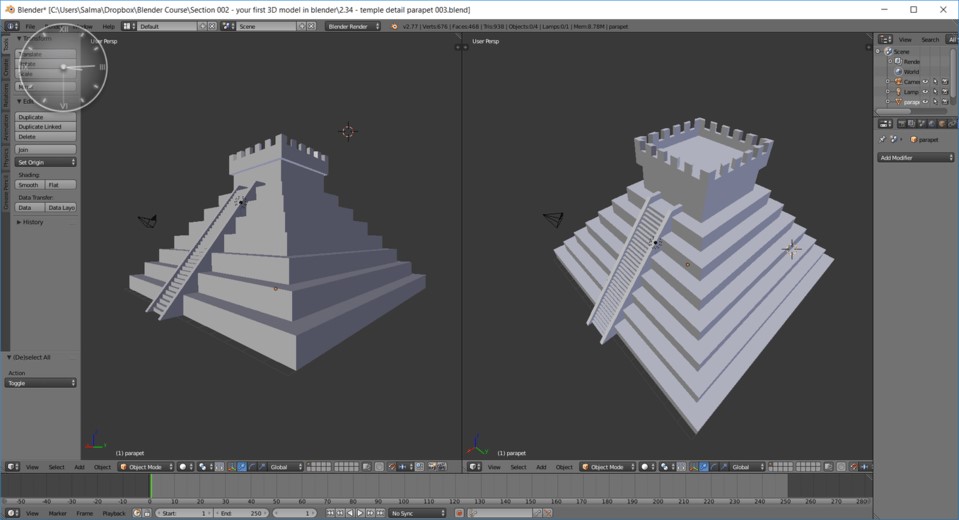
In our review of STL repair software, we explored various tools, including embedded slicer options and commercial solutions, to identify the best free online and offline programs. We focused on these tools:
- Formware’s Repair Tool: A simple browser-based solution.
- 3D Builder: A Windows tool with more control for STL repairs.
- FreeCAD and Meshmixer: Useful for more extensive edits; FreeCAD is a popular CAD software, while Meshmixer specializes in mesh modeling and manipulation.
Additionally, we highlight Fusion 360, which combines many of Meshmixer’s repair functions within a CAD framework.
In comparing these tools, we evaluated how well they handled automatic repairs, reduced STL file sizes without losing critical detail, provided feedback on errors and fixes, allowed manual adjustments, and supported design changes when necessary.
Not all tools offered these features, and even after repair, STLs may have issues like thin walls or insufficient hollows. While some software addresses these, such functionality was beyond this review's scope.
Sample STL Files
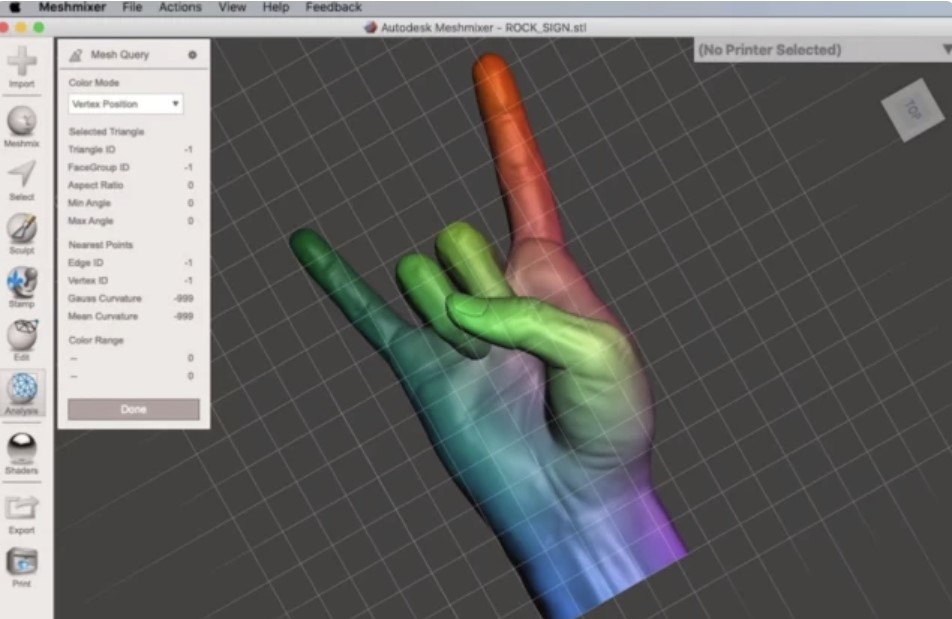
To test our selected tools, we used three STL files, each with unique repair challenges:
- The Temple of Kukulcán by gpvillamil: Although it appears as a single structure, it includes several internal shapes that can confuse slicers, including a hidden human figure within.
- Hand Anatomy by tutus: This high-detail model has a large triangle count with minor issues in its geometric description.
- Tiki Man by cjohnny: A scanned model with a large file size (98 MB), an incomplete base, and multiple mesh issues.
We also tested additional files with various issues for specific repair checks, but these three models presented the most significant challenges.
With our software and STL selection complete, let’s dive into the tool comparisons.
Formware Software
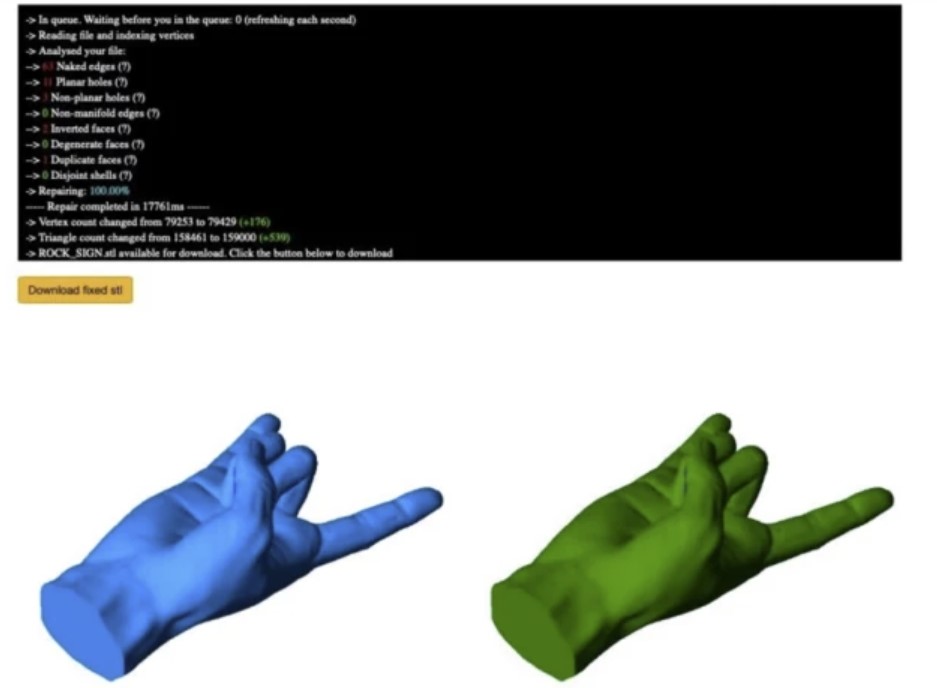
Formware offers a powerful commercial slicing tool, primarily designed for resin printers, featuring advanced STL analysis and repair capabilities. A simplified version of these features is available online for free, with no registration required, making it incredibly user-friendly.
After file upload, Formware quickly analyzes the STL, displays any issues, applies automatic repairs, and provides a summary of the fixes, along with a model preview. This straightforward process is efficient and insightful, especially for diagnosing recurring problems.
The repair process is both fast and effective, handling models like the pyramid and rock sign excellently, though larger files, such as the Tiki STL, may exceed the 50 MB size and 4-minute processing limits.
Who designed it? Formware
Cost? Free online tool; slicer license is ~$145 (personal) or ~$300 (commercial).
3D File Manipulation Software
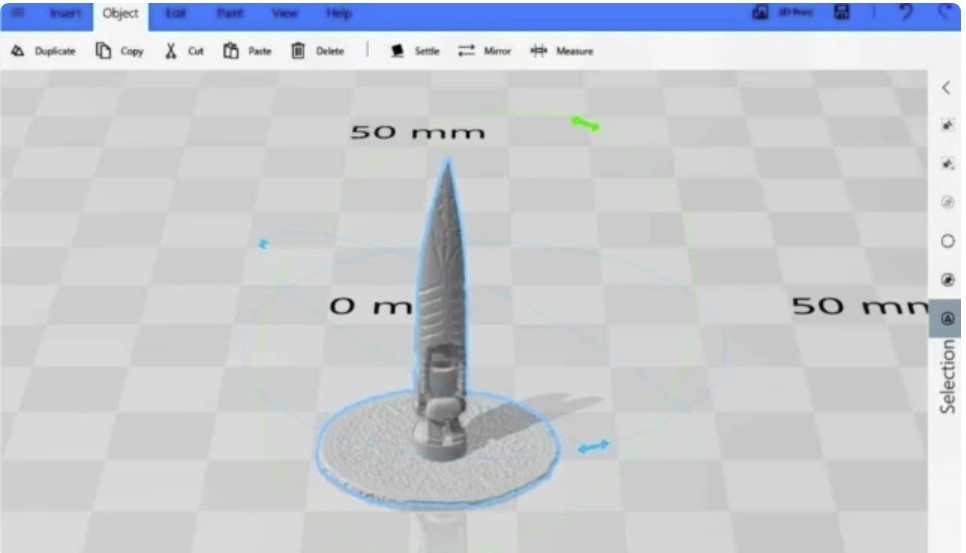
3D Builder comes pre-installed with many versions of Microsoft Windows and is also available as a free download. Initially designed to make 3D CAD and printing accessible for beginners, it’s now widely used for quick STL repairs and basic edits.
When opening an STL, 3D Builder previews the model and checks for errors. If issues are found, they’re outlined in red with a prompt to “Click here to repair.” The repair runs automatically without detailed feedback, and if successful, changes the outline to blue, allowing the fixed file to be saved. While 3MF is the default format, other options are available.
3D Builder fixed our test files, but the Tiki model still wasn’t fully watertight. Additional tools, such as “Settle” (which flattens models) and “Simplify” (which reduces file size), helped us make final adjustments for a printable Tiki model.
Where to find it? Microsoft
Cost? Free
Free 3D modeling software
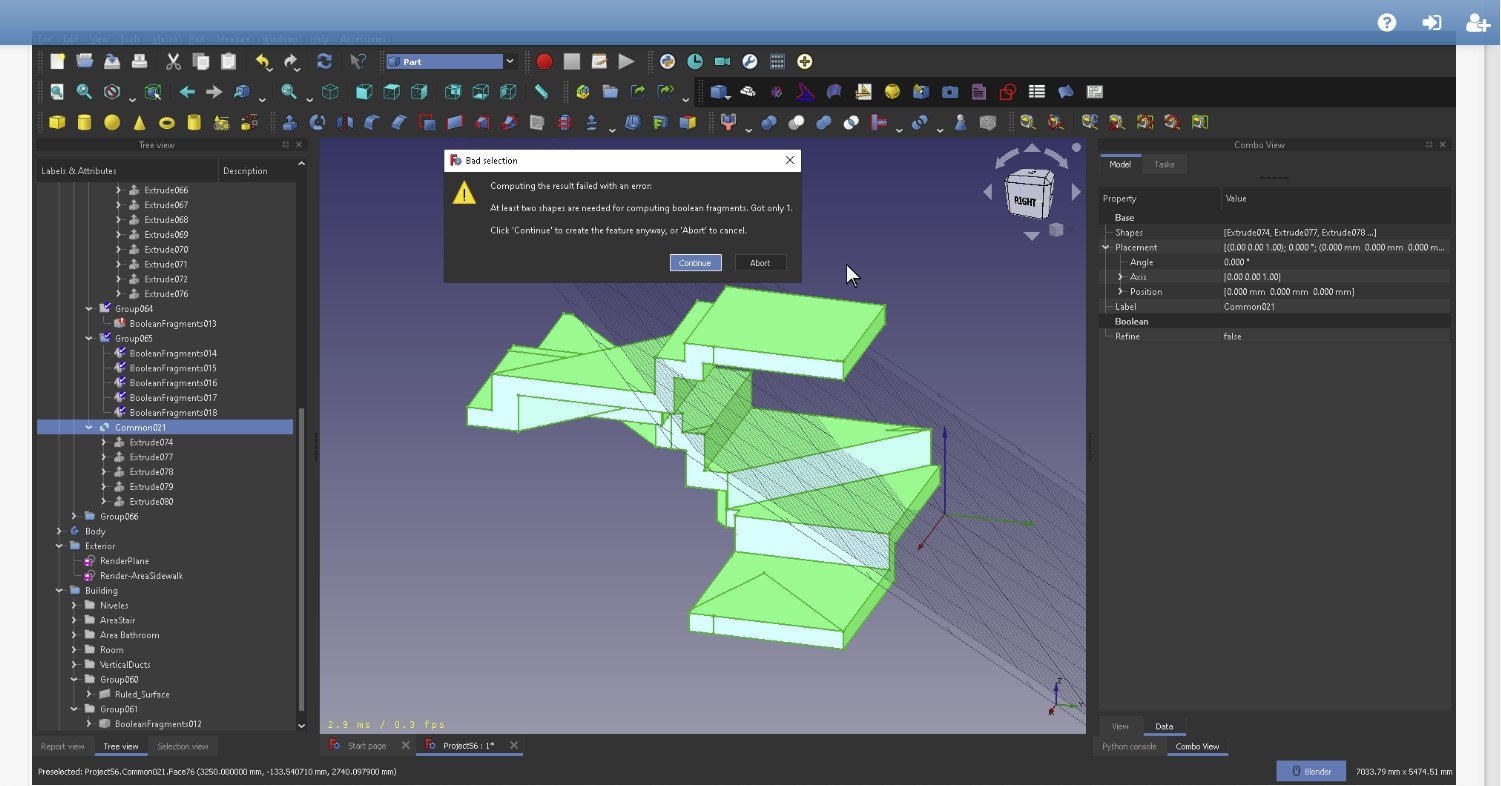
FreeCAD is a powerful, open-source CAD software known for its parametric design capabilities. It also offers a variety of tools for analyzing and repairing STL files.
To repair an STL, simply load the file and switch to the “Mesh Design” workspace. The “Analyze” and “Inspect” tools will identify errors, which can be fixed individually or with the “Repetitive Repair” option. However, complex or severely damaged files may require multiple attempts for full repair.
Although FreeCAD's repair performance was less impressive than other tools in our tests, its extensive design-editing features make it an excellent choice for more advanced modifications, though it comes with a steeper learning curve.
Where to find it? FreeCAD
Cost? Free
3D Mesh Optimizer
Meshmixer is often called the “Swiss Army Knife for 3D Meshes,” and it lives up to this title. Developed by Autodesk, it’s a favorite among 3D printing enthusiasts and YouTubers, offering a blend of ease for beginners and advanced features for experts. Though no longer in active development, Meshmixer remains a powerful tool for STL file repairs.
Once a defective STL file is imported, Meshmixer automatically highlights superficial issues in red. Its real strength lies in the “Analysis” menu and “Inspector” function, which visually displays errors using a color-coded system. Minor defects are shown in blue, serious problems in red, and small, unnecessary details in magenta, with adjustable thresholds.
Repairs can be done manually by selecting specific issues or through the “Auto Repair All” feature. Meshmixer excels at repairing scanned models and was the only tool to fix the Tiki Man without further changes, but like FreeCAD, it failed to repair the pyramid.
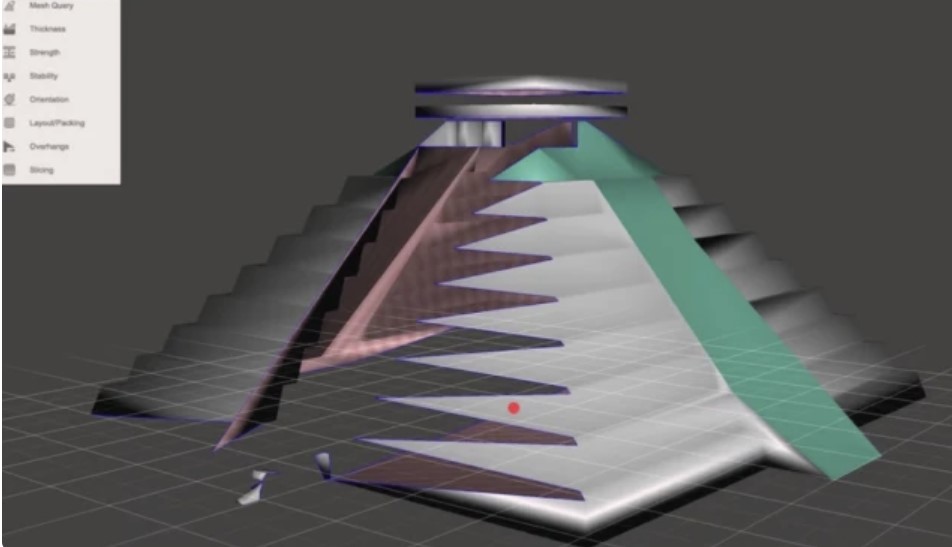
Meshmixer’s repair function is effective even on poorly scanned STLs, addressing obvious issues. After that, its editing and sculpting tools can refine the model further.
A standout feature is “Make Solid” in the Edit menu, which converts overlapping shapes into a single, watertight object for printing. While it’s ideal for sculpted or scanned models, it also worked on our pyramid STL after some trial and error—though the resulting file was quite large.
Where to find it? Meshmixer
Cost? Free
Synthesis
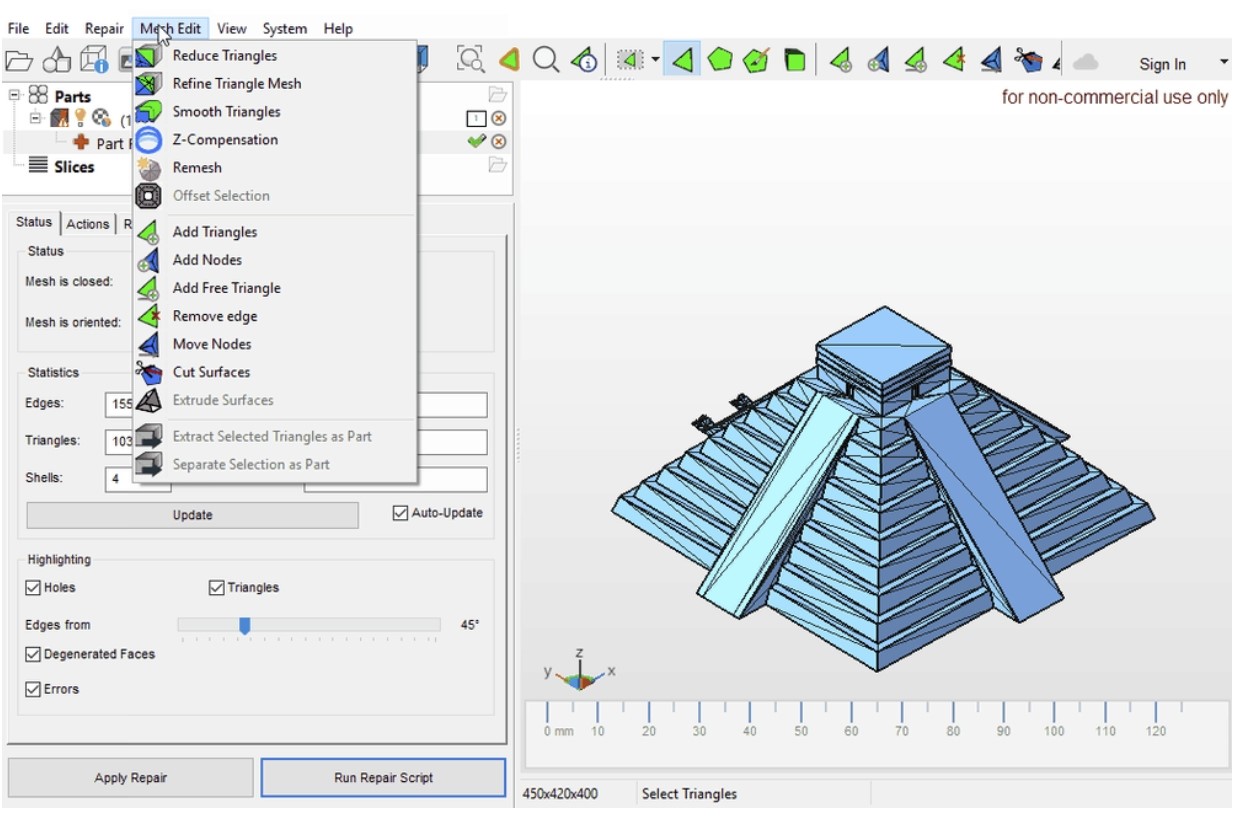
While Meshmixer is a powerful tool, it's no longer being developed, so we also recommend Fusion 360, another Autodesk product. Many of the mesh tools found in Meshmixer, like “Repair,” “Plane Cut,” “Shell,” and “Reduce,” are now integrated into Fusion 360, including in the free version.
To repair a mesh in Fusion, select the “Mesh” tab and click “Insert Mesh.” Once the mesh is positioned, use the “Repair” tool for operations like Close Hole, Stitch and Remove, Wrap, and Rebuild. The “Preview” box shows the changes, while “Detailed Analysis” highlights issues like “Non-manifold Edges” and “Self Intersections.”
Fusion 360 repaired all three test models without triggering slicer errors, including making the Tiki Man watertight, similar to Meshmixer. Additional tools, such as “Plane Cut,” can refine the model further.
Where to find it? Autodesk
Cost? Free for personal use; ~$680/year for the full version.
The winner is...
None of the tools performed perfectly across all tests, so there’s no clear winner—each tool has its unique strengths and is best suited to different needs.
For quick and simple repairs, Formware performs well, handling many issues with ease. However, it struggles with large file sizes, making it ideal for smaller or less complex models.
3D Builder offers more control over repairs and file optimization, particularly for Windows users. Its ability to handle larger STL files and extra features can make a significant difference.
Though FreeCAD ranked lower in automatic repairs, it’s user-friendly and better for CAD models that need minor adjustments to print successfully, offering a simpler alternative to other CAD tools.
For scanned STL files, Meshmixer is the top choice, though it’s more complex. Fusion could be a future alternative if Meshmixer becomes outdated.
For more Creality 3D Printer, you can click the related articles as follows:

Recent News

8 Halloween 3D Print Ideas to Make Before October 31

Ender Series 3D Printers Parameter Comparison

Creality Back-to-School Sale 2026: Save Up to 50% on 3D Printers and More
