


How to Use Ferret Pro: FAQs About CR-Scan Ferret Pro Usage
Alright, you've got Ferret Pro all set up, jumped over every connection hurdle, and now you're ready to dive into the scanning action. But hey, we know there may be bumps in the road. So let's get down to solving any problems you may encounter and making your Ferret Pro run as smoothly as silk.
How to Use Ferret Pro: FAQs About Usage
1. What kind of objects are recommended for beginners to scan successfully? #windows #Android

Objects with rich geometric features and medium size (over 20cm). For example, the horse sculpture or the teddy bear in the official unboxing video.
You can also scan faces. When scanning a face, make sure that the person to be scanned does not move the body, has a normal expression, has eyes slightly raised and is looking into the distance, and is not wearing glasses or jewellery (because glasses, earrings, necklaces, etc. will reflect, which will affect the scanning quality). Move the scanner mainly during the scanning process. When scanning the face, hair and beard, it is recommended to wear a hat or use powder spray because the material is difficult to scan.
New customers usually scan with the default Geometry Mode to scan objects with a single geometry such as cardboard boxes, mugs, or long thin workpieces, which is not suitable for such mode and tends to fail. It is recommended that beginners use the texture feature mode to scan such objects and watch the user guide at the beginning of the software and the tutorial videos on YouTube.

2. How to obtain better model details? #windows #Android #macOS #iOS
① Choose "high quality" mode for scanning.
② During the scanning process, keep the scanner at "Perfect" distance from the target based on the distance prompt bar. A tripod holder is recommended than hand-held to keep the scanner steady to get better detail.
③ When optimizing the point cloud, choose a smaller resolution (such as 0.3mm, the smallest is 0.16mm).
④ When meshing, choose a larger number of faces (such as 2 million faces).
* It will consume more time to process the high-quality model.
3. Some areas are difficult to scan during scanning, resulting in holes in the generated model. How should this be handled? #windows #Android #macOS #iOS
① When scanning, aim at the area with holes in the preview window, and slowly move the object with your hand so that the area with holes that is blocked by other areas can also be scanned;
② When scanning, pause and use two fingers (or a mouse on a PC) to rotate and view the model's completeness;
③ After the model is scanned, select the "Hole Filling" option during optimization;
④ Avoid scanning narrow or overlapping objects.
4. How to use "Texture Mode"? #windows #Android #macOS #iOS
CR-Scan Ferret has an advanced Texture Mode.
It is recommended to use the texture mode for scanning when the surface of the object has rich texture features (such as rich colors or obvious brightness and darkness changes).
When you are trying to scan some objects which has neither geometric nor texture features are rich on the surface, you can paste or hand-draw markers on the surface of the object, and then use the texture mode for scanning.

Hand-drawn marker points can be scribed or crossed.

Using markers and texture mode, it is easy to scan large objects.

5. How to save an OBJ file on PC? #windows
After clicking "Export", the "Save as type" menu can select the obj format.

6. What is the reason for losing tracking and how to deal with it?
#windows #Android #macOS #iOS
The scanner or object moves too fast, causing the previously scanned frames failed to match the current frame. Move the scanner to a previously scanned area and keep it still for about 2 seconds to regain tracking.
If the tracking is lost frequently with an electronic turntable, here are some suggestions:
① Turn on the turntable after the "start" button is clicked, and the object is tracked (turn green on the screen) and slower the speed;
② Use Lazy Susan instead.
7. Why is the scanning effect not good? #windows #Android #macOS #iOS
For the first scan, it is recommended to try something easy to be scanned, such as medium objects over 20cm, like sculptures, teddy bears, etc. Use the following configuration: Scan object as "Normal" Object - "Middle" Size - "Texture" Feature - "Fast" Mode - "Color" Mapping for scanning.
Before scanning, it is necessary to confirm whether the object is suitable for scanning; some objects need to be pre-processed before scanning; use devices that meet the recommended requirements; scanning in a suitable environment, and practice scanning techniques multiple times to obtain better scanning results.
① Most consumer-grade scanners cannot handle the following items well, such as objects that are too thin, have holes or narrow gaps, transparent objects, strongly reflective objects, furry objects, or nonstationary animals.
② Some objects need special treatment to be scanned well, such as cylindrical or spherical objects without geometry and texture features, or large furniture such as sofas. At this time, you may need to spray developer or stick on mark points to scan.
③ Remove obstacles around the scanning environment and re-scan.
④ Use devices that meet the recommended performance requirements, and select the appropriate settings for scanning depending on the characteristics of the scanned object.
⑤ Insufficient scanning frames will affect the quality of scanning. Before completing the scan, pause the scan and view the mass chromatogram of the model to confirm that the chromatogram has turned green.
⑥ When you finish all of the above, you can practice scanning more or use tools such as turntables to scan at a distance between "Good" and "Perfect", and you'll end up with a better model.
8. Can the scanner scan small objects? #windows #Android #macOS #iOS
It is recommended to scan objects from 15cm-200cm. If you have extensive experience in scanning and high-end equipments (PC or smartphones), you can try to scan such objects.
9. Does Ferret Pro need supplemental light? #Android #Windows #macOS #iOS
If you are using the Geometry feature and don't need Colored mappings, then you don't need supplemental light.
If you need Texture Feature, and you need Color Mapping, then it’s better to scan in a place with sufficient light.
If there is insufficient light, then you need external penal LED white light supplement. You can adjust the exposure of RGB stream manually during scanning, especially scanning small objects, to obtain better texture.
10. How to export projects on an iPhone? #iOS
① On the home screen of Creality Scan, click on the Share button of the model which you want to share and find the option to share the project.
② Using the File App, click Browse, click "On My iPhone" from Locations, find the "Creality Scan" folder, select "Projects" and choose the project you want to export, long press to share.
11. How to import historical project? #Windows #macOS
According to the "Name" and "Folder Path" of the project that you want to import.
For example, if the Name is "scan" and the Folder Path is "D:\CrealityScan\projects" and the historical project was finished in 2023-8-2 11:23:17. Then you can go to this folder "D:\CrealityScan\projects\scan-2023-08-02_11-23-17" and click "Select Folder" to import the project.

Creality CR-Scan Ferret Series Tech Specifics
| Product | CR-Scan Ferret Pro | CR-Scan Ferret | CR-Scan Ferret SE |
| Pic. | 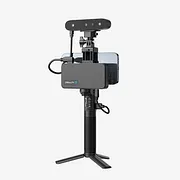 |
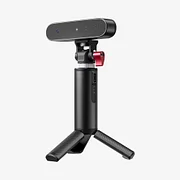 |
 |
| Accuracy | 0.1mm | 0.1mm | 0.1mm |
| Resolution/Point Distance | 0.16mm | 0.16mm | 0.16mm |
| Single capture range | 560*820mm@700mm | 560*820mm@700mm | 560*820mm@700mm |
| Working Distance | 150~700mm | 150~700mm | 150~700mm |
| Minimum Scanning | 50*50*50mm | 50*50*50mm | 50*50*50mm |
| Windows | Yes, wired/wireless | Yes, wired | Yes, wired |
| Android | Yes (More models than Ferret, wireless) | Yes, wired | NO |
| Mac | Yes, wired/wireless | Yes, wired | Yes, wired |
| iPhone | iPhone 11 series and above | NO | NO |
| Wireless Bridge | Yes | NO | NO |
| Battery Grip | 5000mAh | 4500mAh | NO |
| Frame Rate/Scan Speed | up to 30 fps | up to 30 fps | up to 30 fps |
| Outdoor Scanning | Yes | Yes | Yes |
| Alignment | Geometries/Marker/Texture | Geometries/Marker/Texture | Geometries/Marker/Texture |
| Output Format | OBJ/STL/PLY | OBJ/STL/PLY | OBJ/STL/PLY |
| Color Texture | Support | Support | Support |
| Connection Mode | USB 3.0/2.0/WiFi6 | USB 3.0/2.0 | USB 3.0/2.0 |
More interest:
Best 3D Scanner Apps for Android and iPhone in 2024
Recent News

8 Halloween 3D Print Ideas to Make Before October 31

Ender Series 3D Printers Parameter Comparison

Creality Back-to-School Sale 2026: Save Up to 50% on 3D Printers and More
