


A Comparison of BL Touch vs CR Touch
The 3D printing community is continuously evolving with new advancements and upgrades to enhance the printing experience. Among the essential upgrades for 3D printers are auto-leveling sensors, which play a critical role in ensuring print quality. Two of the most talked-about sensors in the market are the BL Touch and the CR Touch. But what sets them apart, and how do you determine which one is best for your printer, especially if you're using popular models like the early Ender-3 series (Ender-3 V2/ Ender-3)?
In this article, we'll provide a comprehensive comparison between the BL Touch and CR Touch, covering everything from installation to performance.
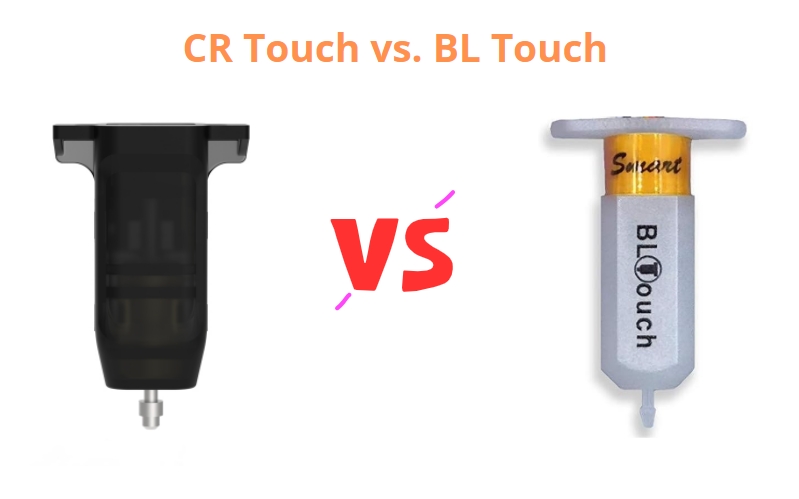
Understanding Auto-Leveling Sensors
Before we dive into the differences between BL Touch and CR Touch, let's understand what auto-leveling sensors do. These devices measure the tilt or unevenness of the print bed and automatically adjust the Z-axis during the initial layers of printing. This process is crucial because even a slight deviation in bed level can lead to failed prints.
Why Auto-Leveling is Essential
Auto-leveling sensors are vital for several reasons:
-
Consistent Print Quality: They ensure that the first layer is evenly laid down, which is foundational for the rest of the print.
-
Time-saving: Manually leveling the bed can be time-consuming; auto-leveling sensors significantly reduce the setup time.
-
Ease of Use: For both beginners and experienced users, auto-leveling sensors make the printing process more straightforward and less prone to error.
BL Touch: The Original Standard
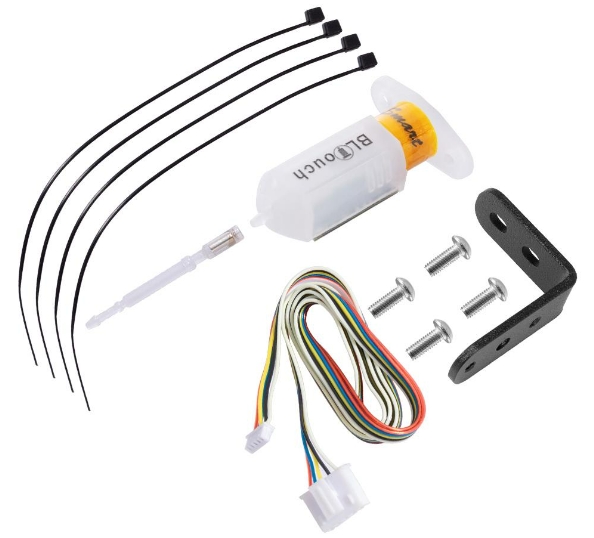
The BLTouch, developed by Antclabs, is a renowned auto-bed leveling sensor known for its innovative solenoid and hall sensor design, offering a simple structure with high precision. It enhances user convenience and printing enjoyment by incorporating smart functions such as self-test, alarm, alarm release, Touch Switch mode, Blue LED for servo signal indication, and Z-probe (Zmin) testing. Compatible with a wide range of 3D printers, the BLTouch has become a go-to upgrade for users looking to improve their printers' capabilities.
Features of BL Touch
-
Precise Measurement: The BL Touch uses a solenoid push-pin which deploys and retracts to measure the bed accurately.
-
Durability: It has a solenoid plastic pin, which may seem less durable.
-
Compatibility: It works with a variety of control boards and firmware, making it versatile for different printer models.
Installation and Configuration
Installing the BL Touch involves both hardware and firmware configuration. Users must mount the sensor onto the printer, connect it to the mainboard, and then update the printer's firmware to recognize the BL Touch. This might require downloading and flashing BL Touch-specific firmware.
Creality CR Touch
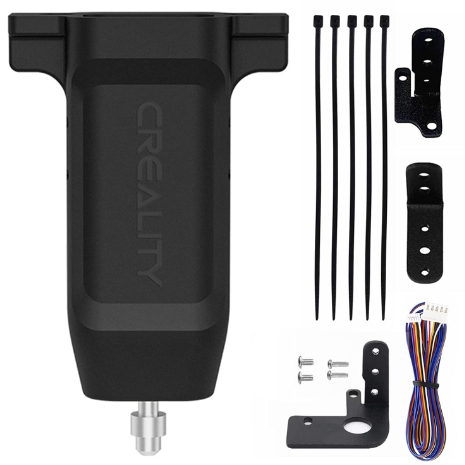
In response to the popularity of the BL Touch, Creality developed their version known as the CR Touch. It's designed to be more compatible with Creality's own line of printers, such as the early Ender-3 Series, ender-5 Series and CR-Series.
Features of CR Touch
-
Functionality: Unlike BL Touch, CR Touch uses an optical sensor to detect when the probe touches the build plate.
-
Design: It has a metal pin instead of a plastic pin, which seems more durable but is more likely to scratch the bed.
-
Ease of Integration: Creality offers pre-compiled CR Touch firmware for their printers, simplifying the installation process.
Installation and CR Touch Firmware
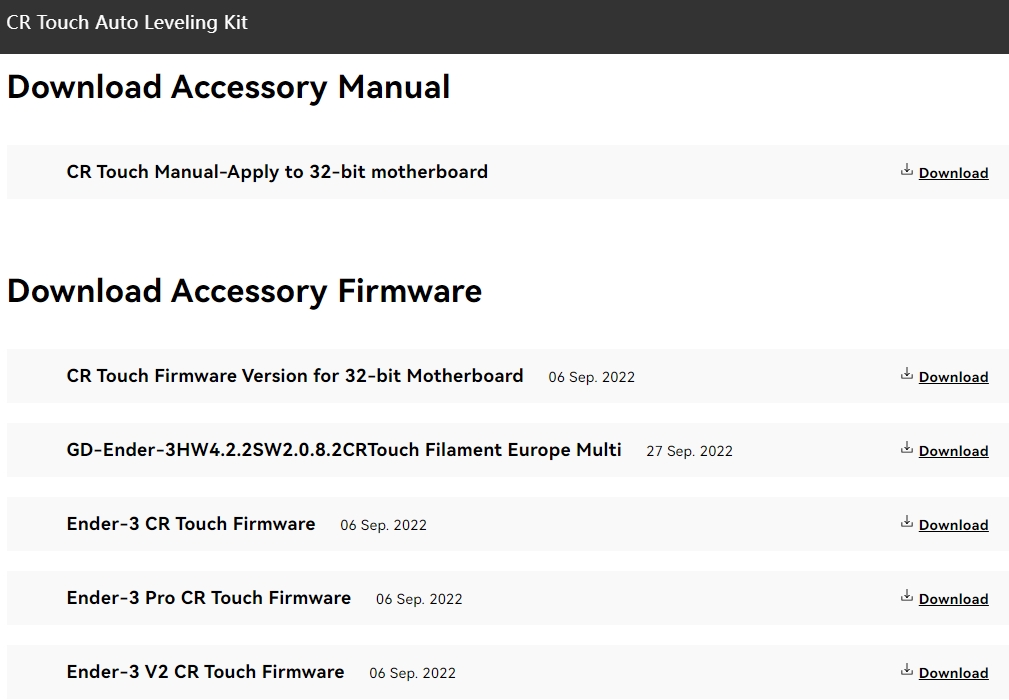
The CR Touch installation process is similar to that of the BL Touch, but with a focus on Creality's ecosystem. Users must attach the sensor, wire it to the mainboard, and update the firmware. For Creality printers, this often means downloading the CR Touch firmware directly from Creality's website.
BL Touch vs CR Touch: A Detailed Comparison
Now that we've covered the basics of each sensor, let's compare them across various aspects to see which might be the better choice for your 3D printing needs.
Compatibility
-
BL Touch: Known for its wide range of compatibility with various printer brands and models. It could work with any kinds of bed materials, such as glasses, woods, metals, and so on.
-
CR Touch: Specifically designed for Creality printers, such as Ender 3 v2/ Ender 3/ Ender 3 Pro/Ender 5/Ender 5pro/CR10, Only Compatibie with 32-bit Motherboard. It could work with any kinds of bed materials, such as glasses, woods, metals, plastic and all materials.
Installation
-
BL Touch: Based on open source, it's well documented and supported by a large community.
-
CR Touch: Generally easier for Creality printer users due to pre-compiled firmware, 32 Bit V4.2.2/V4.2.7 Mainboard.
Performance
-
BL Touch: Highly reliable with a proven track record, although the long-term durability of the plastic stylus is less certain.
-
CR Touch: Performs similarly, the metal stylus is durable and provides accurate readings.
Cost
-
BL Touch: Typically more expensive due to its popularity and construction.
-
CR Touch: Often more affordable, particularly for those with Creality printers. You can buy it on Creality Official Online Store for only $31.20, saving $7.80 on Amazon.
User Experience
-
BL Touch: Well-established with extensive community support, tutorials, and troubleshooting guides. However, users should be aware of fake or clone BLTouch sensors that often have numerous issues. It's best to buy from a reputable source.
-
CR Touch: Supported by Creality's official customer service, making it ideal for less experienced users. Some users have reported that the CR Touch can produce a bit of noise when the X-axis moves.
Which Sensor Should You Choose? BL Touch or CR Touch
When deciding between the BL Touch and CR Touch, consider the following:
-
Printer Model: If you have a Creality printer, the CR Touch might offer a smoother experience. For other brands, the BL Touch could be a better fit.
-
Budget: If cost is a concern, the CR Touch is generally more affordable.
-
Support and Community: The BL Touch has a larger user base, which can be invaluable for troubleshooting and advice.
-
Long-Term Use: Consider the durability and availability of replacement parts for each sensor.
A Step-by-Step Guide to Z Offset Calibration
Regardless of which sensor you choose, proper Z offset calibration is crucial. This process ensures that the sensor accurately gauges the distance between the nozzle and the print bed.
BL Touch Z Offset Calibration
-
Home the Printer: Start by homing the printer to establish a reference point.
-
Adjust Z Offset: Adjust the Z offset value in the printer's firmware until the nozzle is at the perfect first layer height.
-
Test Print: Conduct a test print and fine-tune the Z offset as needed.
CR Touch Z Offset Calibration
-
Home the Printer: Similar to BL Touch, begin by homing your printer.
-
Adjust Z Offset: Use the control interface to adjust the Z offset for the CR Touch.
-
Test Print: Perform a test print to ensure the first layer adheres well and make any necessary adjustments.
Related Article: How to Set Z-Offset Bltouch Ender 3 V2
Final Thoughts
Choosing between the BL Touch and CR Touch comes down to your specific needs, printer model, and budget. Both sensors aim to provide a hassle-free printing experience with accurate bed leveling, but they cater to slightly different audiences. By assessing your priorities and considering the points discussed, you'll be well-equipped to make an informed decision.
Auto-leveling sensors like the BL Touch and CR Touch are valuable investments that can significantly improve the quality of your prints. Whether you're a hobbyist or a professional, taking the time to choose the right sensor and calibrate it correctly will pay dividends in your 3D printing endeavors.

Recent News

8 Halloween 3D Print Ideas to Make Before October 31

Ender Series 3D Printers Parameter Comparison

Creality Back-to-School Sale 2026: Save Up to 50% on 3D Printers and More
