


Creality CR-10 SE Printing Parameter Settings
Creality CR-10 SE Reveals True Craftsmanship
The Creality CR-10 SE 3D Printer (Enjoy 12% Off Extra on Creality Blog Only) was a new arrival, released in Sep.2023, that combines cutting-edge features for an enhanced printing experience. Boasting hands-free auto-leveling, linear rails on the X and Y-axes, and a dedicated model cooling fan, it ensures precision and efficient cooling. With a remarkable 600mm/s high-speed printing capability and input shaping, the printer delivers fast and accurate results. The hotend equipped with a 60W ceramic heater, supports diverse filaments. Compatible with a range of materials and rich DIY accessories makes the CR-10 SE a versatile and user-friendly choice for 3D printing enthusiasts, offering both convenience and high-quality output
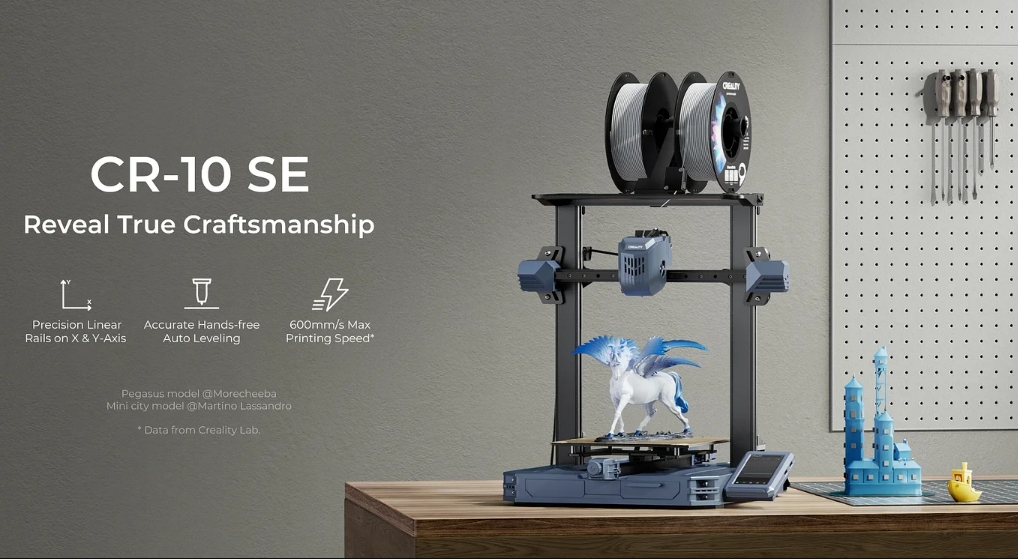
In this article, we will delve into the CR-10 SE printing parameter settings to help users solve printing problems and create more perfect works. Before we make the settings, let us take a close look at the CR-10 technical specifications below:
Creality CR-10 Technical Specifications
| Model | CR-10 Smart Pro | CR-10 SE |
| Image | 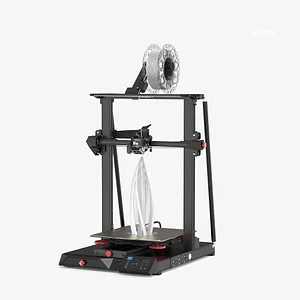 |
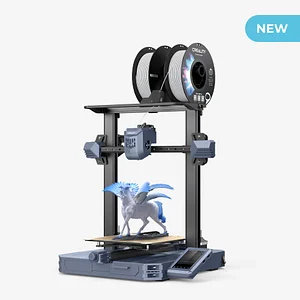 |
| Release Date | 2021.12 | 2023.9 |
| Build Volume (mm) | 300*300*400mm | 220*220*265mm |
| Product Dimensions (mm) | 578*522*648mm | 490*470*625mm |
| Package Dimensions (mm) | 656*576*265mm | 512*505*282mm |
| Net Weight (kg) | 14 | 9.57 |
| Gross Weight (kg) | 16.9kg | 12 |
| Extruder | Direct Drive Extruder | Direct Drive Extruder |
| Supported Filaments |
PLA, TPU, PETG, ABS, PLA-Wood, PA, PC, Carbon Fiber |
PLA, PETG, PET, TPU, PLA Wood, ABS, ASA, PA, PLA-CF |
| Build Surface | PEI Spring Steel Sheet + Magnetic Base | Flexible build plate |
| Display Screen | 4.3" Color Touch Screen | 4.3" Color Touch Screen |
| Power Loss Recovery | √ | √ |
| Filament Runout Sensor | √ | √ |
| Dual Z-axis | √ | √ |
| Auto Leveling | √ (CR-Touch) | √(CR) |
| Auxiliary Leveling | √ | - |
| Data Bus Width | 32-bit | 32-bit |
| Silent Mainboard | √ | √ |
| File Transfer | SD Card, WiFi, USB Cable | USB drive, LAN printing, cloud printing |
| Max. Heatbed Temperature | 100℃ | 110℃ |
| Max. Nozzle Temperature | 300℃ | 300℃ |
| Rated Voltage | 100-240V~ | 100-240V~ |
| Rated Power | 350W | 350W |
| Max. Printing Speed | 100mm/s | 600mm/s* |
| Typical Printing Speed | 50mm/s | 300mm/s* |
| Acceleration | - | 8000mm/s² |
| Power Input Frequency | 50/60Hz | 50/60Hz |
| Output Voltage | 24V | 24V (for heatbed) |
| Printing Technology | FDM | FDM |
| Extruder Count | 1 | 1 |
| Nozzle Diameter | Standard 0.4mm | 0.4mm |
| Layer Height | 0.1-0.4mm | 0.1-0.35mm |
| Printing Accuracy | ±0.1mm | ±0.1mm |
| Filament Diameter | 1.75mm | 1.75mm |
| File Formats | STL, OBJ, AMF | STL/OBJ/3MF/STEP |
| Slicing Software | Creality Slicer, Cura, Repetier-Host, Simplify3D | Creality Print/Cura/Simplify3D/PrusaSlicer |
Now, let's take the CR-10 SE Printing Parameter Settings step by step as follows
1. Slicing Settings
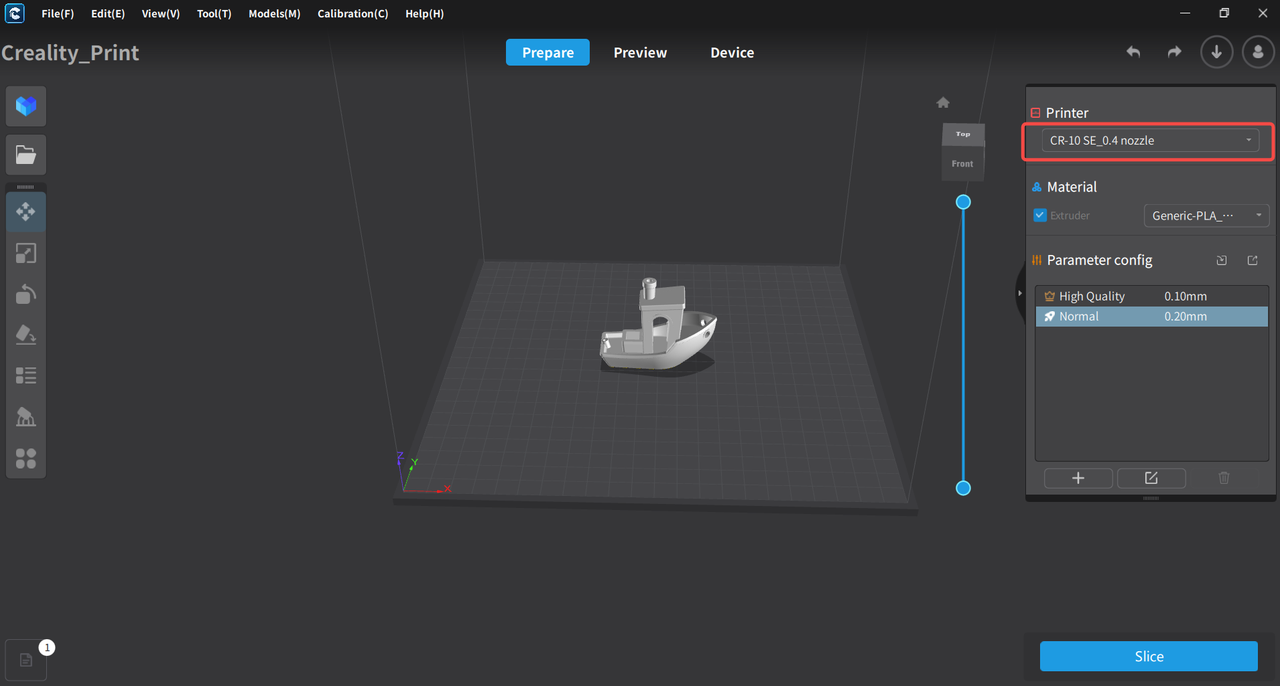
- Open the official slicer Creality Print version V4.3.8.6984 or higher version.
- Select the printer CR-10 SE.
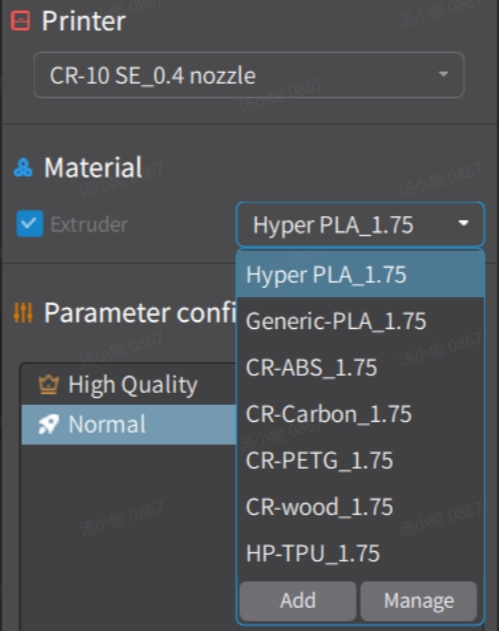
- In the filament section at the top right of interface, choose "Generic filament"
-
For printing with regular PLA, select "Generic-PLA"on the filament list.
-
For printing with high-speed PLA, choose "Hyper-PLA" on the filament list.
-
For printing with PLA-Wood, then choose "PLA-Wood" from the filament list.
2. Preparing for Printing
2.1 Cleaning the Build Plate
If the build plate has leftover materials or dirt, or is contaminated by sweat, use a spatula to gently scrape it off or wash the build plate with detergent and clean water.
If the glue is applied too thickly, or after multiple prints, please wash the build plate with clean water.
2.2 Ensuring Proper Adhesive Application
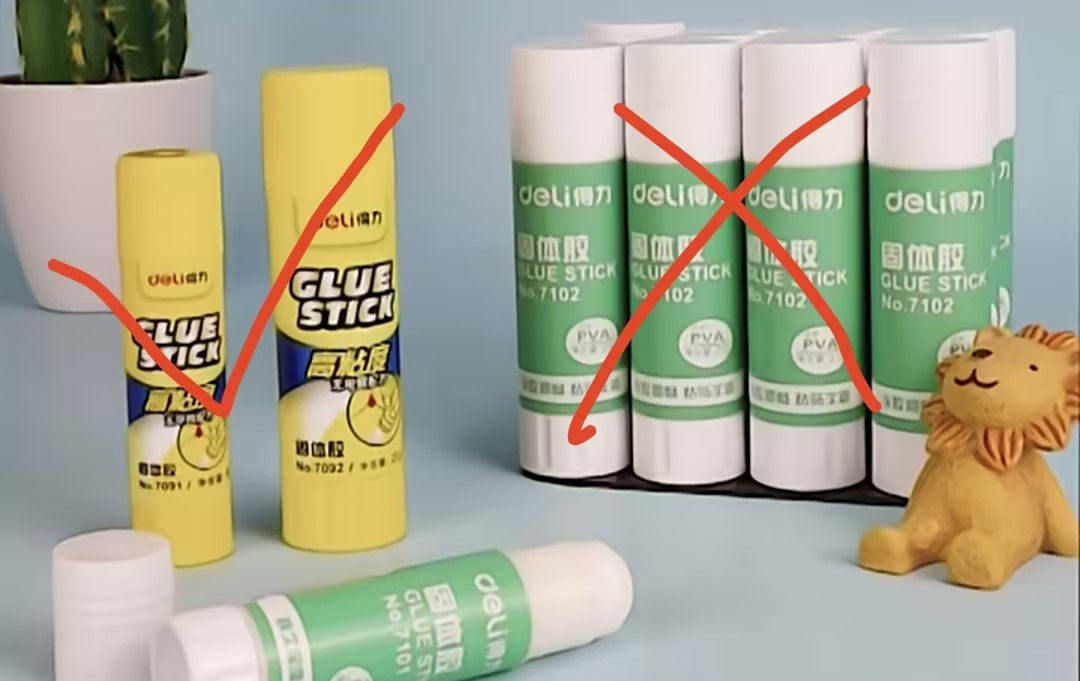
Use the correct glue stick as shown in the image below. Apply a thin layer of glue stick to the build plate.
2.3 Confirming the Need for Print Calibration
The print calibration includes automatic bed leveling, flow rate calibration, and first-layer detection functions (Flow rate calibration/First layer detection functions are turned off by default).
If not selected, automatic bed leveling, flow rate calibration, and first-layer detection will not be executed.
FAQs about Print Calibration
When must Print Calibration be selected?
- When switching filament different from the previous print, e.g., switching from PLA in the previous print to ABS (different bed temperature, leveling data differences).
- the machine has been moved.
- Just upgraded the firmware.
When is Print Calibration not required?
- When reprinting the same model that was previously successful.
- When printing a relatively small model, located at the center of the build plate.
4. CR-10 SE Recommended filament Parameters
Official Recommended filament Parameters Settings
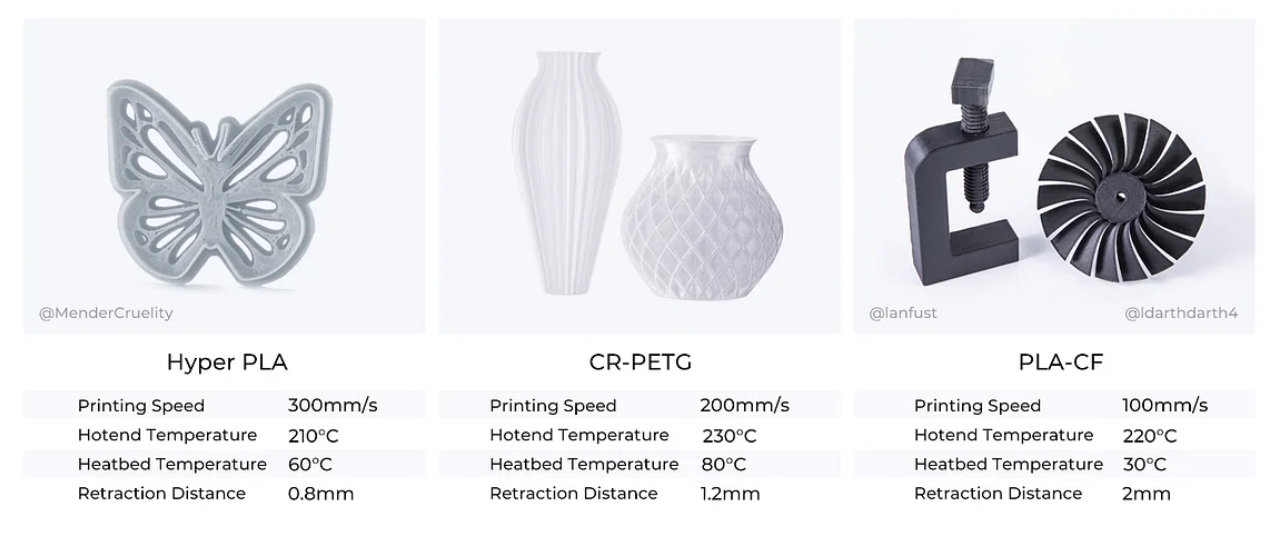
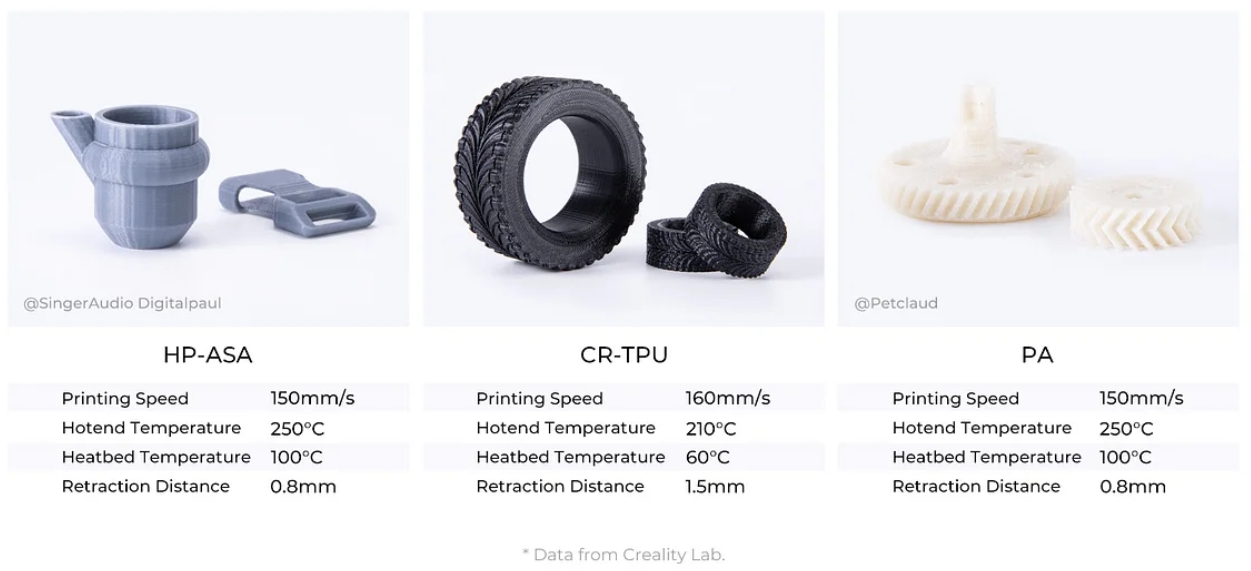
| CR-10 SE filament Universal Parameters Guide | ||||||
|
Filament Type |
Enclosure |
Retract Distance |
Nozzle Temperature (°C) |
Heatbed Temperature (°C) |
Model Cooling Fan Speed (mm/s) |
Printing Speed - 0.2mm Layer Height |
| Hyper PLA | NO | 0.8 | 210 | 60 | 100 | 300 |
| Generic PLA | NO | 0.8 | 220 | 60 | 100 | 300 |
| PLA-Wood | NO | 1.2 | 220 | 60 | 100 | 120 |
| CR-PETG | NO | 1.2 | 230 | 80 | 100 | 200 |
| CR-TPU | NO | 2 | 215 | 30 | 100 | 50 |
| CR-ABS | YES | 0.8 | 250 | 100 | 0 | 100 |
| HP-ASA | YES | 0.8 | 250 | 100 | 50 | 150 |
| CR-Carbon(PLA-CF) | NO | 0.8 | 220 | 60 | 100 | 160 |
| CR-Nylon Natural(PA) | YES | 0.8 | 250 | 100 | 80 | 150 |
Notes:
1. The maximum printing speed of the filament, as well as the printing temperature, is related to the characteristics of the filament. Please refer to the recommendations of the filament manufacturer and official slicing software configuration.
2. It is recommended to evenly apply solid glue to the print bed before printing to improve first layer adhesion.
3. For moisture-sensitive materials such as PA/PA-CF/TPU should be dried or stored in a dry environment before printing.
4. For non-official filament, please select generic filament parameters in the Creality Print software
5. It is recommended to use Creality official high-speed filaments to achieve better printing quality.

Recent News

8 Halloween 3D Print Ideas to Make Before October 31

Ender Series 3D Printers Parameter Comparison

Creality Back-to-School Sale 2026: Save Up to 50% on 3D Printers and More
