


K1 Max G-code Commands Compatibility Notes
K1 Max utilizes Creality OS, a customized operating system developed by Creality. Based on the Klipper system, Creality OS provides an integrated solution that includes a printer control system, a machine screen interface, and a web interface for seamless operation.
In this article, we provide a comprehensive overview of the Creality K1 Max's Gcode command compatibility, drawing from genuine experience with the printer.
Compatibility with Marlin and Klipper Commands
One of the key highlights of Creality OS is its remarkable compatibility with both Marlin and Klipper Gcode commands. Whether you are accustomed to using Marlin's standard commands like G1, G2, G28, M104, and M900, or prefer Klipper's specialized commands such as PAUSE and RESUME, Creality OS seamlessly supports them all.
Supported Standard Gcode Commands
Creality OS supports a wide array of standard Gcode commands, ensuring that users can easily manage various functions with precision. Here are some of the key commands supported by Creality OS:
-
Move (G0 or G1):
G1 [X<pos>] [Y<pos>] [Z<pos>] [E<pos>] [F<speed>] -
Home:
G28 [X] [Y] [Z] -
Disable Motors:
M18orM84 -
Wait for Current Moves to Finish:
M400 -
Extrude Using Absolute/Relative Distances:
M82,M83 -
Use Absolute/Relative Coordinates::
G90,G91 -
Set Position:
G92 [X<pos>] [Y<pos>] [Z<pos>] [E<pos>] -
Set Speed Factor Override Percentage:
M220 S<percent> -
Set Flow Rate Override Percentage:
M221 S<percent> -
Set Acceleration:
M204 S<value> orM204 P<value> T<value>
Note: If neither value S is specified, and P and T are specified, the acceleration is set to the minimum of P and T. If only one is specified, the command is invalid.
-
Set Junction Deviation:
M205 X<value> Y<value> -
Example:
`M205 X100` sets the junction deviation -
Set Extruder Temperature:
M104 [T<index>] [S<temperature>] -
Set Extruder Temperature and Wait:
M109 [T<index>] S<temperature>
Note: `M109` always waits for the temperature to stabilize at the requested value.
-
Set Bed Temperature:
M140 [S<temperature>] -
Set Bed Temperature and Wait:
M190 S<temperature>
Note: `M190` always waits for the temperature to stabilize at the requested value.
-
Set Fan Speed:
M106 S<value>;M106 P0 S<value>for setting the extruder cooling fan;M106 P1 S<value>for the enclosure fan;M106 P2 S<value>for the side auxiliary fan, with value range 0-255 -
Turn Off Fan:
M107 orM106 S0orM106 P<index> S0where index is 0-2 -
Set Pressure Advance:
M900 K<value>
Special Gcode Commands Supported by Creality OS
Creality OS also supports a variety of specialized Gcode commands that enhance its functionality:
-
Pause Print:
PAUSE
- Insert a pause command directly into your Gcode.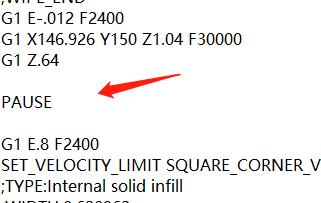
-
Resume Print:
RESUME -
Start Print:
This command is usually required in slicer software at the beginning of the G-code. Ensure thatSTART_PRINT EXTRUDER_TEMP=<slicer_extruder_temperature_name> BED_TEMP=<slicer_hotbed_temperature_name><slicer_extruder_temperature_name>and<slicer_hotbed_temperature_name>match the parameters in your slicer software, as different slicers may use different names. For more details, refer to the documentation of your slicer software or the wiki of K1 Max.
Example: In a CrealityPrint file header:
    ```
    M140 S0
    M104 S0
    START_PRINT EXTRUDER_TEMP=[material_print_temperature_layer_0] BED_TEMP=[material_bed_temperature_layer_0]
    ```
-
Stop Print:
This command should be set in the slicer software at the end of the Gcode to avoid errors.`END_PRINT` -
Adjust Z-axis Offset:
Example: `SET_GCODE_OFFSET Z=-0.2` will lower the print bed by 0.2mm for all subsequent Gcode commands.SET_GCODE_OFFSET [X<pos>] [X_ADJUST=<adjust>] [Y<pos>] [Y_ADJUST=<adjust>] [Z<pos>] [Z_ADJUST=<adjust>] [MOVE=1] [MOVE_SPEED=<speed>]
-
Set Velocity Limits:
Example: `SET_VELOCITY_LIMIT SQUARE_CORNER_VELOCITY=100` sets the cornering speed to 100mm/s, equivalent to the `M205 X100` command.SET_VELOCITY_LIMIT [VELOCITY=<value>] [ACCEL=<value>] [ACCEL_TO_DECEL=<value>] [SQUARE_CORNER_VELOCITY=<value>]
Related Article:
K1 Max Filament Guide : How to Load & Unload & Change Filament >>
Conclusion
By understanding the compatibility and supported commands of Creality OS, K1 Max users can fully leverage the power and flexibility of their 3D printer. Whether you are an experienced user or just getting started, Creality OS makes it easier to achieve precise and high-quality prints.
Read more if you are interested in:
Creality K1 Series Accessories Collection
Recent News

8 Halloween 3D Print Ideas to Make Before October 31

Ender Series 3D Printers Parameter Comparison

Creality Back-to-School Sale 2026: Save Up to 50% on 3D Printers and More
