


Creality K2 Plus 3D Printer Maintenance Guide: Tips to Extend Lifespan
Proper maintenance of your Creality K2 Plus ensures smooth operation, consistent printing quality, and a longer service life.
Here’s a detailed guide to help you take care of your printer.
1. X-Axis Guide Rails
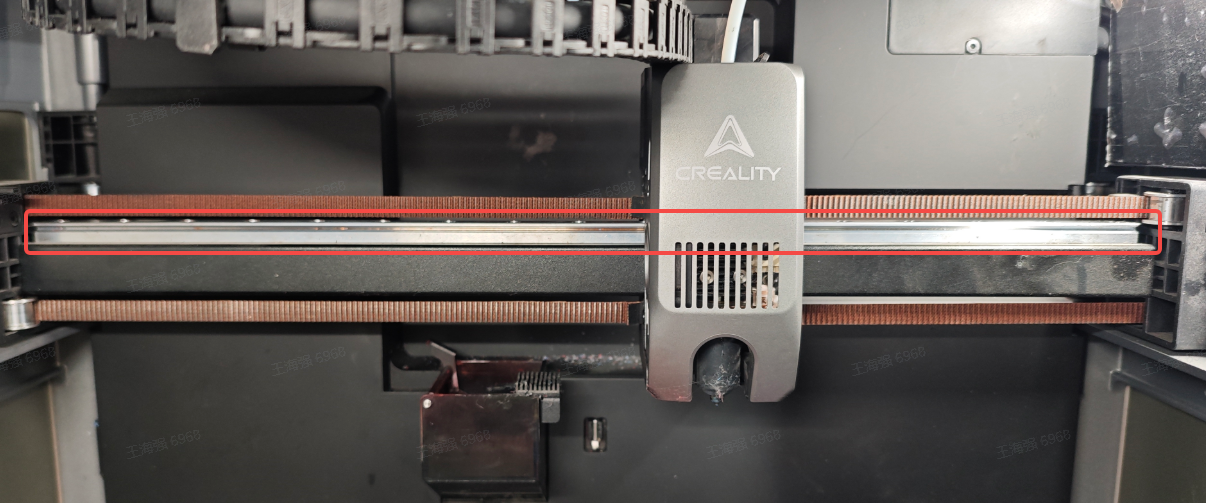
Keep the guide rails clean and well-lubricated to prevent wear and tear.
- When to Maintain: Inspect monthly for dust or filament debris.
- How to Maintain: Clean the surface with a lint-free cloth and apply a thin layer of metal anti-rust oil.
2. Y-Axis and Z-Axis Optical Shafts
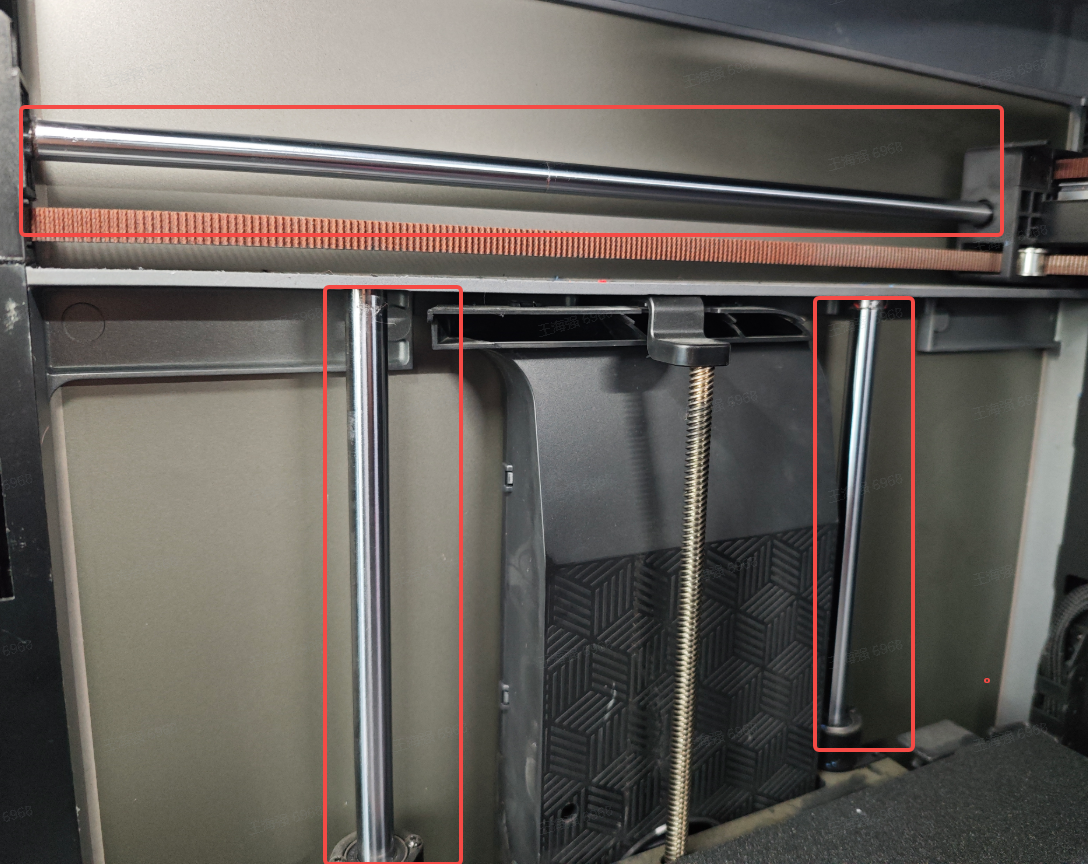
Regular lubrication prevents corrosion and enhances durability.
- When to Maintain: Every 3 months. If printing ABS or ASA, maintain after every 5kg of material.
- How to Maintain: Wipe surfaces with a lint-free cloth and apply grease.
3. Z-Axis Leading Screws
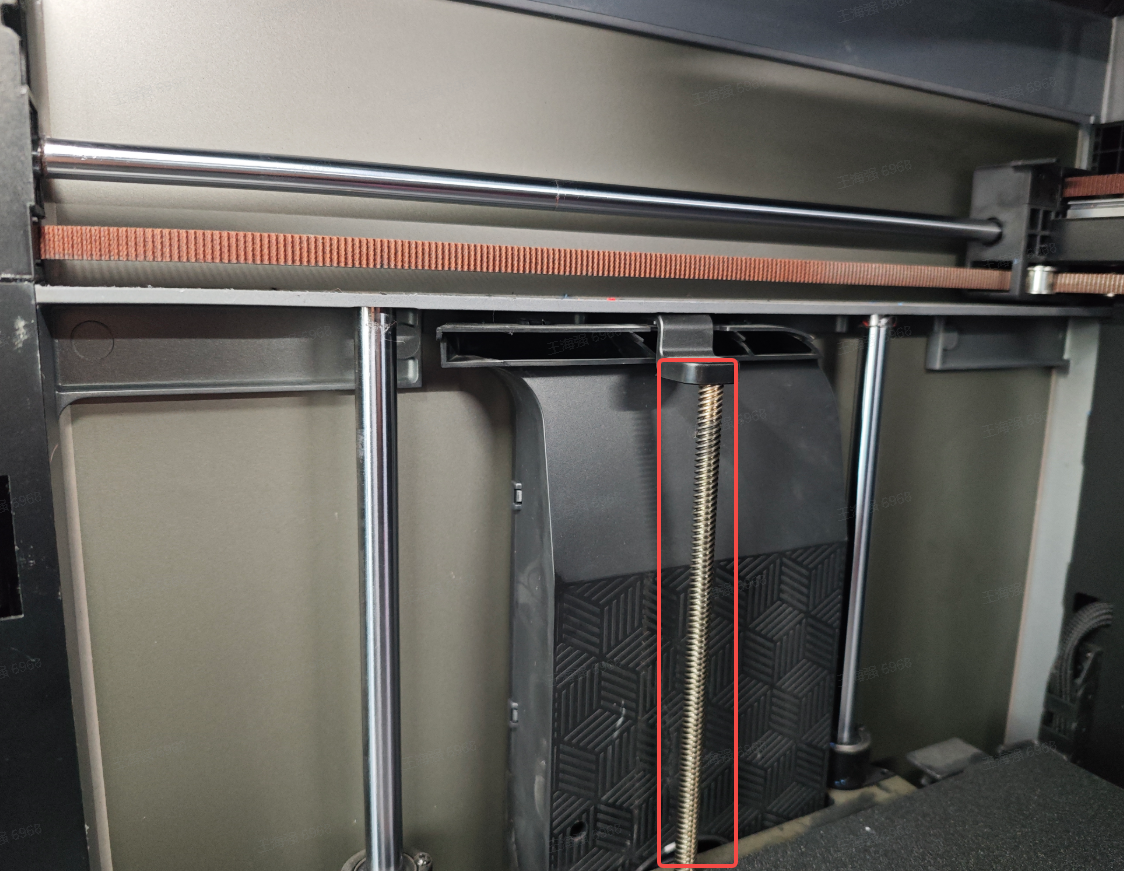
These screws control the up-and-down movement of the heated bed and need regular care.
- When to Maintain: Check every 3 months or every 5 days when printing volatile materials.
- How to Maintain: Use a lint-free cloth to clean and grease the screws.
4. Filament Cutter
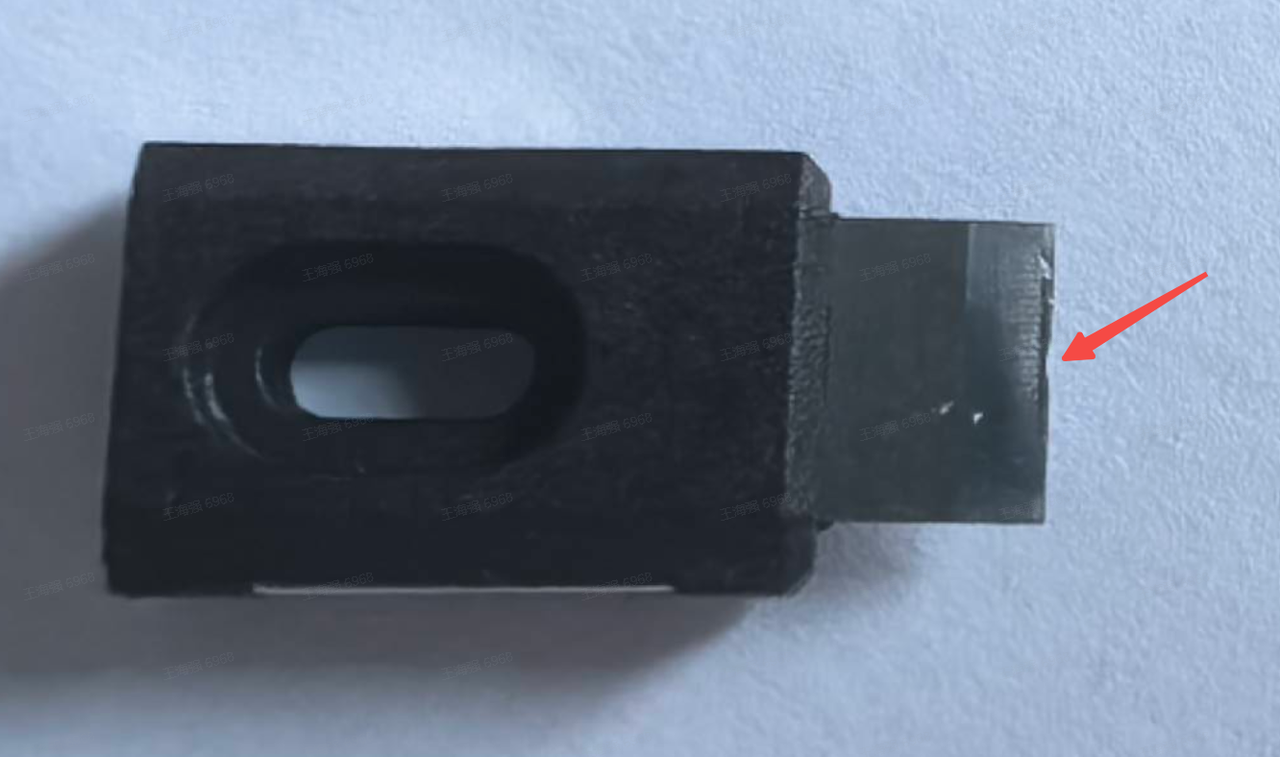
Frequent filament cutting may dull the blade, impacting efficiency.
- When to Maintain: Inspect after every 5 rolls for standard materials (PLA/ABS/PETG) or 1 roll for reinforced filaments.
- How to Maintain: Follow the cutter replacement procedure and replace worn-out blades.
5. Input Shaping Calibration
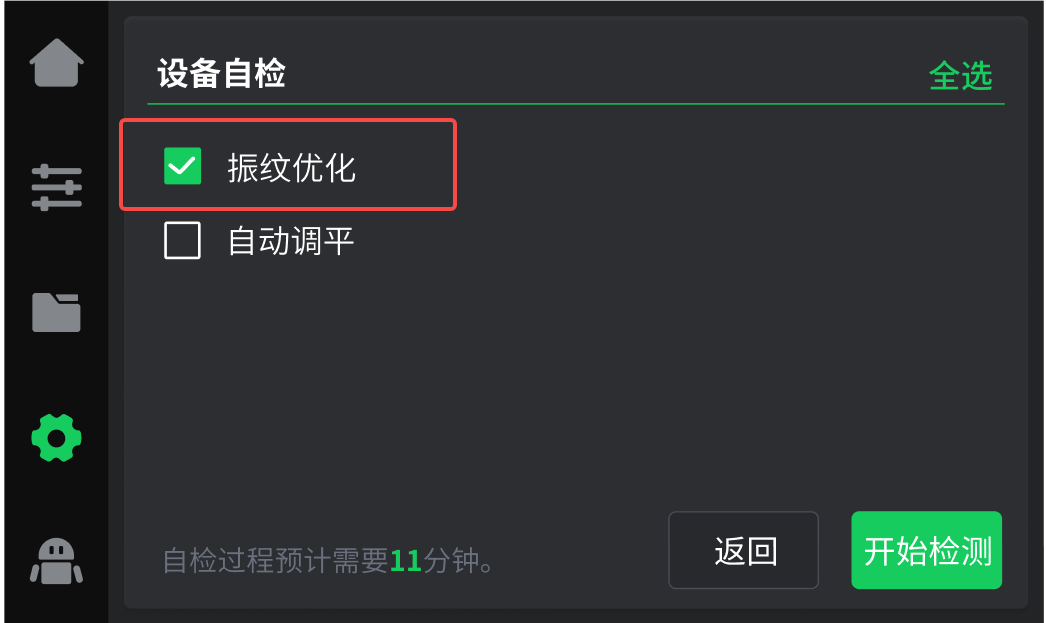
Prolonged use may loosen belts or shift the cutter’s position, affecting print quality.
- When to Maintain: Run input shaping calibration monthly.
- How to Maintain: Ensure no filament is loaded, navigate to Settings > Device Detection, select input shaping, and start calibration.
6. Nozzle Wiper Module
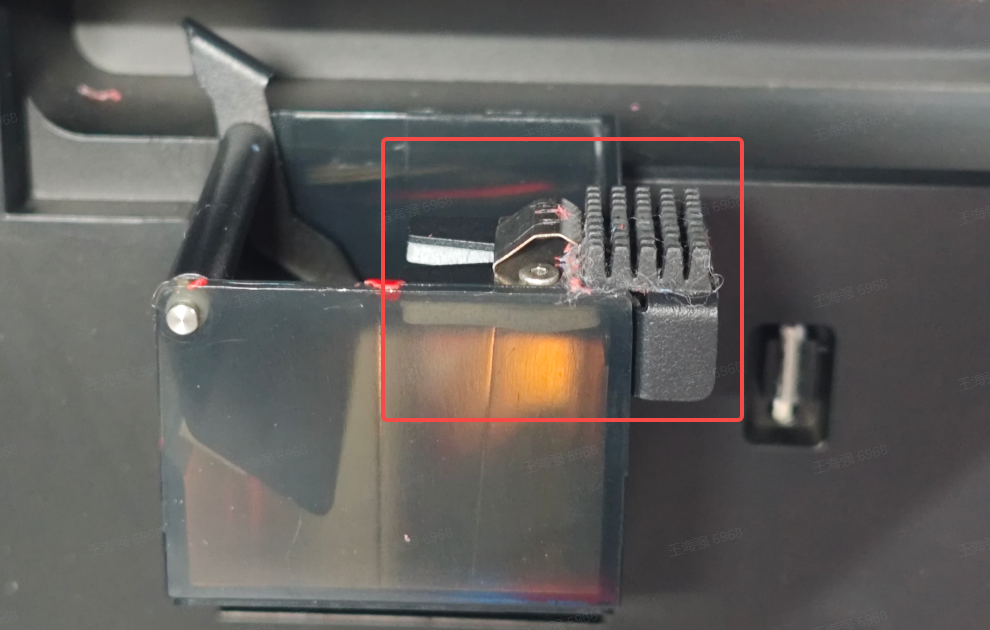
The wiper keeps the nozzle clean for optimal performance.
- When to Maintain: Daily: Check the metal wiper spring. Weekly: Inspect silicone adhesive strips.
- How to Maintain: Replace damaged wiper modules or silicone strips as necessary.
7. Cameras
K2 Plus features two cameras for monitoring and calibration that require regular cleaning.
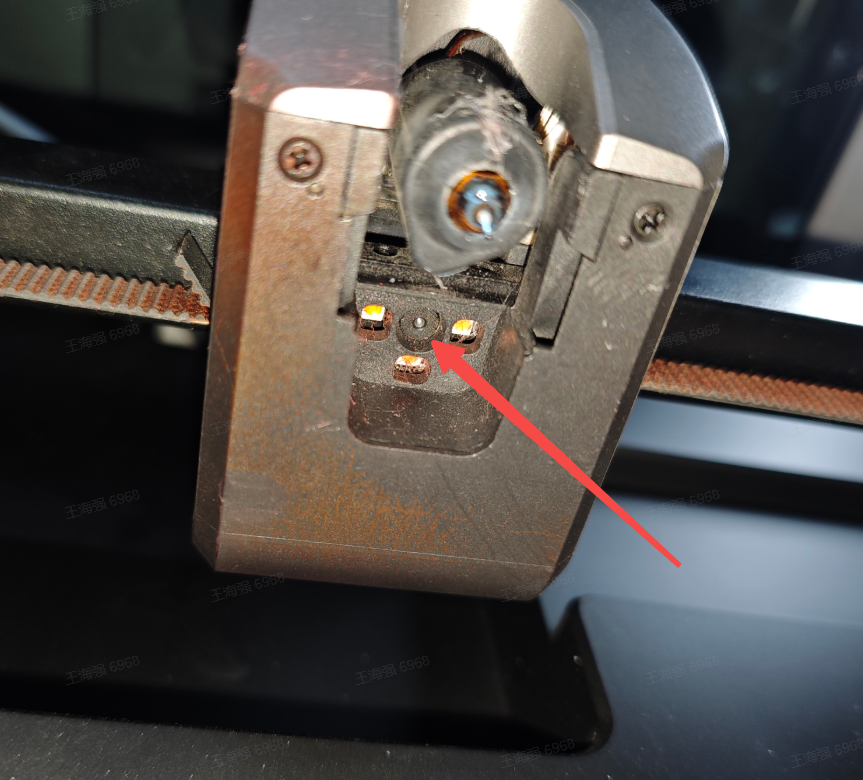
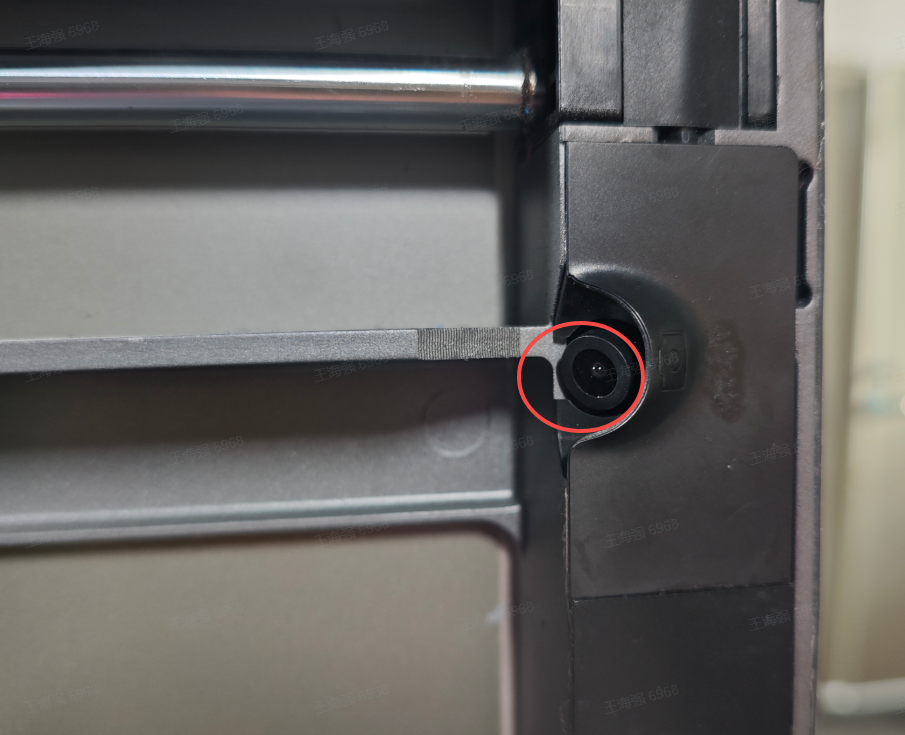
- When to Maintain: Clean weekly or when video clarity reduces, especially during ABS printing.
- How to Maintain: Gently wipe with a lint-free cloth and alcohol.
8. Fans
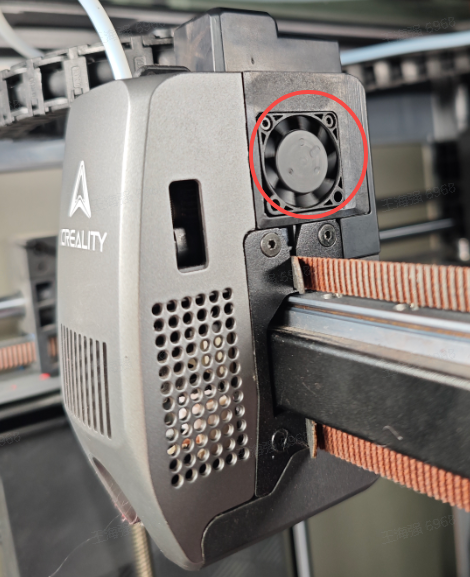
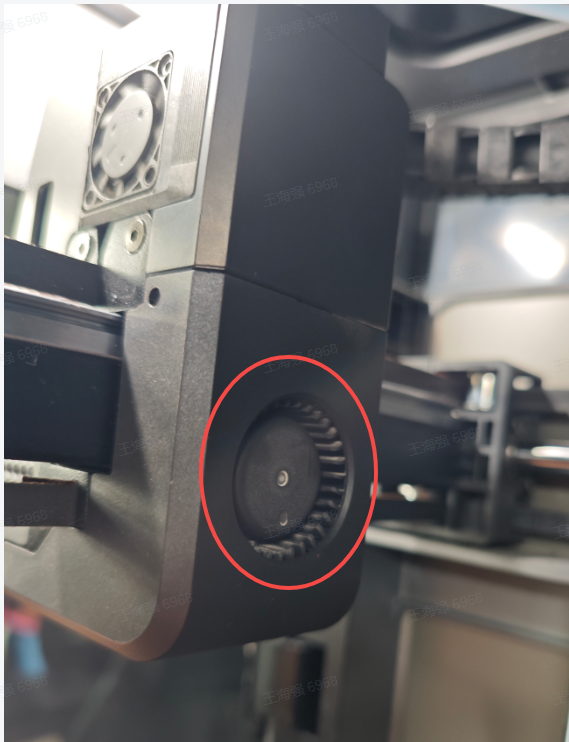
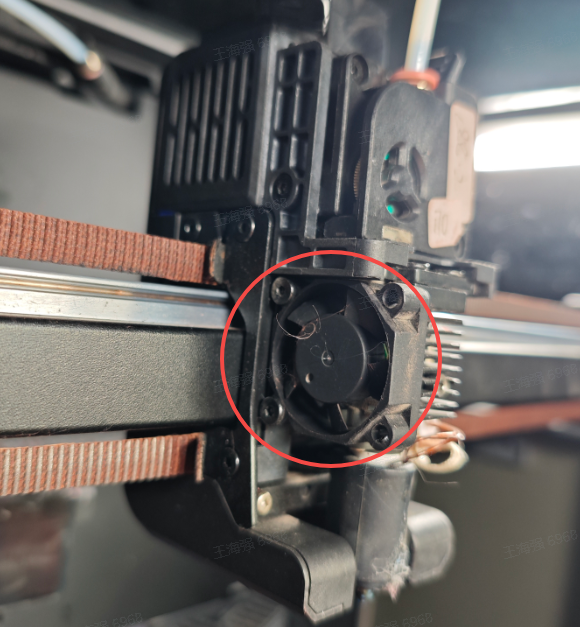
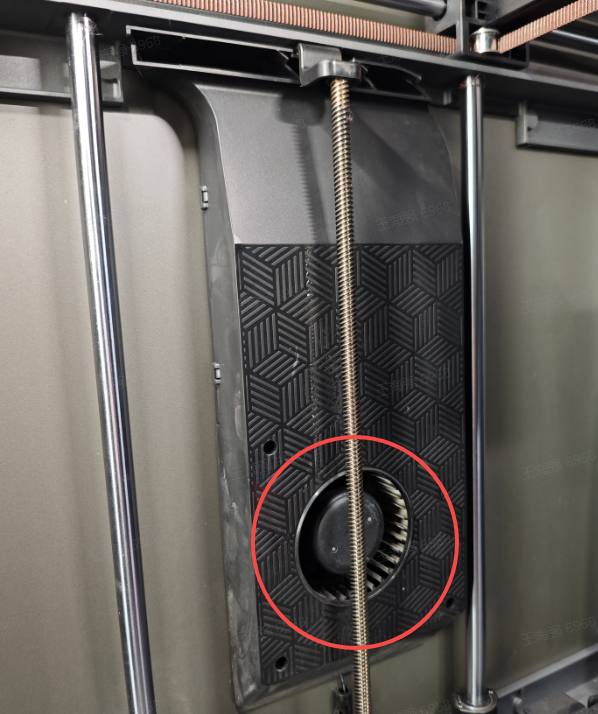
Ensure proper airflow by cleaning the extruder motor, model fan, pipe fan, and auxiliary fans.
- When to Maintain: Inspect weekly for dust and debris.
- How to Maintain: With the printer powered off, use tools to remove dust and ensure smooth operation.
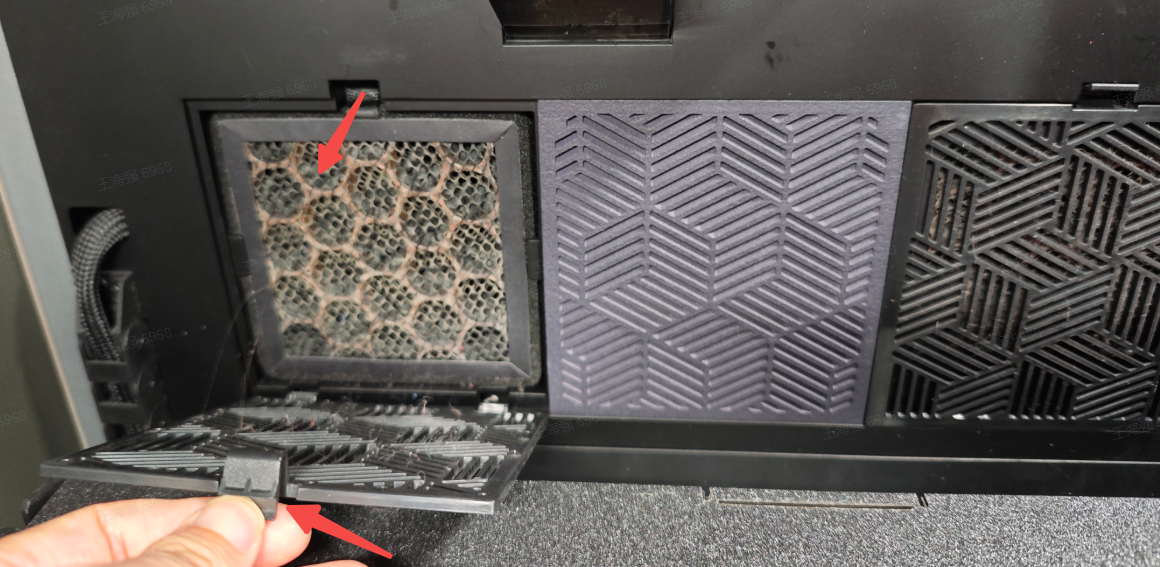
9. Air Filter Cartridge
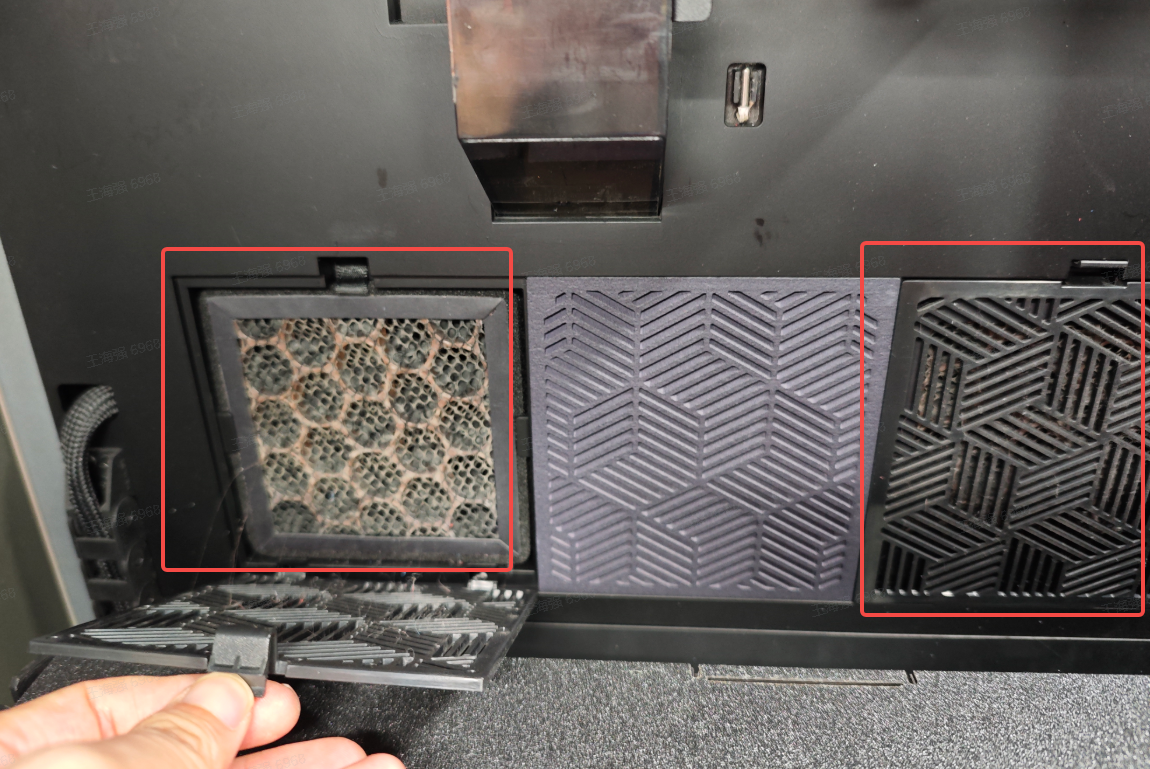
Replace the activated carbon filter regularly to maintain air quality.
- When to Maintain: Replace every 3 months if printing 8 hours daily, or monthly for frequent use.
- How to Maintain: Open the air filter cover, remove the old cartridge, and replace it.
10. Why Regular Maintenance is Crucial
Maintaining your Creality K2 Plus ensures:
- Consistent print quality.
- Prevention of hardware malfunctions.
- Longer lifespan of components.
Make a habit of these maintenance checks to get the most out of your K2 Plus. For more details, visit Creality’s official K2 Plus product page.
For more Creality 3D Printer, you can click the related articles as follows:
Recent News

8 Halloween 3D Print Ideas to Make Before October 31

Ender Series 3D Printers Parameter Comparison

Creality Back-to-School Sale 2026: Save Up to 50% on 3D Printers and More
