


K1C Troubleshooting: Common Problems Solution
We have already offered detailed problem-solving guides for the K1 and K1 Max, covering error code fixes, accessory replacements, and troubleshooting. While the K1C shares similarities with the K1 and K1 Max, it also has distinct differences. In this guide, we'll address the specific issues of the K1C, providing solutions to help users achieve optimal printing results.
Creality K1 3D Printer Troubleshooting
Creality K1 Printer Fault Codes List
Handling Issues with Printing Non-Circular Cylinders
1. Phenomenon description
Printed cylinders at 45° orientation have oversized or undersized dimensional measurements.
Printed cubes have diagonals of unequal length.
2. Cause analysis
2.1 Inconsistent XY Belt Tension
2.2 XY Upper Frame Deformation
2.3 Incorrect Vibration Compensation
2.4 X/Y Axis Movement Not Smooth
3. Troubleshooting and solution
3.1 Tuning based on reference moire pattern optimization.
3.2 Please refer to the second part of the layer pattern processing video for belt tension adjustment (starting at 38 seconds):
3.3 Use a square ruler to measure if the frame is deformed.
3.4 Push the print head along the X-axis to check for smooth operation. If it is not smooth, clean the residual black graphite substance on the guide rail with a dry towel. The X-axis guide rail requires a thinner lubricant or metal anti-rust oil, and regular maintenance should be performed on the guide rail. The Y-axis uses a ball bearing bronze bushing, which can be lubricated with oil or grease to ensure smoother operation.
XY Axis Belt Tension
- Inspect the X and Y axis drive components, check if the M3*12 screws on both sides have been removed. If not, use the 2.0 hex wrench from the tool kit to remove them. Also, use the 2.0 hex wrench to loosen the four M3*16 flat head hex screws on both sides, allowing the springs to fully tension. After tensioning, tighten the four M3*16 screws to ensure that the tension of the two belts is consistent (when the two belts are together, the tension is 5.5-6.5N).
- Inspect the X and Y axis drive components, there are no M3*12 screws on both sides. Loosen the four M3*16 screws on both sides, use the Allen wrench to hold the screws and move them to the sides, and then tighten the M3*16 screws. Ensure that the tension of the two belts is consistent (the tension is 5.5-6.5N when the two belts are stuck together).
K1C Automatically Restarts While Heating
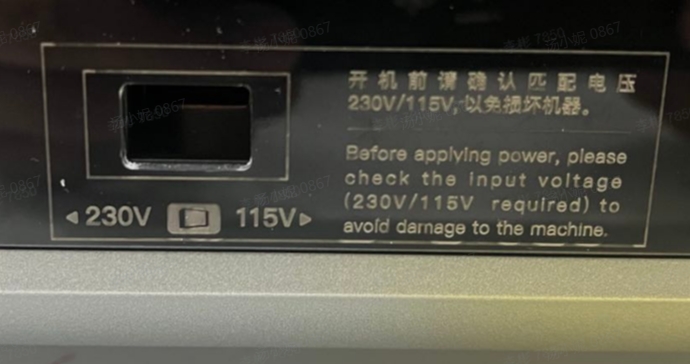
1. Phenomenon description
When the machine is heating by self-test/printing while heating, the device automatically restarts.
2. Cause analysis
- The voltage level is not adjusted properly and does not match the local voltage.
- Insufficient switching power supply
- Nozzle kit short circuit
- Hotbed short circuit
- Mainboard problem
3. Troubleshooting and solution
3.1 Check whether the switching power supply voltage is consistent with the local voltage.
3.2 Heat the nozzle or hot bed separately to see which part is being heated and which will restart (during self-test, you can check the interface display to confirm which part is being heated and which will restart)
For example:
A. Restart, while heating the hotend kit, unplug the nozzle kit cable to do a heating test.
- After unplugging, heating is normal, but the machine reports an error and the device does not restart - nozzle kit problem, reissues the nozzle kit
- Heat or Re-start after unplugging?----Mainboard or Power Supply problem (Before heating, use a multimeter to measure the power supply voltage of the mainboard. It is always 24V when the machine is started. Check whether 24V is stable when the machine is restarted immediately. Unstable power supply problem. Stability is the mainboard problem)
- After unplugging, the heating is normal, but the machine reports an error and the device does not restart - Hotbed problem, reissues the hotbed kit.
- Heat or Re-start after unplugging?---Mainboard or Hot bed problem (Before heating, use a multimeter to measure the power supply voltage of the mainboard. It is always 24V when the machine is started. Check whether 24V is stable when the machine is restarted immediately. Unstable power supply problem. Stability is the mainboard problem)
Z-axis Abnormal Noise Handling Procedure
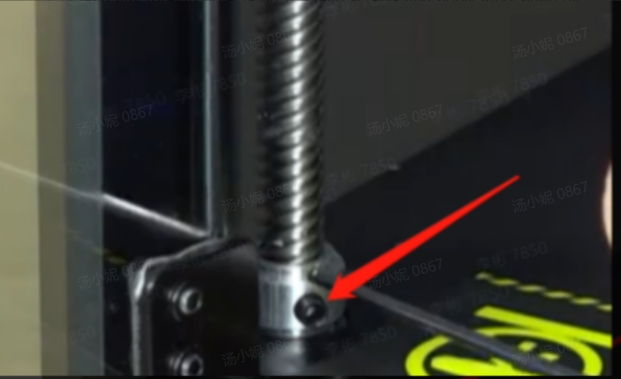
1. Phenomenon description
Z-axis elevation abnormal noise during printing
2. Cause analysis
- Threaded rod deformation.
- There are obstructions on the pressure stem that cause abnormal noise.
- Noise when climbing
- The platform has severe tilting problems.
- Threaded rod limit sleeve loose/not properly installed
- Z-axis motor mounting screw loose
3. Troubleshooting and Solutions Step-by-step
3.1 Check and handle filament entanglements
- Check that the three Z-axis lead screws are not bent or deformed.
- Clean any foreign matter from the lead screws and apply lubricating oil.
- Check the flatness of the heated bed to see if there is any tilt, and then adjust according to the video.
- Manually move the filament rod up and down and check for looseness. Refer to the K1 Layer Pattern Troubleshooting (Part One) post-sale tutorial.
- Disassemble the base plate of the machine, and reassemble and tighten the fixing screws of the Z-axis motor.
K1C AI Camera Can't be Detected
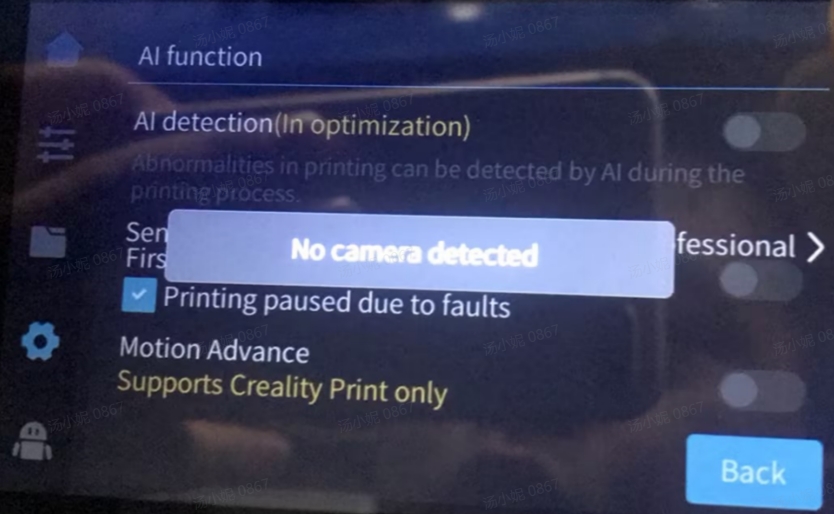
1. Phenomenon description
- Click on System Settings - AI Function - Open AI Detection, the screen displays "No camera detected".
- Upon checking through the PC Local Area Network from Crelaity Print, the camera feed displays "IP has denied our connection request".
2. Cause analysis
- Camera module is abnormal.
- The camera's drag chain or its terminal interface is loose.
- The mainboard is abnormal.
- The machine's cavity temperature is too high
3. Troubleshooting and Solutions Step-by-step
- Reinstall new camera.
- Reinstall the camera's drag chain wire.
- Change the mainboard.
- Check the machine's cavity temperature if the problem occurs. If the temperature is higher than 30 degrees, customers do not close the cover and door when printing (except when printing high temperature materials such as ABS). If a problem occurs when printing ABS materials in a closed environment, it can be explained by the cavity temperature being too high. Such problems will not occur when printing ordinary filaments without a cover (firmware version 1.3.3.26 has a detection function for the camera, it will prompt when the cavity temperature is too high. R&D is also testing the function of adding a heat sink to the camera to optimize heat dissipation).
After checking the above steps, if the problem still cannot be solved, please contact after-sales service cs@creality.com
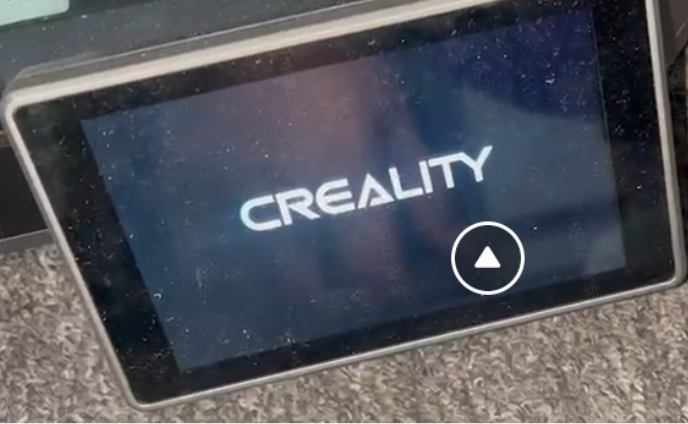
Stuck at the LOGO interface when Printer Boots
1. Phenomenon description
K1C stuck in LOGO screen after booting, no response
2. Cause analysis
- The module is faulty
- The firmware is damaged
- The mainboard is abnormal.
- The mainboard is faulty
3. Troubleshooting and Solutions
- Disconnect all connection cables from the main board, leaving only the 24V power cable and the touch screen cable. Turn on the power to test if the main interface can be accessed. If so, connect each terminal one at a time and determine which terminal is connected to the LOGO interface.
- See the brick tutorial. Reflash the mainboard firmware
- If the firmware cannot be reflashed or the tutorial does not work after wire brushing, replace the motherboard.
K1C Y-axis Front End Gap Difference, Homing Abnormal Sound
1. Phenomenon description
The Y-axis front end gap is different. When the Y axis returns to homing, the sound is louder than the X axis homing sound.
2. Cause analysis
- Frame deformation.
- The two belt lengths are different
3. Troubleshooting and Solutions Step-by-step
3.1 Measure the Frame
Use an L-square to measure whether the frame is 90 degrees.
3.2 Check the belts
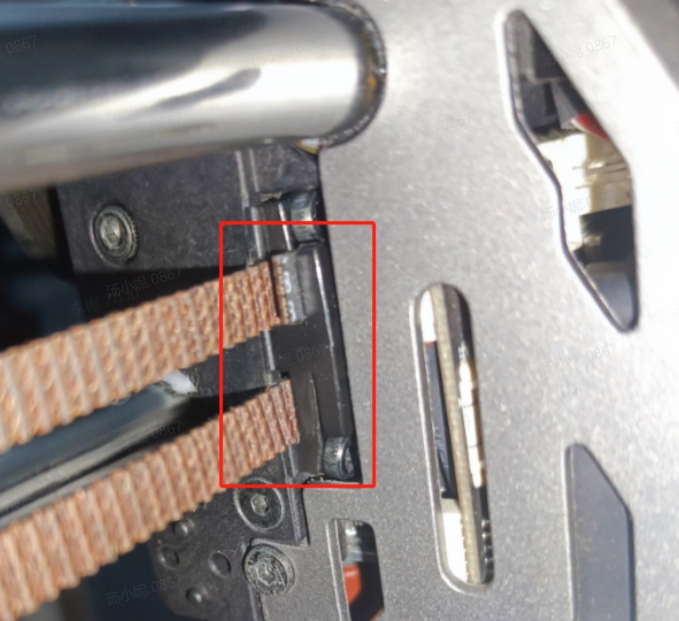
- Compare the length of the two belts and adjust them to the same length if they are not the same (see the K1 MAX after-sales video for replacing the X and Y axis timing belts).
- Check that the number of exposed teeth on both sides of the belt's pressure plate are the same. If they are not the same, reinstall them (see picture).
Recent News

8 Halloween 3D Print Ideas to Make Before October 31

Ender Series 3D Printers Parameter Comparison

Creality Back-to-School Sale 2026: Save Up to 50% on 3D Printers and More
